

Workspace View
An open workspace has the workspace panel on the right, the 3D view in the middle and the scenes rail on the left.
The panel's 6 tabs are the workspace's main menus:
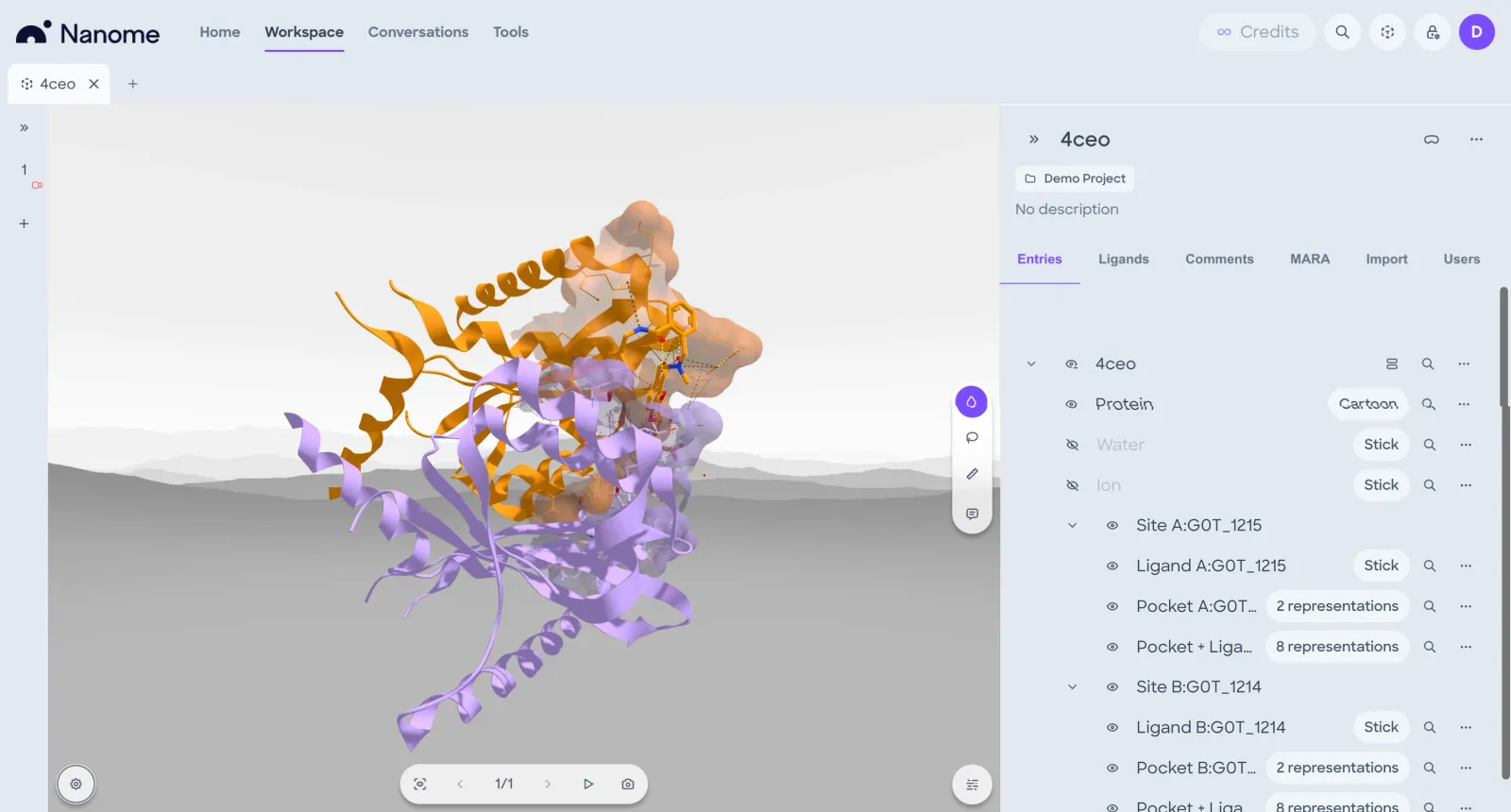
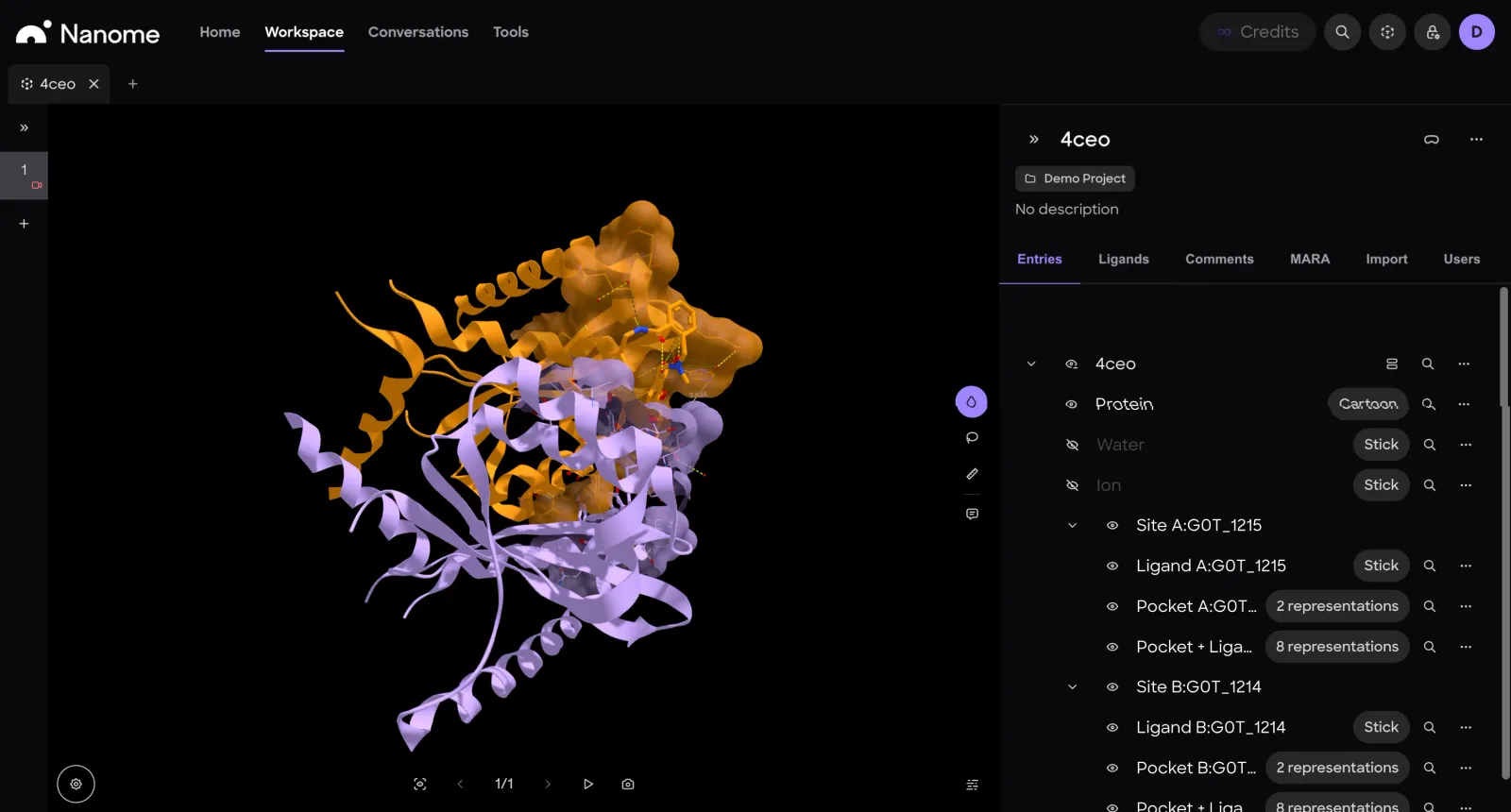
Workspace panel
The panel shows the workspace name, project and description above its 6 tabs. Its header has these buttons:
- Collapse panelAt the top of the panel: collapses it to give the viewer more room.
- Open in XRSends this workspace to Nanome XR on your headset. With other people in the headset's session, it asks whether to load it just for you or for everyone.
- More (...)Open in new tab, Edit info, Copy shareable link, Duplicate, Open in XR, Move to project, Export analysis and Delete. If you don't own the workspace or its project, Leave takes the place of Delete.
MARA tab
The MARA tab is a MARA chat inside the workspace, beside the 3D view.
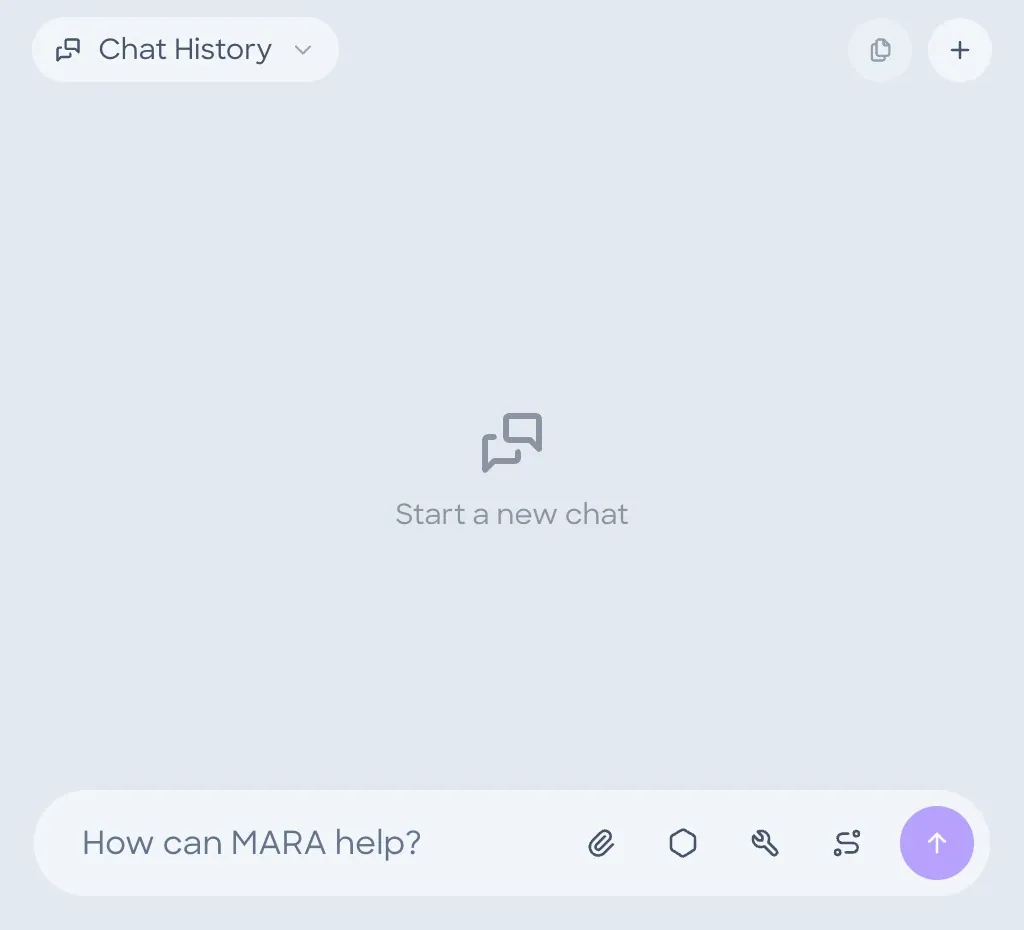
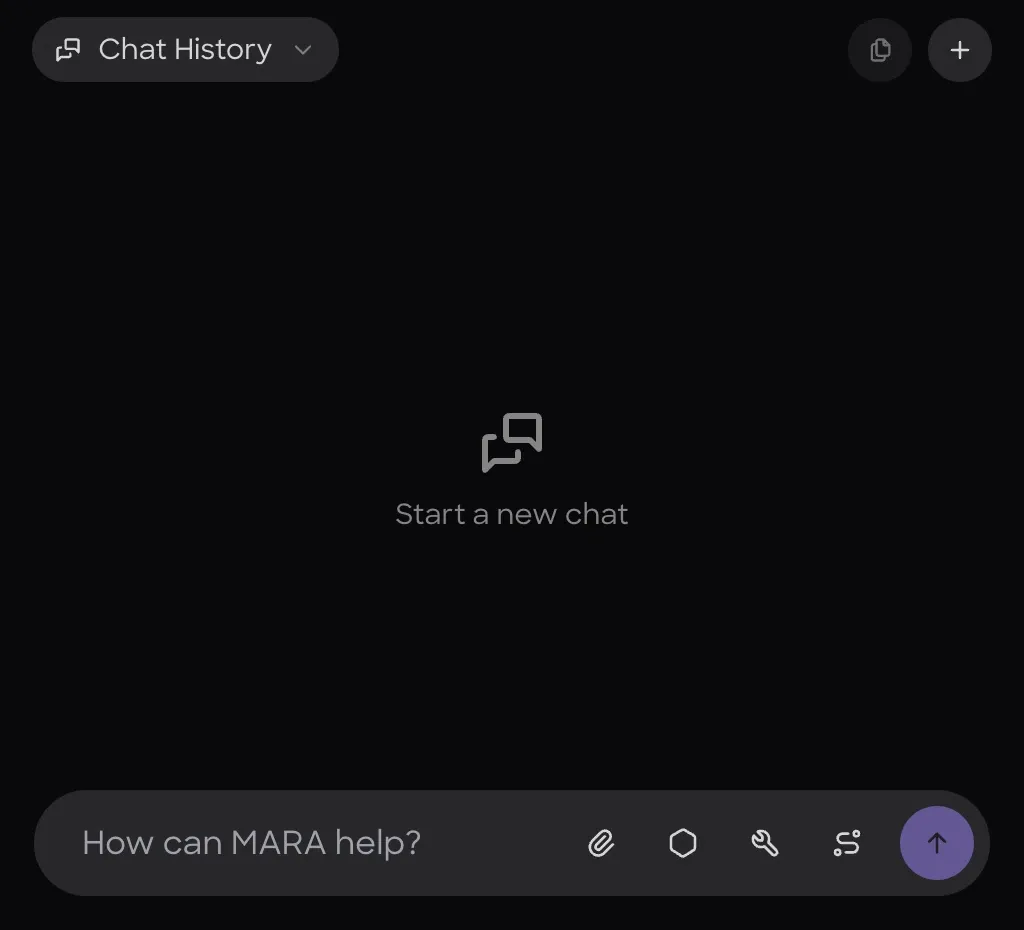
- Chat HistoryThe chats started in this workspace.
- FilesThe current chat's files. Grayed out until a chat is open.
- New ChatStarts a new chat.
- Attach fileAdds a file to your message.
- Draw SMILESOpens Sketch Molecule, to draw a structure.
- Run toolPicks a MARA tool to run.
- Run workflowPicks a workflow to run.
- SendSends your message.
Chats started here stay with this workspace, in its Chat History. MARA works on this workspace and the scene on screen, so "this scene" is enough in a question. Chats in a workspace compares them with chats on the Conversations page.
More on what MARA can do is in the MARA section.
Tool rail
The 4 buttons on the right edge of the viewer choose what a click in the 3D view does. Hovering a button names it.
The Selection and Measurement tools show their modes in a bar at the bottom of the viewer, in place of the scene controls. Exit tool at the end of the bar goes back to the Default tool.
A click only counts when the mouse moves 4 pixels or less between pressing and releasing the button. A longer drag turns or pans the view, so dragging never selects or measures.
Default
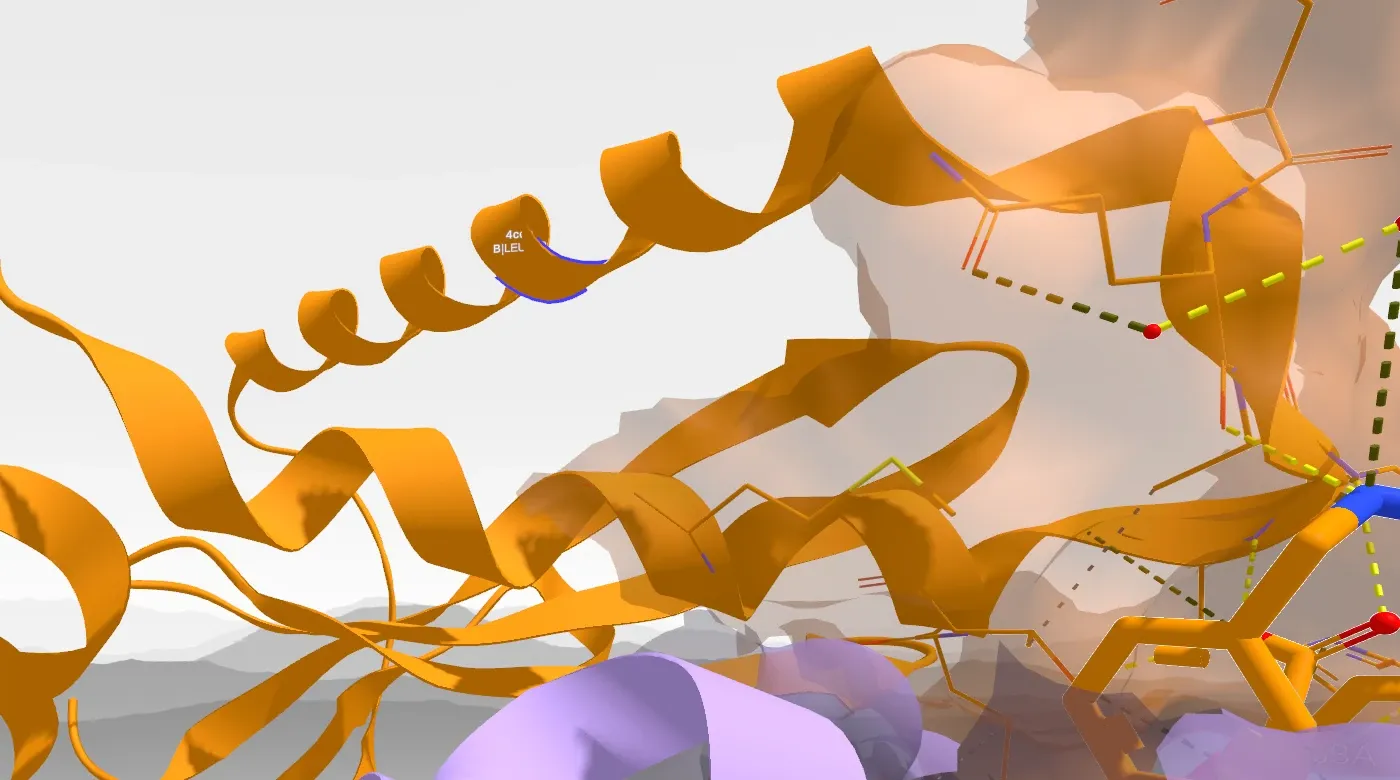
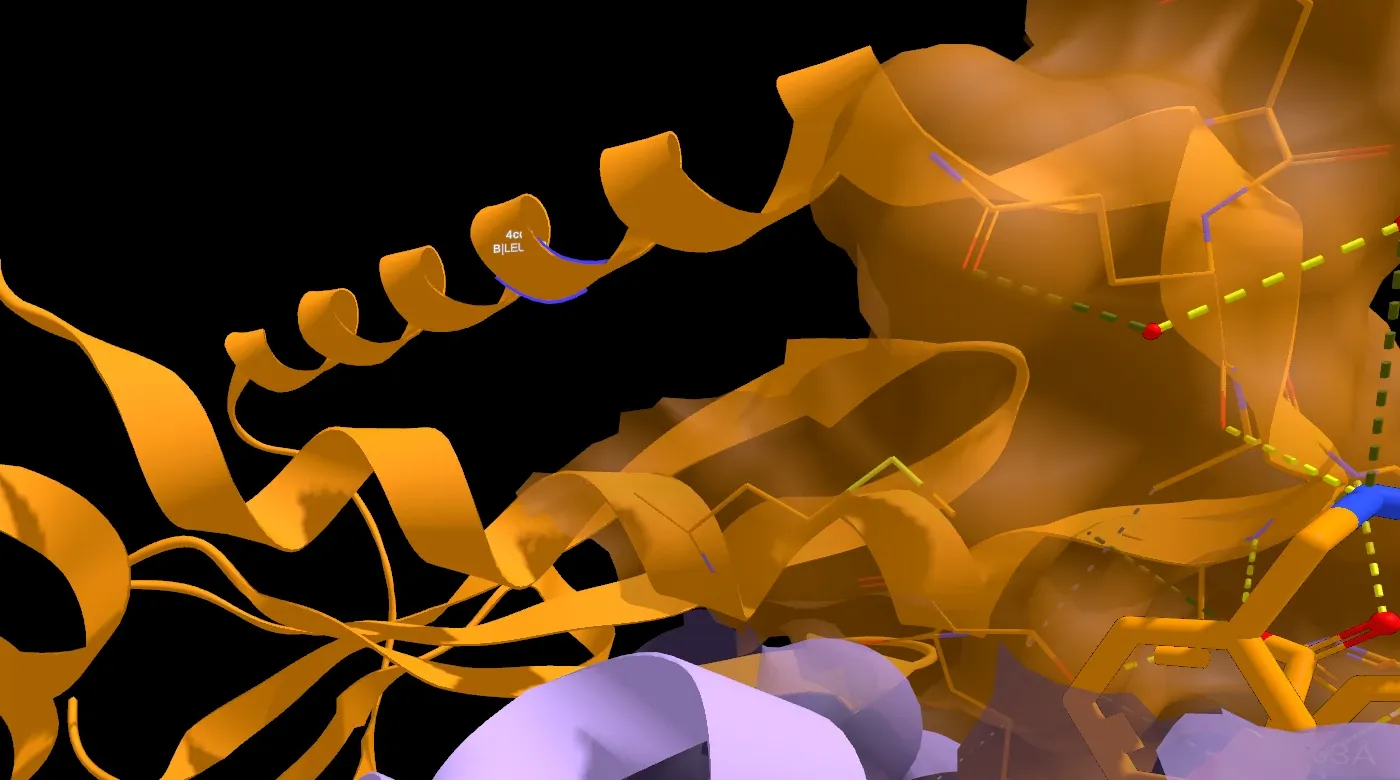
Hovering highlights the whole residue under the cursor, whether the cursor is on an atom, a bond or the ribbon. Clicking adds that residue to the selection, or removes it when it's already selected. Clicking empty space clears the selection, and double-clicking zooms to a residue or an entry.
- Hovered residueOutlined in blue. Its label gives the entry name, then the chain, residue and residue number, such as A|GLY'59. On an atom, the label adds the atom name.
The Default tool works like the Pointer in Nanome XR.
Selection tool
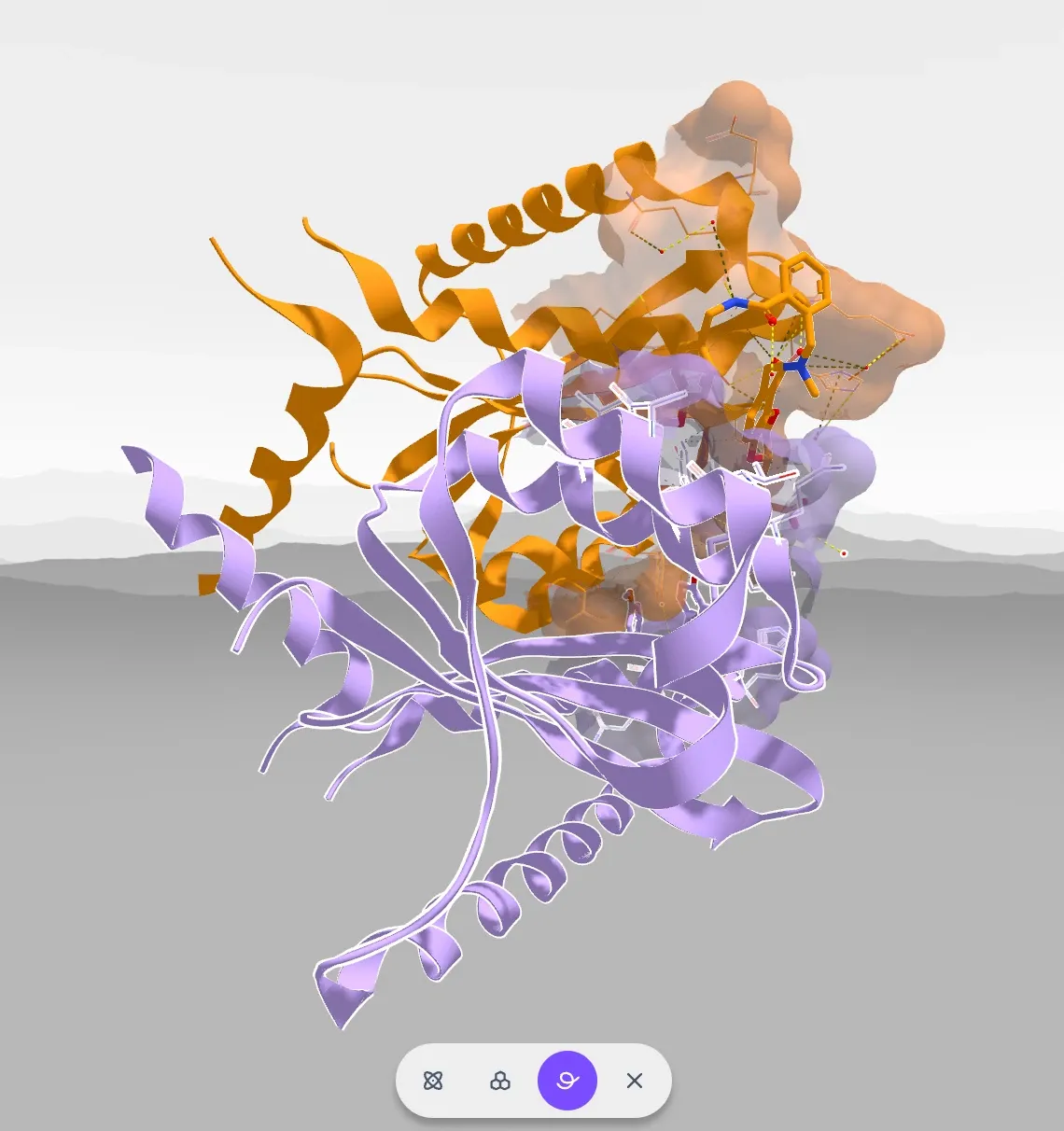
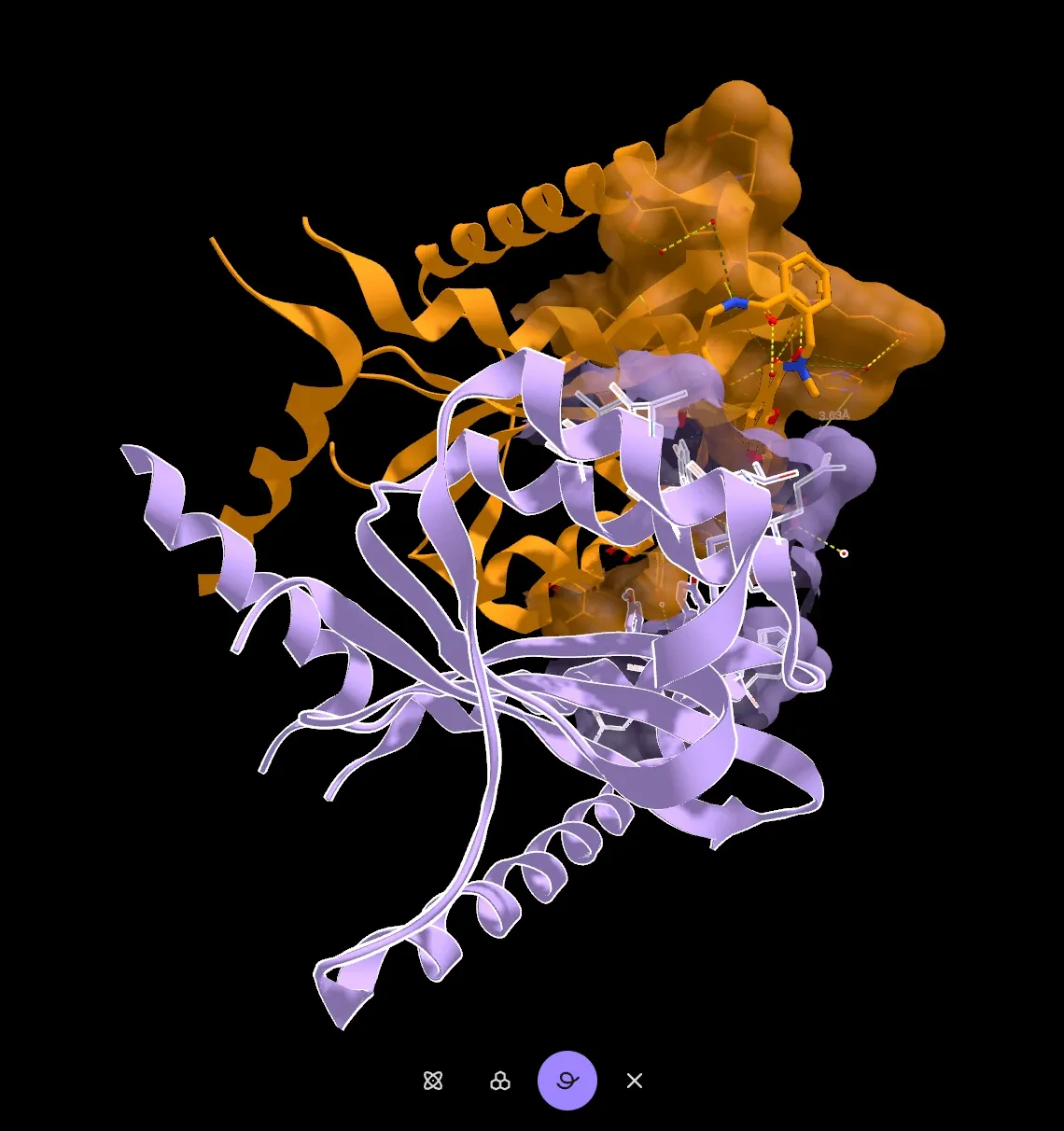
The Selection tool picks atoms at the level set in the bar:
- AtomOne atom. The tool opens in this mode.
- ResidueThe whole residue.
- ChainThe whole chain.
- Exit toolGoes back to the Default tool.
Hovering outlines in blue what a click would pick. Clicking adds it to the selection, or removes it when all of it is already selected. Selected atoms are outlined in white. Clicking empty space clears the selection.
Rotation and zoom pivot on the selection. The sequence viewer selects residues too, and its Create button turns the selection into a component.
In Nanome XR, the Selection Tool can also select by dragging over atoms. In Nanome Web a drag turns the view.
Measurement tool
The Measurement tool measures between atoms. The bar sets what it measures:
- DistanceClick 2 atoms. The distance, in ångströms to 2 decimal places. The tool opens in this mode.
- AngleClick 3 atoms. The angle at the second atom, in degrees to 1 decimal place.
- DihedralClick 4 atoms. The torsion angle around the bond axis from atom 2 to atom 3, in degrees from 0° to 180°, to 1 decimal place.
- DeleteRemoves the measurement that's clicked.
- Exit toolGoes back to the Default tool.
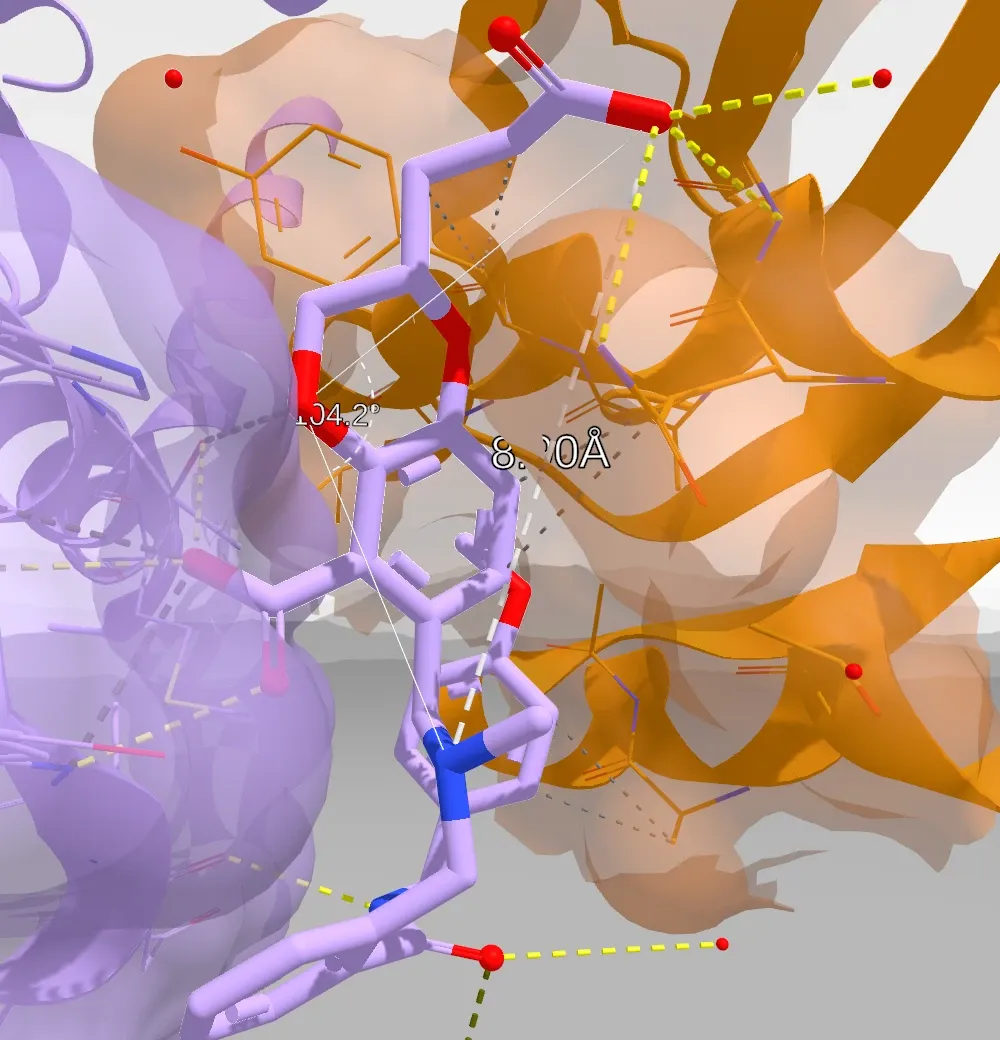
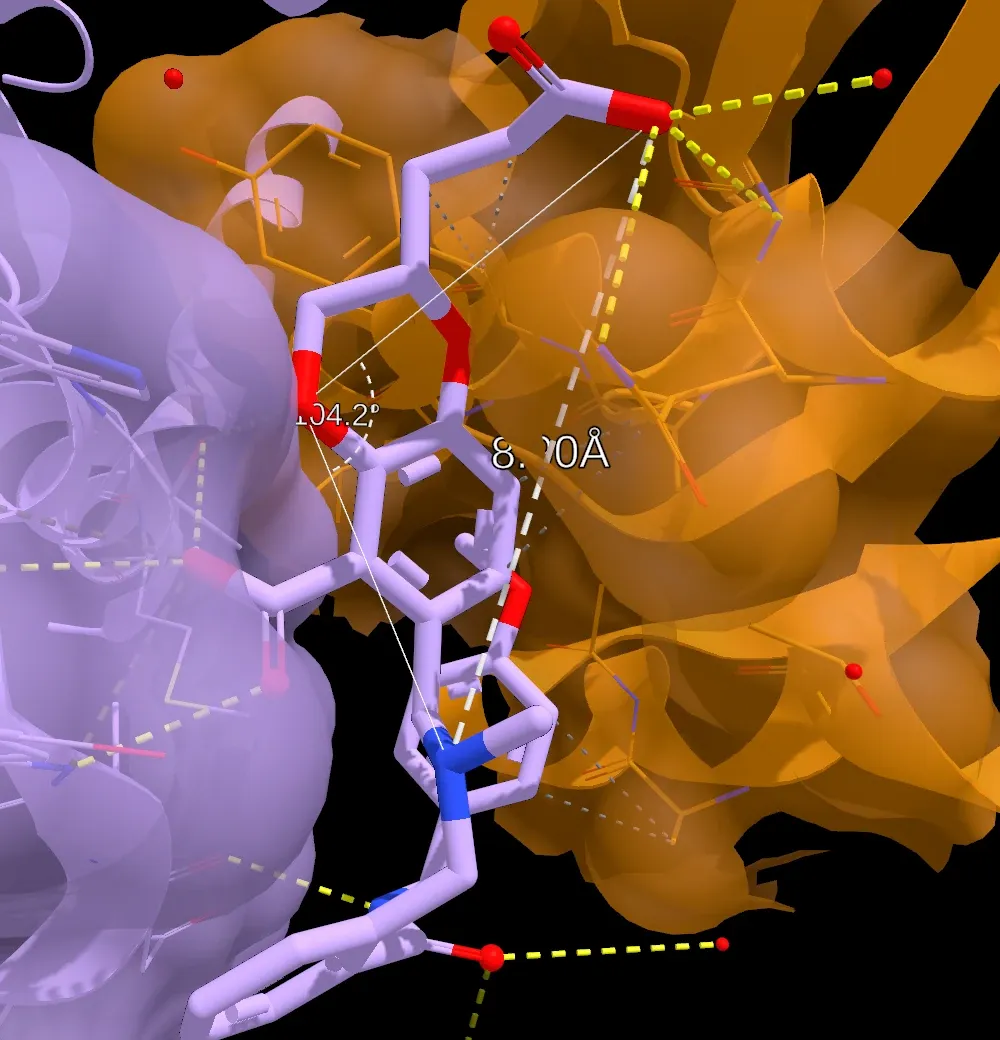
- Hovering an atom rings it and labels it with the entry, chain, residue and atom name.
- After the first click, a dashed line follows the cursor and shows the value live. In Angle mode an arc marks the angle at the second atom.
- The last click completes the measurement. Finished measurements stay drawn in the viewer with their values.
- AngleThe value sits beside the second atom, with lines to the other two.
- DistanceThe value sits at the middle of the dashed line.
- Clicking empty space, or an atom that's already picked, cancels the measurement in progress.
- Only atoms can be picked, so bonds and ribbons don't get in the way, and hidden atoms can't be measured.
- Measurements are saved in the current scene, so everyone in the workspace sees them, in Nanome Web and in Nanome XR. Saving one needs Editor access.
- Export analysis, in the workspace's More (...) menu, includes them in its CSV files.
Nanome Web draws measurements the same way as Nanome XR. A distance, an angle and a dihedral look like this:
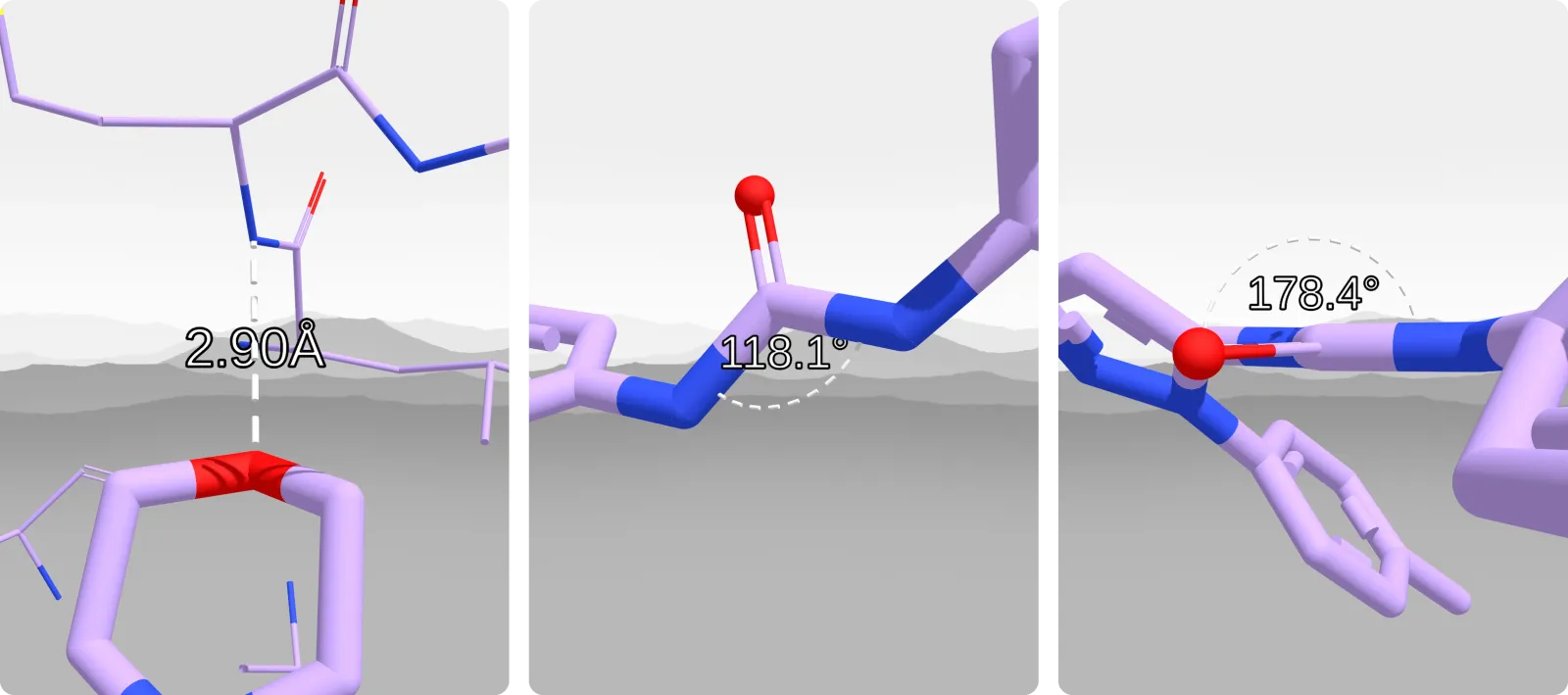
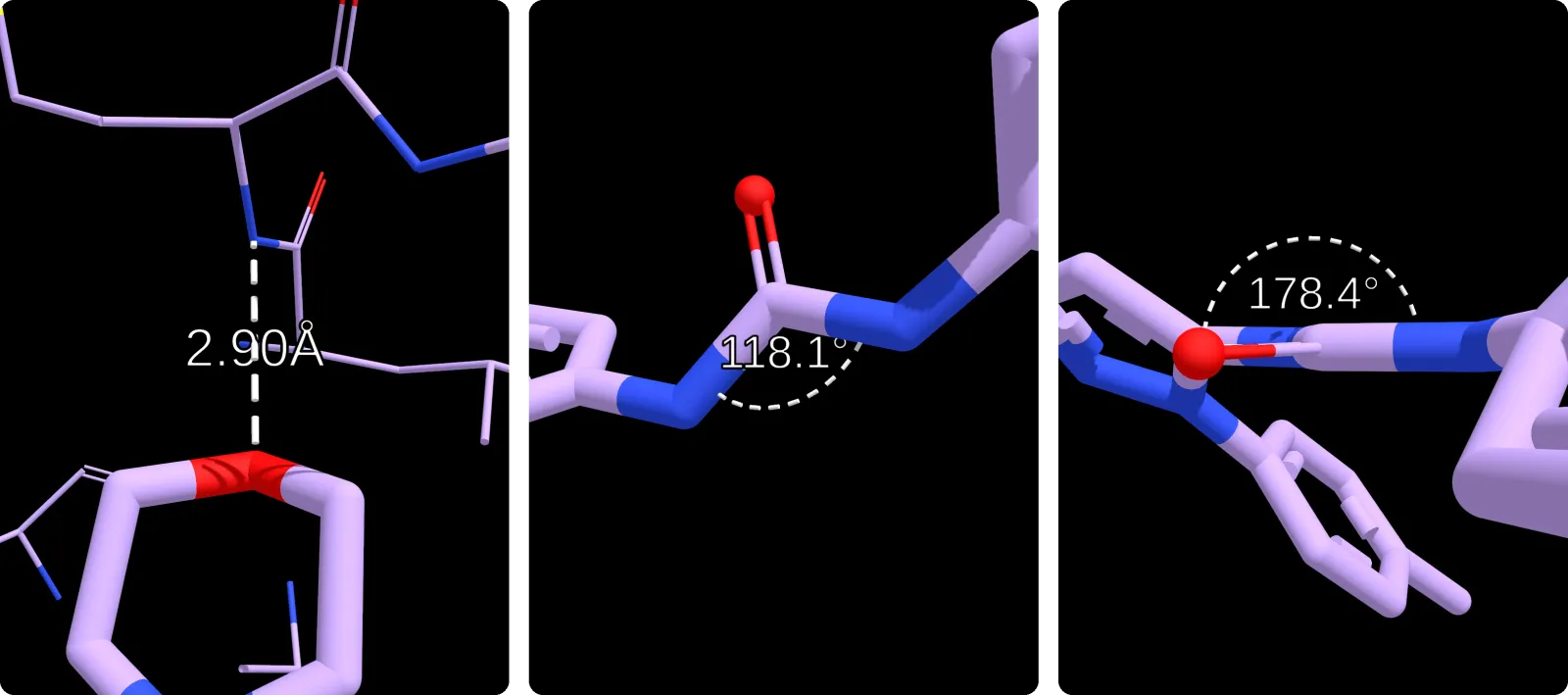
- Distance2 atoms, in Å.
- Angle3 atoms, measured at the second atom, in degrees.
- Dihedral4 atoms: the torsion around the axis from atom 2 to atom 3, in degrees.
In Delete mode, hovering a measurement turns it red, and clicking removes it.
How the tool picks More detailLess detail
- Between clicks, the dashed line ends at the hovered atom. Away from any atom, it follows the cursor at the depth of the first picked atom.
- In Delete mode, the cursor picks the measurement whose lines pass closest to it, within 12 pixels on screen.
Add a comment
Starts a comment from the 3D view, as described on Comments.
Moving around
Mouse and touch controls in the 3D viewer:
- Left-drag. On a touch screen, a one-finger drag.
- Right-drag. On a touch screen, a two-finger drag.
- Scroll wheel. On a touch screen, pinch.
- Double-click it.
Rotation and zoom pivot on the current selection, or on the highlighted residue under the cursor, so the part being inspected stays in view.
While you're following someone, dragging still turns or pans the view. When you let go, the view eases back to theirs.
Pivot and double-click details More detailLess detail
- Rotation and zoom turn around the center of the selection. With nothing selected, they turn around the center of what's highlighted under the cursor, such as the hovered residue. With nothing under the cursor, they turn around a point in the middle of the view.
- The scroll wheel keeps the same pivot until scrolling pauses for 0.5 seconds, so the view doesn't jump as other residues pass under the cursor.
- Double-clicking frames what's highlighted under the cursor: the residue with the Default tool, or the atom, residue or chain with the Selection tool. Double-clicking inside an entry's bounding box, but off its atoms and ribbon, frames the whole entry, as long as the box covers less than 75% of the view.
Bottom bar
The bottom of the viewer has Settings on the left, the scene controls in the middle and Sequences on the right.
- SettingsThe viewer settings.
- Set point of viewSaves the current view as the point of view of the active scene.
- ‹ 1/1 ›Steps to the previous or next scene. The number shows the active scene and the total.
- Play scenesPlays through the scenes in order.
- Capture imageOpens the Capture Image card, with sizes from Single column (1050 × 788) to 8K (7680 × 4320) and switches for Include annotations and Include background. Capture saves the image.
- SequencesOpens the sequence viewer, at the bottom right.
Viewer settings
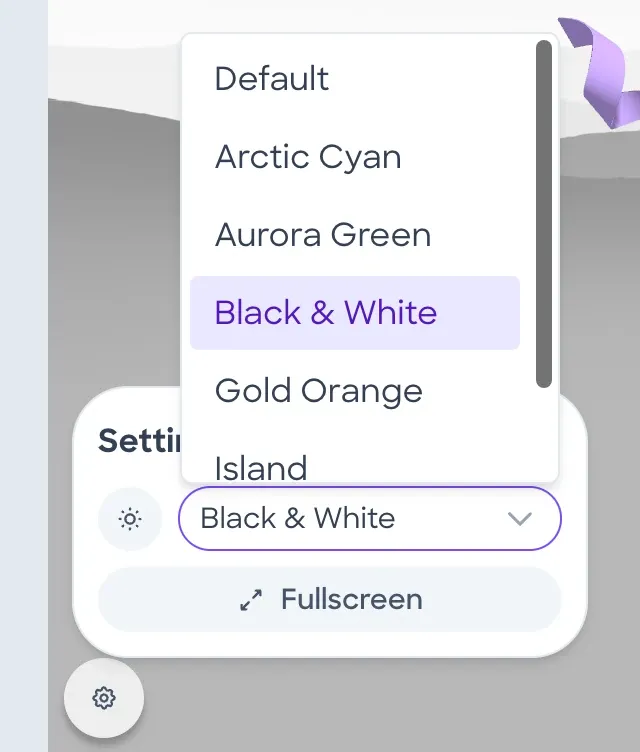
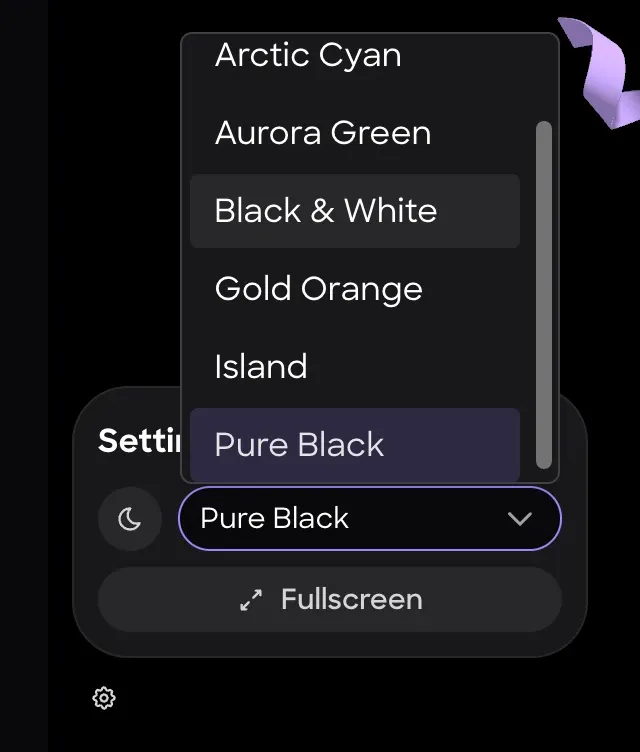
- SettingsAt the bottom left of the viewer: opens the settings card.
- Toggle night/day skyboxSwitches the theme between its day and night versions.
- ThemeDefault, Arctic Cyan, Aurora Green, Black & White, Gold Orange, Island or Pure Black.
- FullscreenShows the viewer full screen.
The 7 themes match the themes in Nanome XR.
Environment themes
Since release 2.7 the background around the structures is a range of procedurally generated mountains in the colors of the theme, with a day and a night version of each theme. Nanome Web draws the same mountains as Nanome XR.
The copy of the theme settings below shows the viewer in each theme, by day or by night.
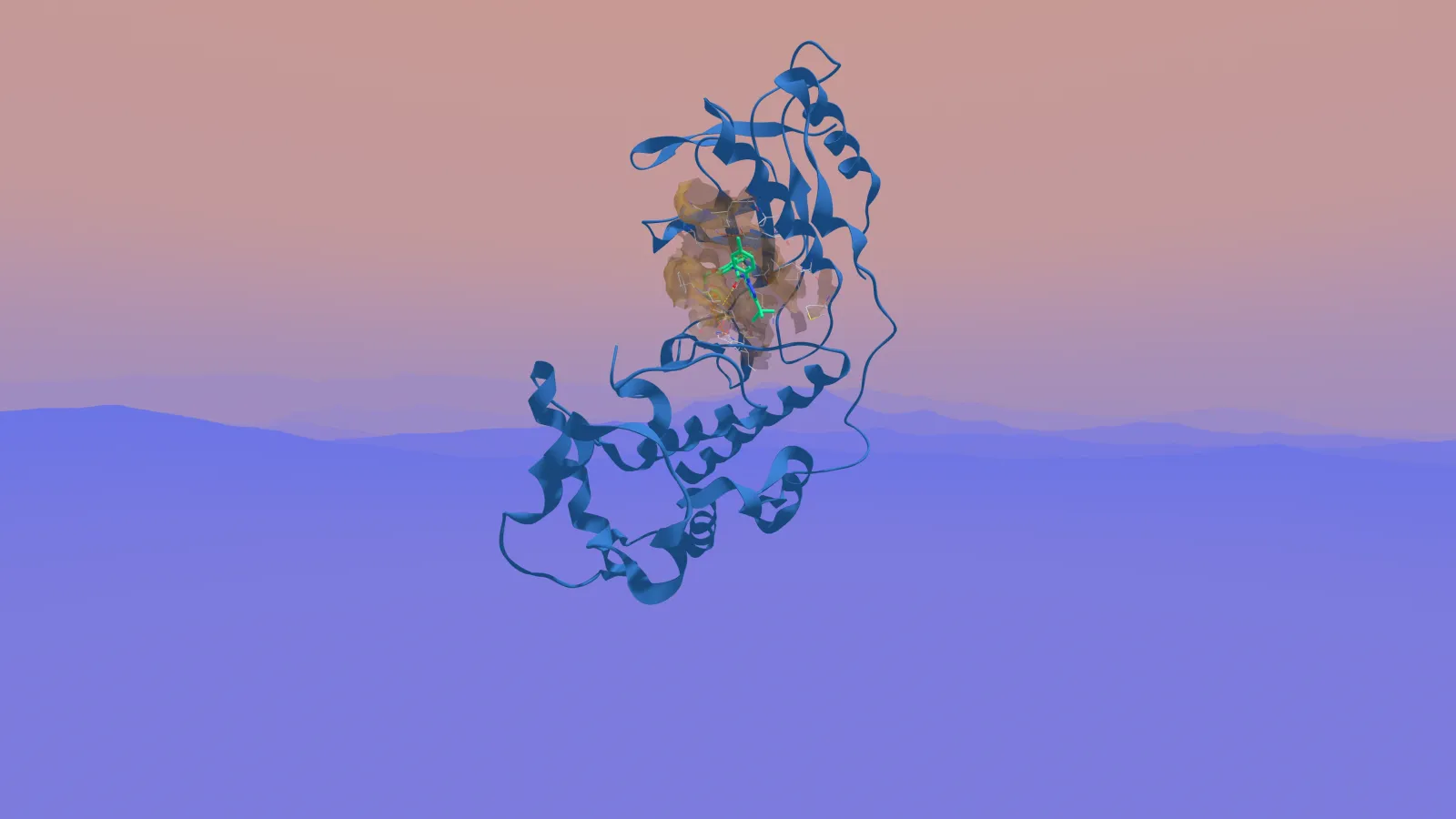
- Pure Black is plain black by day and by night.
- The theme and the day or night choice change only your own view. Other people in the workspace keep theirs.
- Nanome Web has no floor grid, so it has no Floor switch, and it doesn't show other people's avatars. The headset's floor, passthrough and avatars are on Environment.
How the mountains are drawn More detailLess detail
Each theme has a day palette and a night palette. A palette sets the colors of the sky from the top down to the horizon, the sun, and the ground near and far. Nanome draws layered mountain ridges in these colors into one panoramic image, with the farther ridges fading into the haze at the horizon. It redraws the image only when the theme or the day and night setting changes.
Sequence viewer
The Sequences button at the bottom right of the viewer opens the sequences of every entry in the workspace, one row per entry, with chain labels and residue numbers above the letters. Hovering a residue highlights it in 3D and names it at the top right of the sequence viewer (for example, 4ceo A: GLY 59). Clicking residues selects them.


- SequencesThe header, with the number of entries shown.
- CollapseFolds the sequence viewer away.
- Each entry's row starts with its name.
- The chain's letter, at the start of each chain.
- At the start of each chain, on numbers that are multiples of 10, and after a jump of 10 or more in the numbering.
- In gray: residues that are in the sequence but have no atoms in the structure.
- Empties the selection.
- Makes a component from the selection.
Scenes
A scene is a saved view of the workspace: its components, annotations, molecule positions and point of view. The rail lists scenes by number. A workspace holds up to 50 scenes and always keeps at least 1.
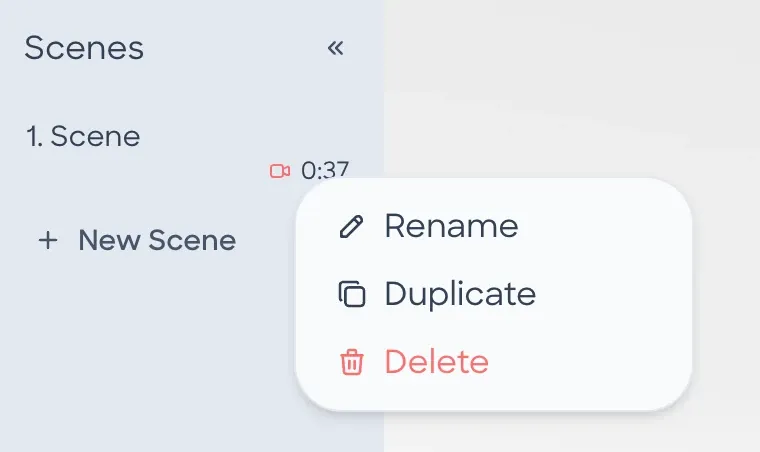
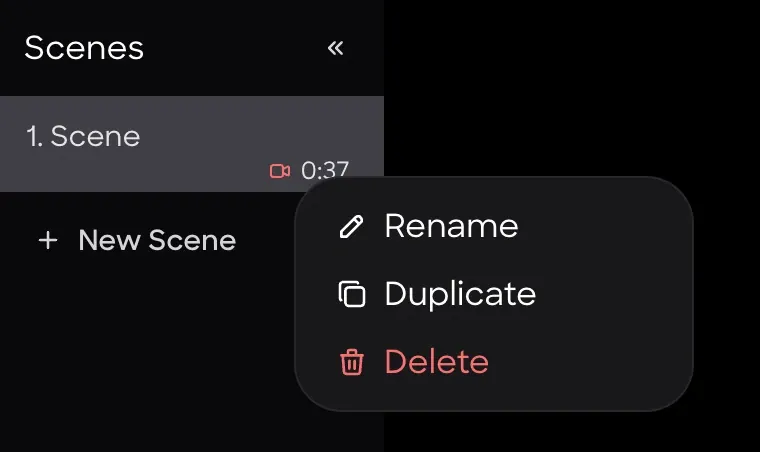
- Collapse / ExpandAt the top: narrows the rail to the scene numbers, or widens it again to show the scene names.
- SceneSelecting a scene switches to it.
- RecordingWith a time, such as 0:37, marks a scene that holds a recording and shows its length.
- New SceneAdds a scene, up to 50 per workspace.
- RenameRenames the scene.
- DuplicateAdds a copy of the scene right after it.
- DeleteDeletes the scene.
- A workspace opens on the scene you last viewed in it, or on its first scene.
- Switching scenes moves your view to the scene's point of view, and stops following anyone you were following.
- Creating, renaming, duplicating, deleting and reordering scenes (by dragging them in the rail), and setting a point of view, need Editor access.
Scene menu
Each scene's menu has Rename, Duplicate and Delete.
- Duplicate places the copy right after the original, with its components, annotations, recording, molecule positions and point of view. The copy counts toward the 50-scene limit.
- Delete removes the scene. The last scene in a workspace can't be deleted.
Point of view
Set point of view in the bottom bar saves your current view as the active scene's point of view. Switching to that scene, or opening the workspace on it, brings the view back there. Nanome Web always moves to the point of view when you switch scenes. In Nanome XR this can be turned off in the scene settings.
Playing scenes
Play scenes plays the scenes in order, starting from the current one, and switches to the Default tool.
- A scene without a recording stays on screen for 5 seconds.
- A scene with a recording plays it: the presenter's voice and pointer movements, and any moving, turning or zooming of the scene they did while recording. The next scene starts when the recording ends.
- Playback pauses at the end of the last scene.
Playback timing More detailLess detail
Each scene starts by moving the view to its point of view and pausing 0.8 seconds for it to settle. A scene without a recording then holds for 5 seconds. A scene with a recording lasts as long as its recording. A recording that moved, turned or zoomed the scene starts from the view it recorded, in place of the point of view.
Recordings
A scene can hold a recorded presentation, made in Nanome XR with Add Recording. The scene menu in Nanome Web has no recording options. A scene with a recording shows a red and the recording's length in the rail, and Play scenes plays it back.
Workspace tabs
- Workspace tabEach open workspace gets a tab under the top bar.
- New tabOpens another workspace tab.
Connection warning
When the ping to Nanome's server is 160 ms or more on 2 checks in a row (the app checks every 5 seconds), a yellow warning icon appears at the top left of the viewer. From 220 ms it turns into a red . Hovering it shows High ping and the ping time. A ping warning goes away after 3 checks in a row under 160 ms. The red icon also shows while the viewer reconnects after losing its connection to the session, and hovering it then shows Connection lost or Reconnecting.