

Account & Settings
The account menu sits at the right end of the top bar, under your initial. It shows your username and email, and links to the account pages. The last line of the menu shows the version of the web app.
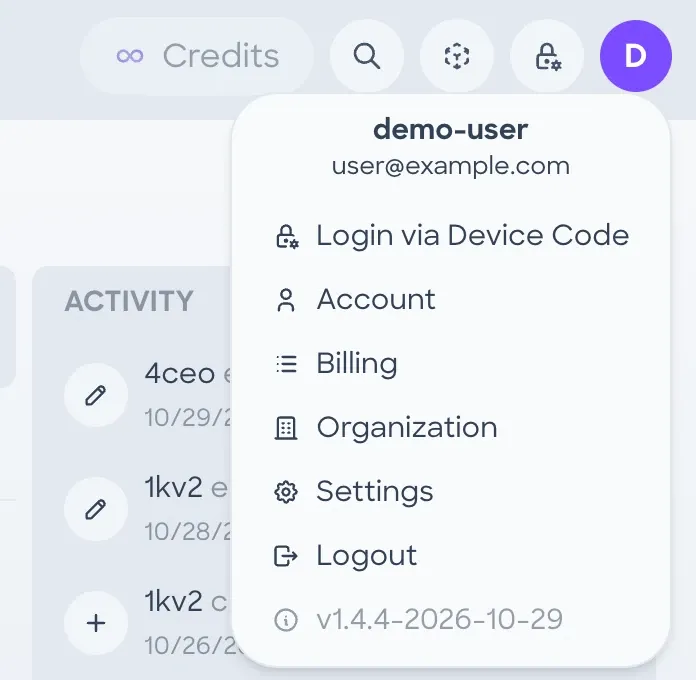
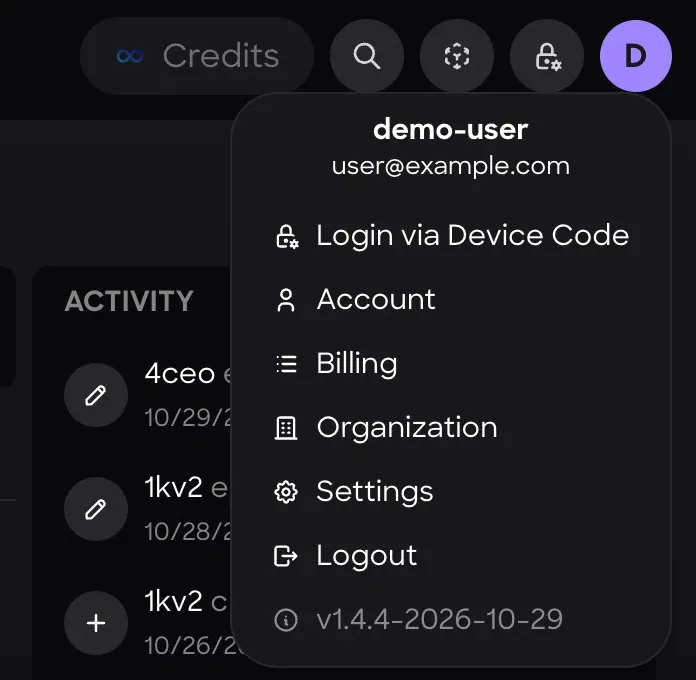
- Login via Device CodeSigns a headset in.
- AccountOpens the Account tab of Settings.
- BillingOpens the Billing page.
- OrganizationOpens the Organization page.
- SettingsAPI keys, MCP setup and display preferences.
- LogoutSigns out of Nanome Web.
Login via Device Code
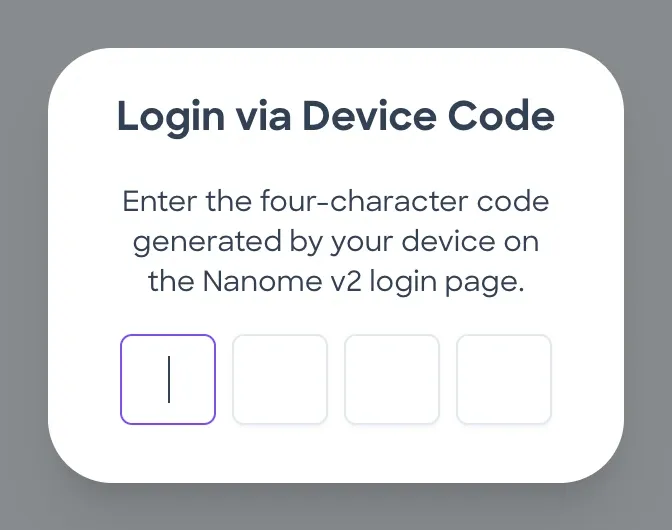
Nanome XR can sign in with a 4-character code. The headset's login page shows the code and the address nanome.ai/activate, which opens Login via Device Code on Nanome Web. Entering the code there signs the headset in to the same account. The same dialog opens from the lock icon in the top bar.
Settings
Settings has 2 tabs: Account and System. System holds API Keys, MCP Setup and the preference switches. Below the tabs, Help opens this site's MARA overview, and Feedback sends Nanome feedback or a bug report.
Account
- Your account's ID.
- Your username.
- Your email address.
- Your organization.
- Sets a new password.
- First and last name, location, persona and bio.
System
API Keys authenticate requests to Nanome's server from tool routes and the mara-client Python package. Each key shows only its last characters and its expiry date.
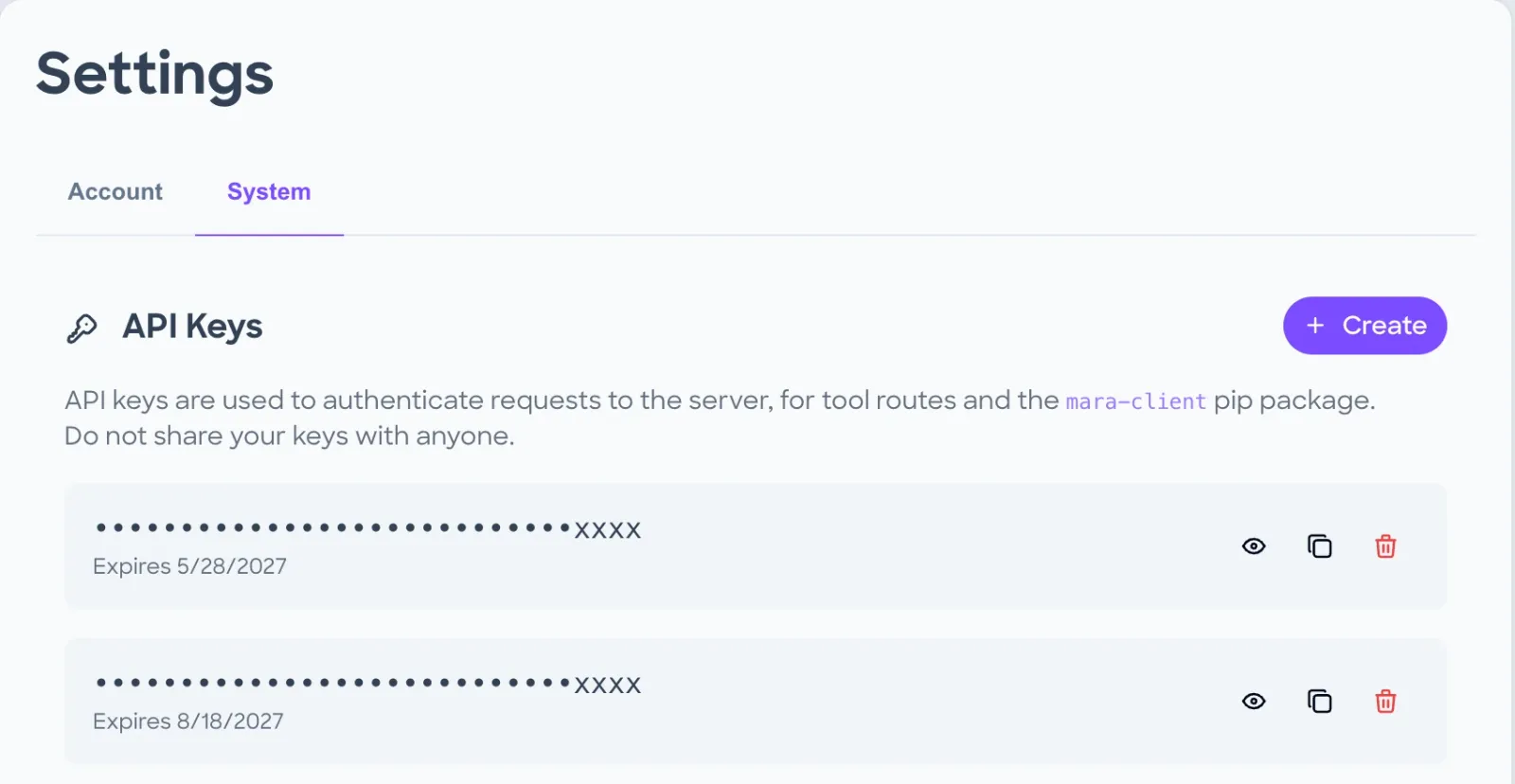
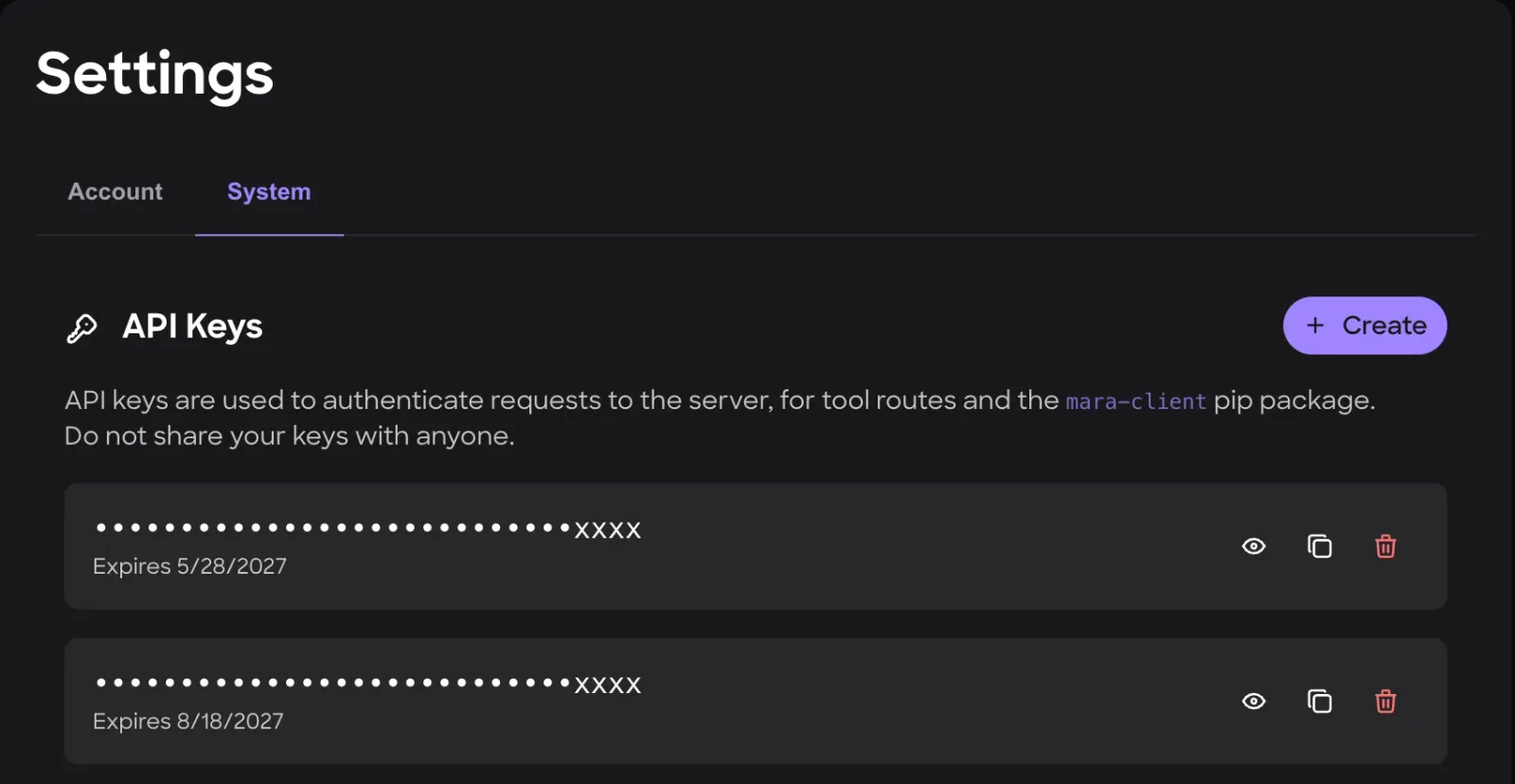
- Makes a new key and copies it to the clipboard.
- ShowShows the key. Hide covers it again.
- CopyCopies the key.
- RevokeRevokes the key, after a confirmation.
MCP Setup
MCP Setup shows the command that connects an AI assistant to the Nanome MCP server, with versions for Claude Code, Codex and Gemini CLI. For Claude Code:
claude mcp add --transport http nanome https://workspaces.nanome.ai/mcp
claude mcp login nanome
The assistant asks you to sign in and approve access in a browser the first time it connects. Through the MCP server, an assistant can list and manage projects, workspaces, scenes, entries and components, and read a summary of each workspace (chains, residue ranges, ligands and ions). It can also load structures, export entries as SDF, PDB, SMILES or FASTA, export ligands as SDF, and add text labels and distance, angle and dihedral measurements.
Preferences
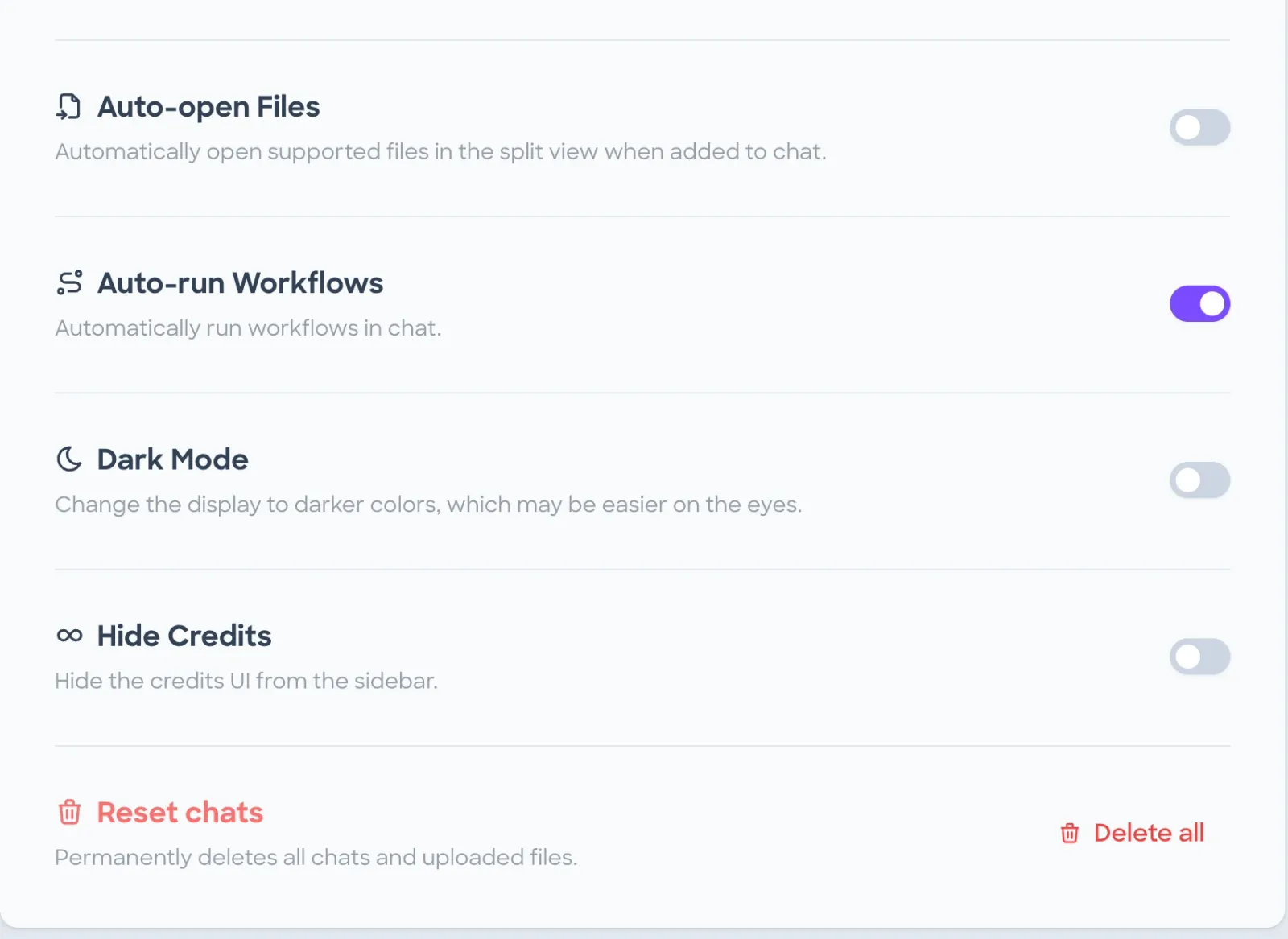
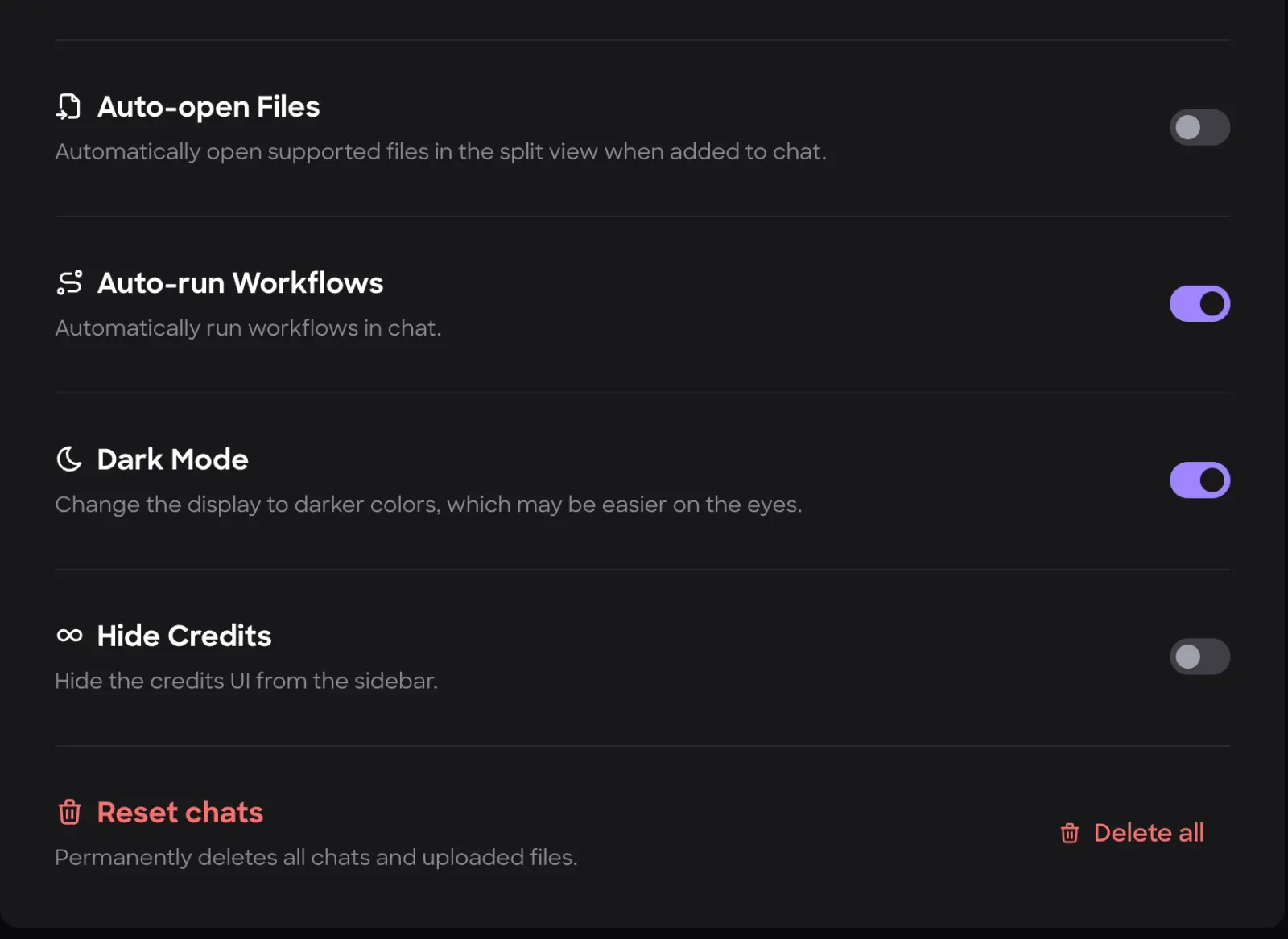
- Auto-open FilesOpens supported files in the split view when they're added to a chat.
- Auto-run WorkflowsRuns workflows in chat automatically.
- Dark ModeDarker colors for the web app.
- Hide CreditsHides the credits display. The switch shows only for accounts with unlimited credits.
- Reset chatsIts Delete all button permanently deletes all MARA chats and uploaded files.
Licenses and sign-in
Since release 2.7, Nanome XR warns when a license will expire within 30 days, and signs out with a notice when it does. Its sign-in errors say what went wrong: wrong credentials, an account that has to use Google, Microsoft, Apple or SSO sign-in, an organization IP restriction, or a network problem.
Free licenses are limited to 1 owned project, 3 owned workspaces and 5 structures per workspace, with view-only access to shared workspaces and projects. Account Tiers compares the free and paid seats.