

Entries Tab
The Entries tab lists every structure in the workspace and the components that control how each one is drawn. It works the same way as the Components tab in Nanome XR, and changes made in one show up in the other.
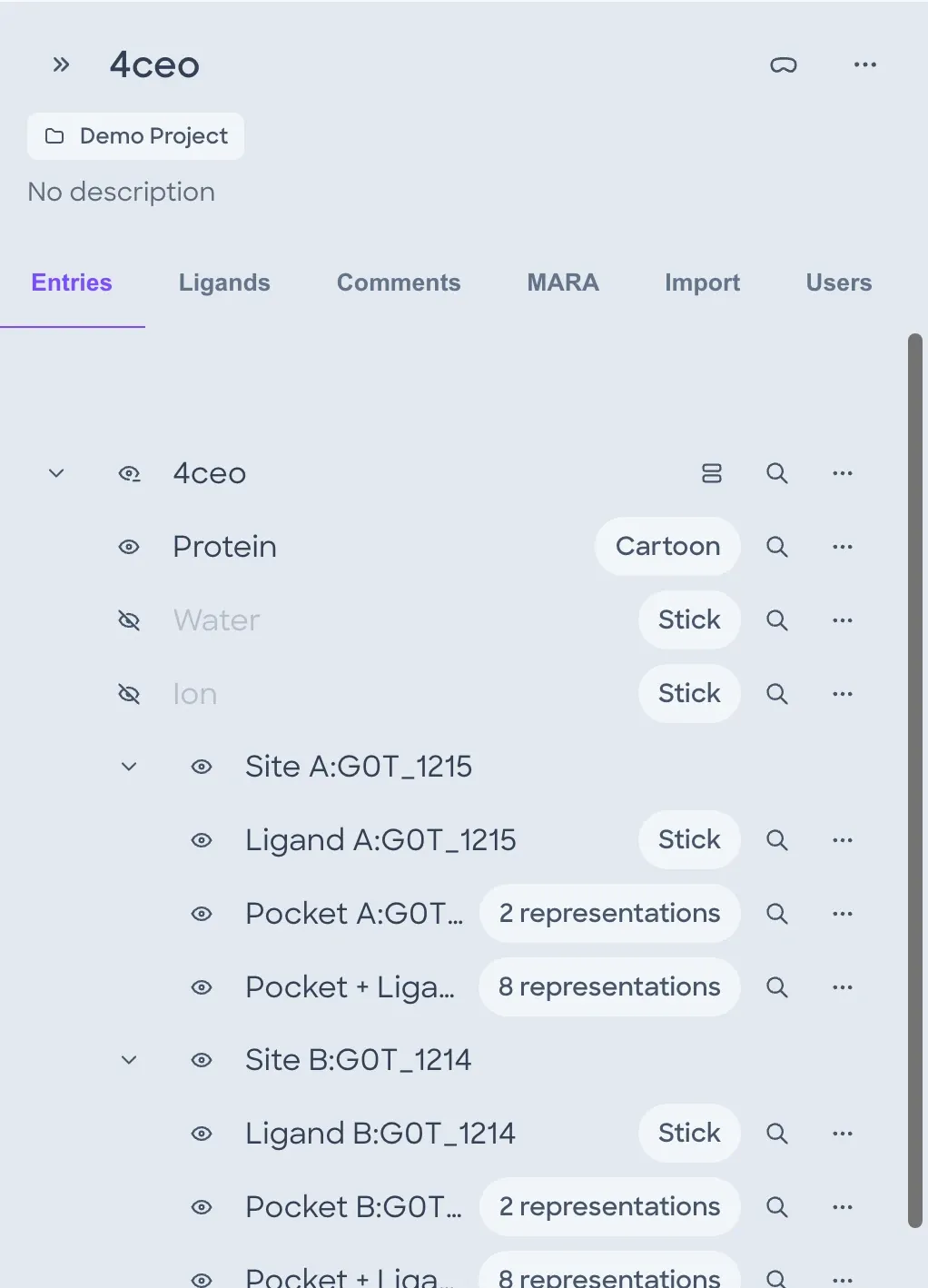
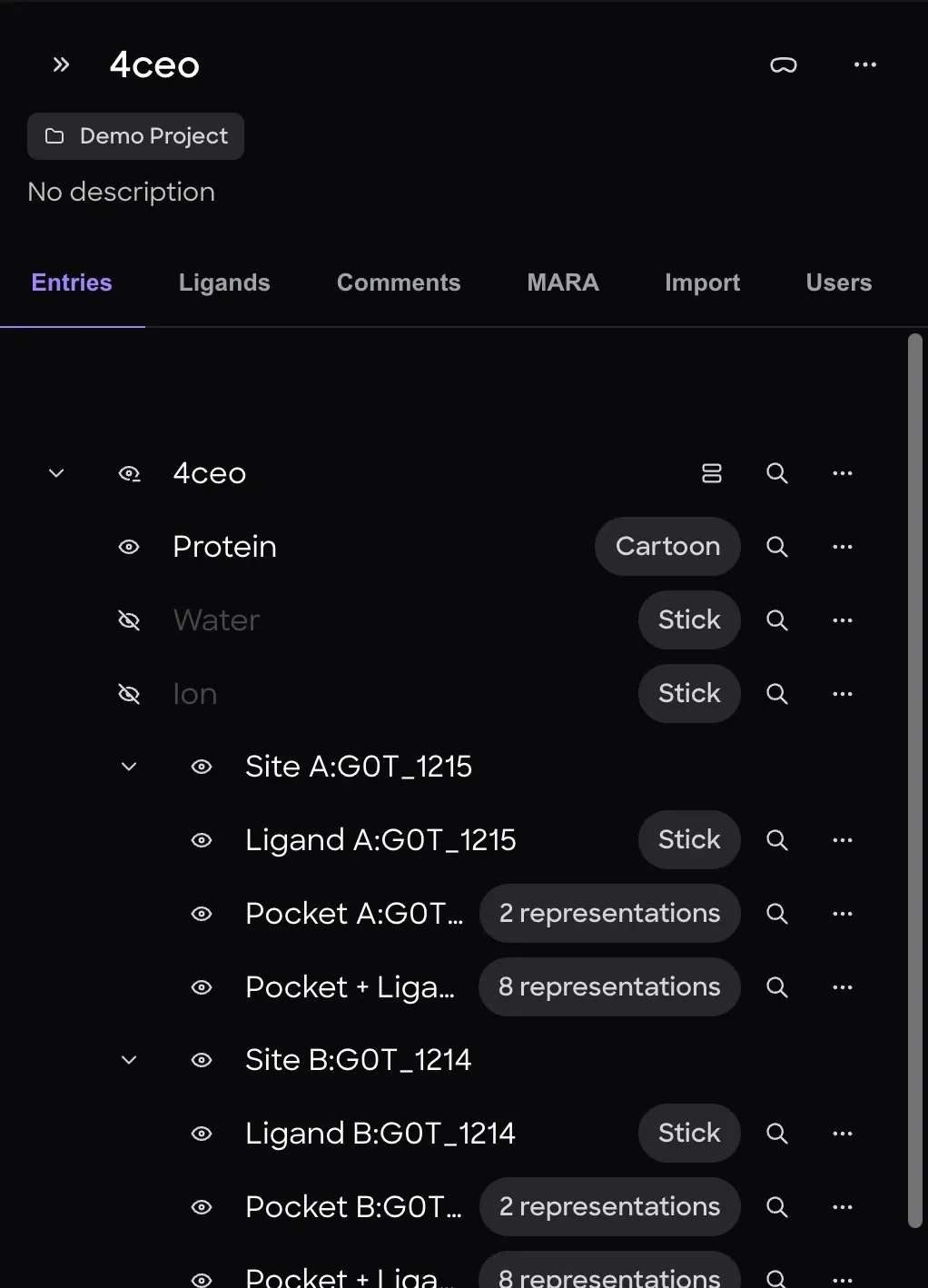
Entries and components
An entry is one loaded structure, such as a PDB file. Each entry holds components: named parts of the structure with their own representations. A structure with a bound ligand loads with a default breakdown, for example:
- Protein, drawn as Cartoon
- Water and Ion, when the file has them, drawn as Stick and hidden by default
- Site A:G0T_1215, a group for one binding site, holding:
- Ligand A:G0T_1215, the ligand as Stick
- Pocket A:G0T_1215, every whole residue with an atom within 4 Å of the ligand, drawn as Wire with a surface
- Pocket + Ligand A:G0T_1215, the pocket and ligand together, carrying their interactions
How components are named More detailLess detail
The names come from the chain, the 3-character ligand code and the residue number in the file. In the 4CEO example, G0T is the ligand's code in the RCSB Chemical Component Dictionary.
Each row has these controls:
- Show / HideShows or hides the entry or component. Hidden rows are grayed out. On an entry with no components, its tooltip reads Add default representations, and clicking it adds the default components.
- The representation chip (for example, Cartoon or 2 representations): opens the representation panel.
- Structure actionsOn entry rows.
- ZoomZooms the view to the entry or component.
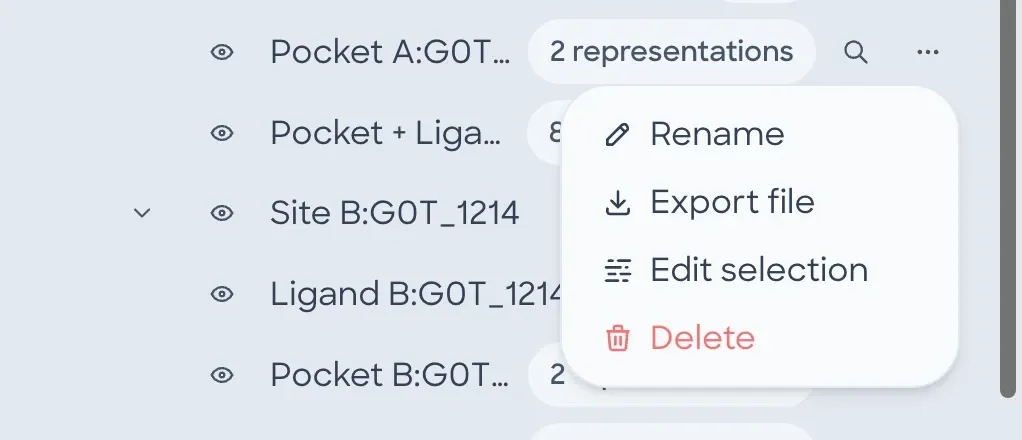
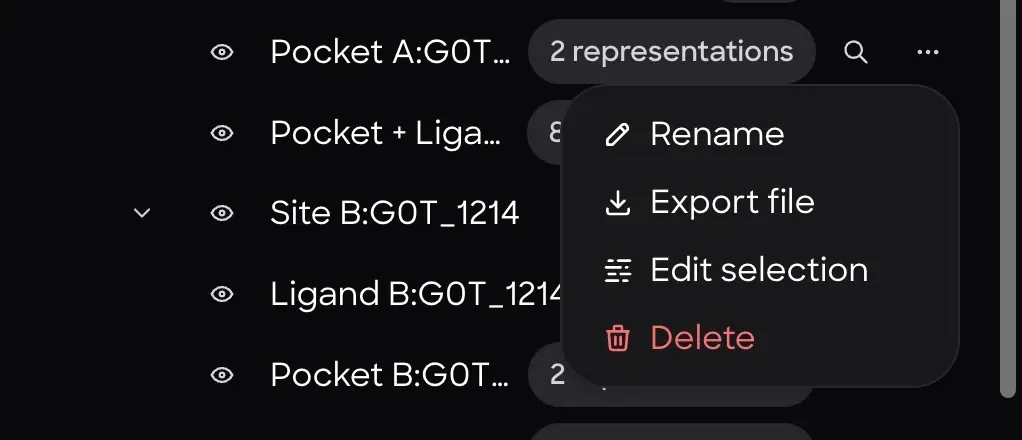
- More optionsRename, Export file, Delete and more.
Structure actions and More options show only for Editors. Viewers can't use Show / Hide or the representation chip, but Zoom works for everyone.
An entry with a trajectory or several models also has playback buttons on its row.
Representations
The representation chip on a component opens the representation panel. Each representation has its own switch and a palette button for its colors.
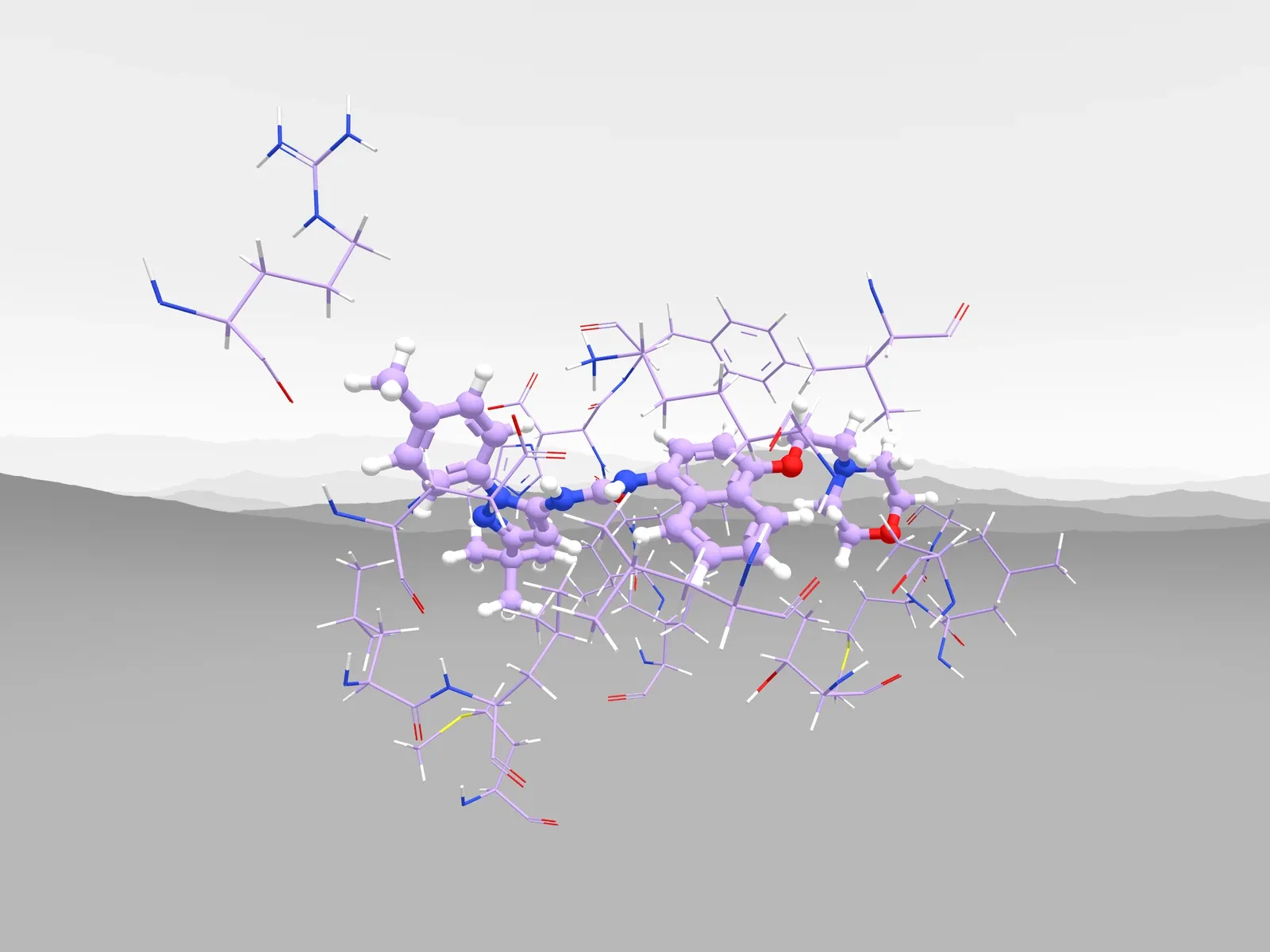
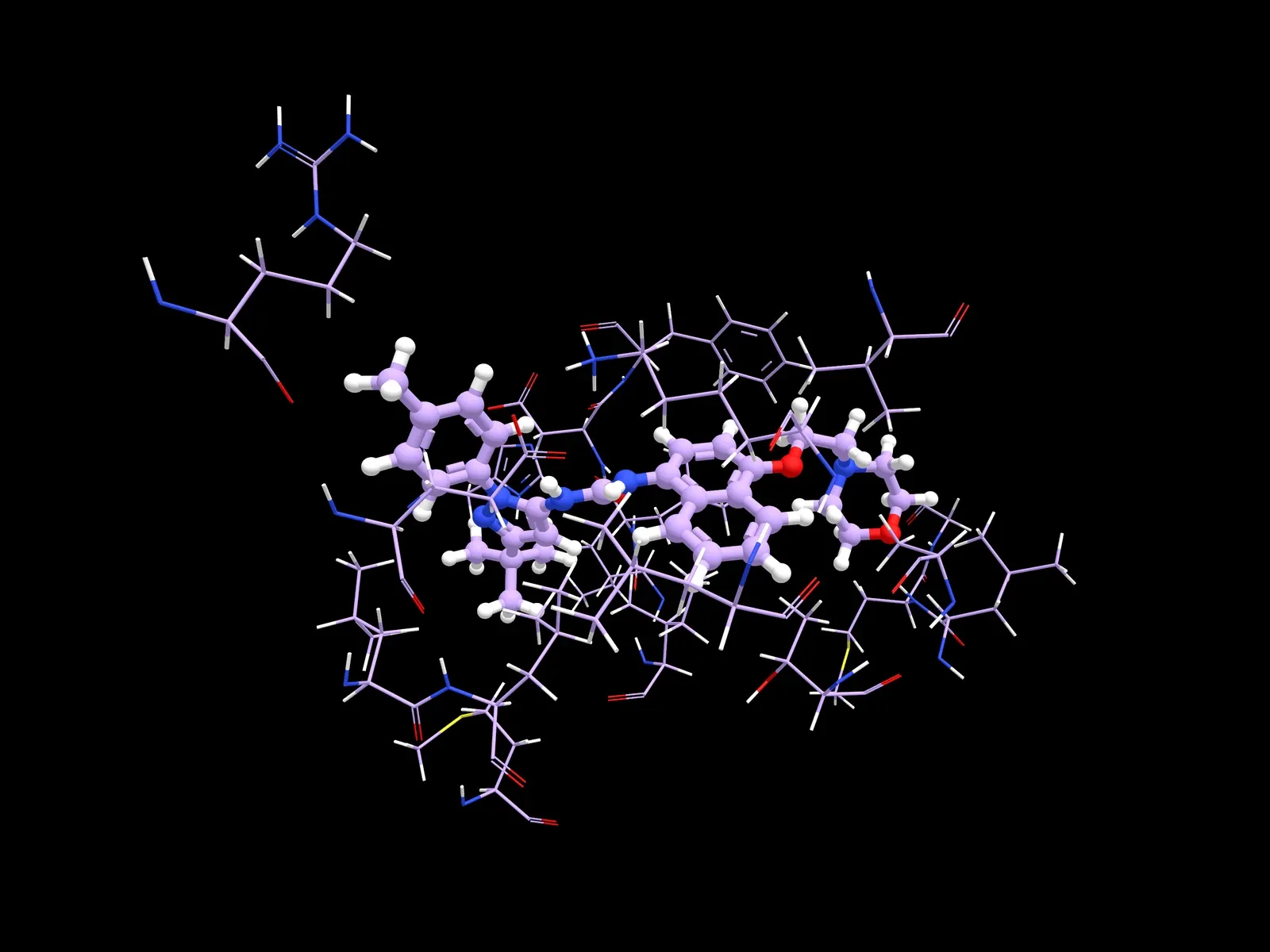
The copy of the panel below works like the app's: each switch shows 1KV2's binding site drawn that way, rendered in Nanome. The panel ends with an Interactions row: the number of interaction types switched on, and Show to list them.
How the styles are drawn More detailLess detail
- Ball and Stick draws atoms at a quarter of their van der Waals radius.
- Van der Waals draws atoms at their full van der Waals radii. Main-group radii come from Mantina et al. (2009), for example 1.70 Å for carbon and 1.52 Å for oxygen.
- Polar H is every hydrogen except those bonded to carbon.
- Surface is the solvent-excluded molecular surface, computed with a 1.4 Å probe. Wire draws the same surface as a mesh, Sheer at 15% opacity and Semi at 50%.
Colors
The palette button beside a representation opens its color schemes. The copy below colors 1KV2's binding site, drawn as Stick, in each scheme. A DX map attached with Load DX map can also color a Surface, as described under Electrostatic coloring after the copy.
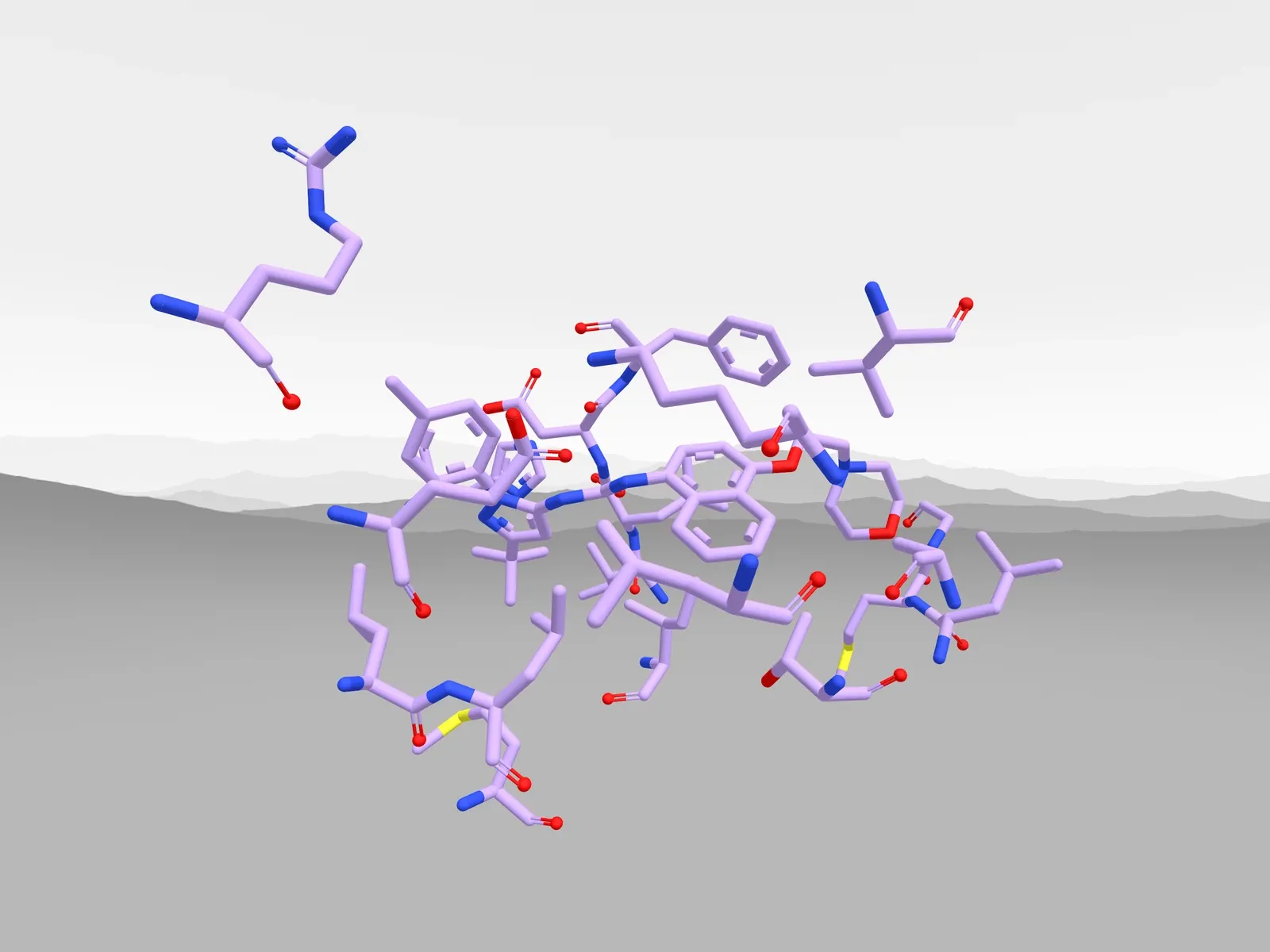
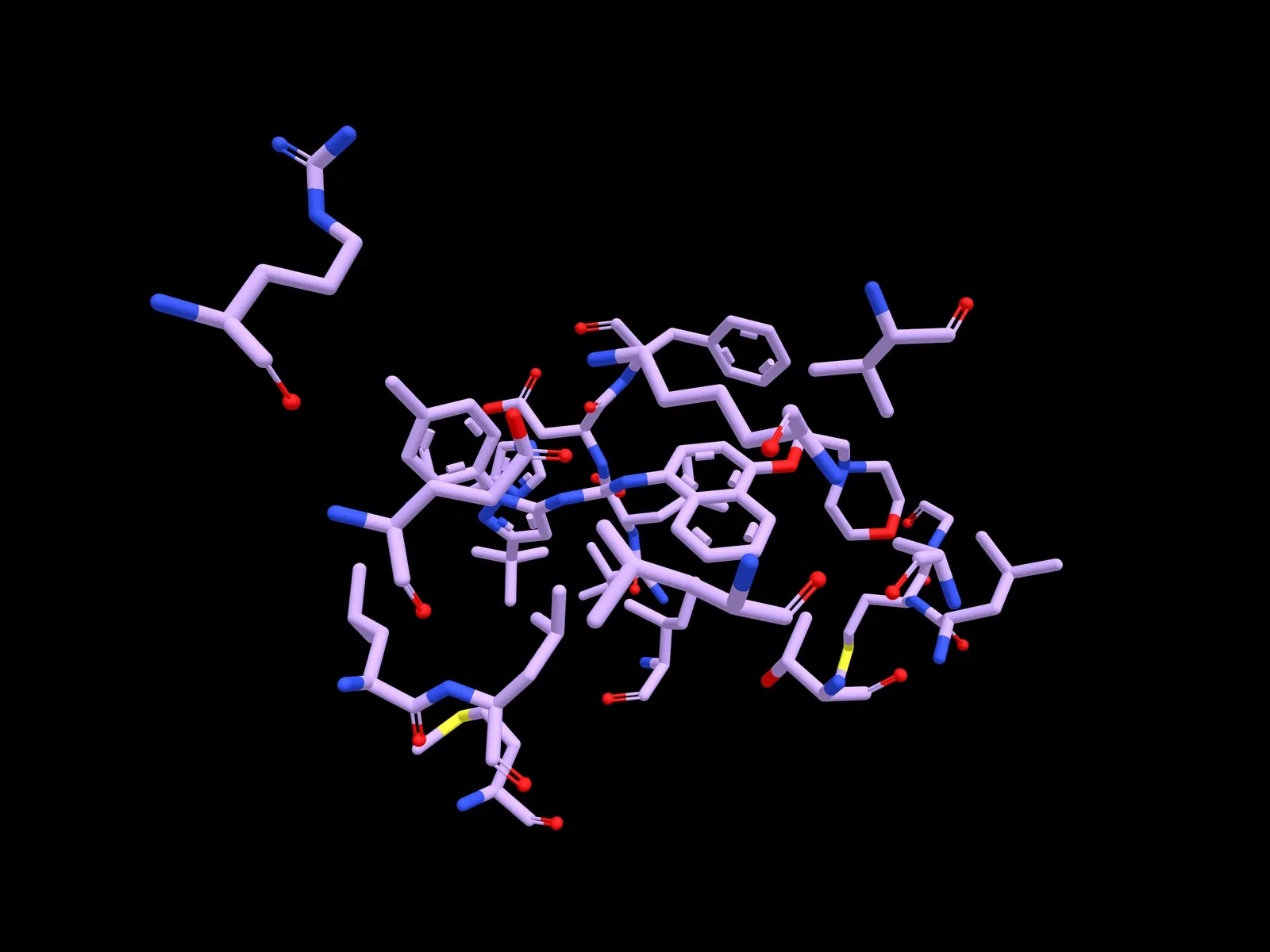
Nanome Web has no Model Instance scheme, which Nanome XR offers. As in Nanome XR, Carbons only is hidden while Element Type is picked. Uniform shows a color square and hue bar under the list, and it starts white.
Electrostatic coloring More detailLess detail
A map attached with Load DX map can color a Surface by the map's value, sampled 1.4 Å out along each surface normal: red at the minimum, white in the middle and blue at the maximum. Only surfaces take this coloring. The default range is −5 to +5, in the map's own units (APBS maps use kT/e). Nanome doesn't compute the electrostatic potential itself.
In Nanome Web, Electrostatic is in the color list of every Surface. Picking it opens ESP Color Scale, where Min and Max set the range before Apply. Nanome XR lists Electrostatic in a surface's color list once the entry has a DX map.
Interactions
The representation panel ends with an Interactions row. Its count is the number of interaction types switched on, so Protein, with none on, shows 0. Show lists each type with its legend color and a switch, here for Pocket + Ligand:
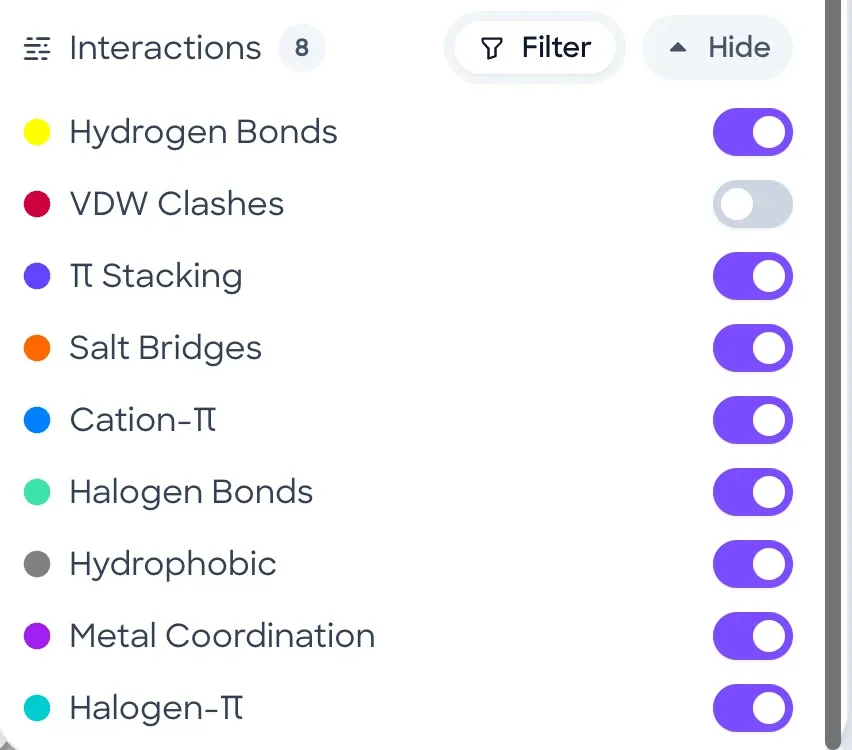
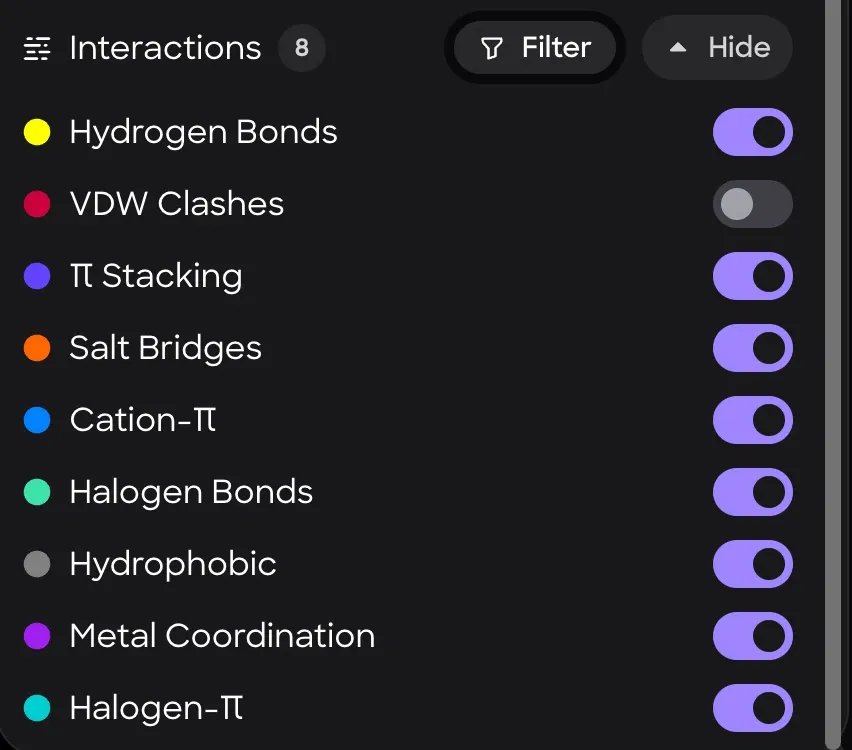
- InteractionsThe count of interaction types switched on.
- FilterShows only interactions between ligand atoms and non-ligand atoms.
- Closes the list. It reads Show while the list is closed.
- Between a hydrogen-bond donor and an acceptor.
- Atoms in different entries that sit closer than the sum of their van der Waals radii.
- Between aromatic rings.
- Between oppositely charged groups.
- Between a cation and an aromatic ring.
- From a Cl, Br or I to an acceptor.
- Contacts between carbons bonded only to carbon or hydrogen.
- Drawn as an interaction, separately from covalent bonds.
- A halogen above an aromatic ring.
Export analysis in the workspace menu downloads the current scene's interactions, measurements and minimization history as a ZIP of CSV files.
Which interactions a component shows More detailLess detail
A component within one entry shows the interactions inside it, which is how Pocket + Ligand works. A component that spans several entries shows only the interactions between entries.
In a component that mixes substructure types, such as protein, ligand and water, hydrogen bonds are drawn only between atoms of different types, for example from ligand to protein. Hydrogen bonds between 2 waters still show.
When a donor has no explicit hydrogen, its hydrogen bond is drawn from the donor atom itself. If that donor has more than one possible acceptor, the closest acceptor gets the full color and the others a darker shade.
Metal-ligand bonds that the Chemical Component Dictionary flags as coordination aren't drawn as covalent bonds.
How clashes are counted More detailLess detail
Clashes are only computed between entries. Any overlap counts and hydrogens are included, so ordinary close contacts, such as hydrogen-bonded atoms, can also show as clashes. Clash markers grow larger and brighter the more 2 atoms overlap.
Detection thresholds More detailLess detail
- Hydrogen bond: donor-acceptor distance up to 3.9 Å when the acceptor is N, O or F (4.4 Å otherwise). With explicit hydrogens, the H···acceptor distance must be 1.6 Å to 2.7 Å (1.8 Å to 3.0 Å for other acceptors) and the donor-H···acceptor angle at least 100°. Without hydrogens, only the distance and the angle at the acceptor are checked. Backbone amide N isn't an acceptor, and proline N isn't a donor.
- π stacking: face-to-face rings within 5.5 Å and under 30° apart, or T-shaped rings within 6.5 Å at 60° to 120°, with a lateral offset under 2 Å.
- Salt bridge: charged-group centroids within 5.5 Å.
- Cation-π: cation within 6 Å of a ring centroid, offset under 2 Å.
- Halogen bond: Cl, Br or I bonded to C, N, Si or another halogen, within 3.5 Å of the acceptor, with an R-X···acceptor angle of 150° to 180° and an X···acceptor-Y angle of 90° to 150°.
- Halogen-π: halogen 3.5 Å to 4.5 Å from a ring centroid, roughly above the ring face (within 60° of the ring normal), with a C-X···centroid angle over 120°.
- Hydrophobic: contacts within 4 Å between carbons bonded only to carbon or hydrogen.
- Metal coordination: donor atoms within 3.0 Å of a metal.
Anion-π, CH-π and water-bridged interactions aren't detected.
Structure actions
The Structure actions button on an entry row opens:
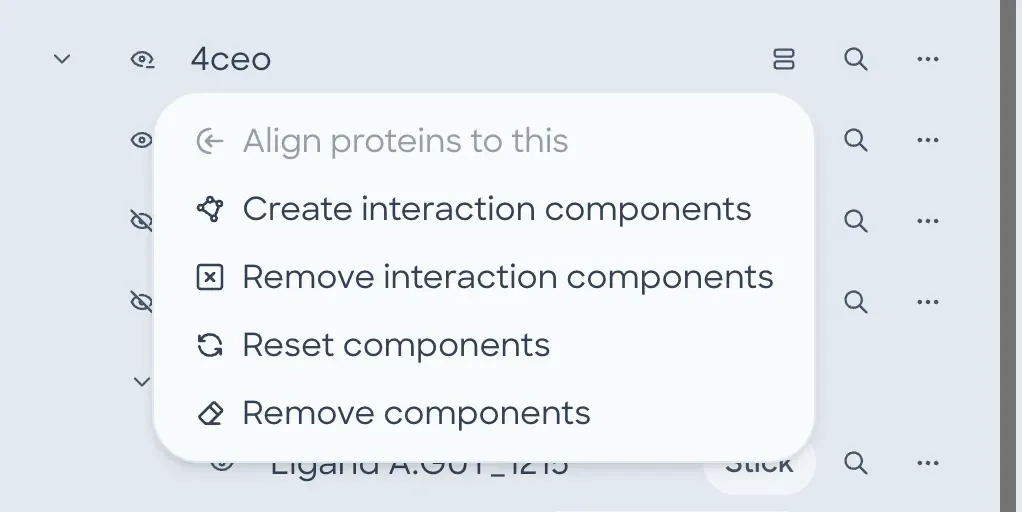
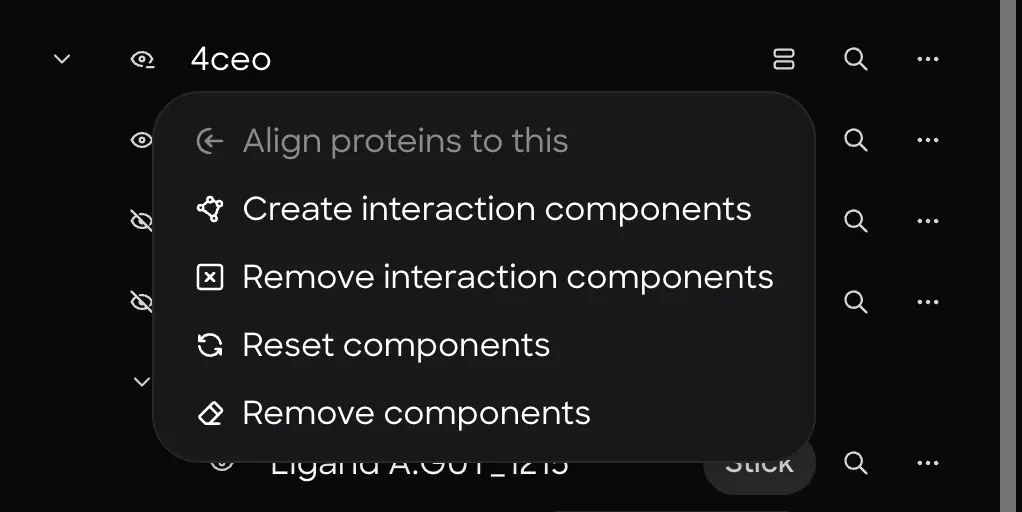
- Align proteins to thisOpens a list of the other protein entries, each with a checkbox. A checked entry with several chains also gets chips for All or single chains. Align superposes the checked entries onto this one, and Close leaves. The item is grayed out unless this entry and at least one other entry hold a protein, and while an alignment runs.
- Create interaction componentsComputes interactions and adds components that show them. Grayed out unless the entry holds a polymer.
- Remove interaction componentsRemoves the interaction components from the entry.
- Reset componentsRestores the entry's default components.
- Remove componentsRemoves the entry's components.
Nanome runs the alignment on its server with CE-Align. TM-Align is available in Nanome XR.
Alignment results More detailLess detail
- After a run, each aligned entry shows its RMSD, the Cα RMSD over the aligned residues in Å, and its length, the number of aligned residues, beside its name in the Align proteins to this list.
- At least 8 Cα atoms are needed.
- Switching scenes while an alignment runs cancels it.
Interaction components
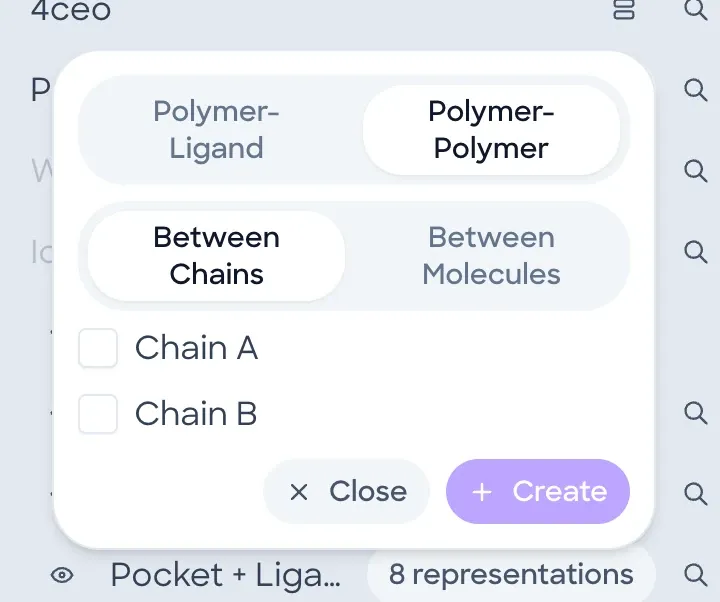
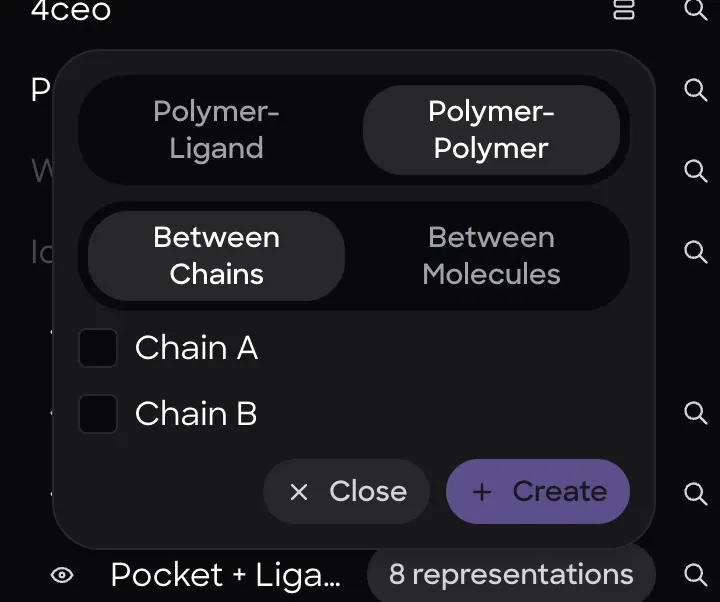
Create interaction components opens a dialog with 2 modes:
- Interactions between this entry's polymer, such as a protein, and a ligand in another entry.
- Interactions Between Chains of one entry, with 2 chain checkboxes checked, or Between Molecules in different entries. Checking a third chain clears the earliest.
- Adds the components. Grayed out until something is checked.
- Leaves without changes.
When there's nothing to pick, the list says so. Polymer-Ligand shows No ligands available when no other entry holds a ligand. Between Chains shows Structure has less than 2 chains for an entry with fewer than 2 chains, and Between Molecules shows No polymers available when no other entry holds a polymer.
What Between Chains adds More detailLess detail
For a pair of chains, such as A and B, Between Chains adds 3 components to the entry:
A -- B (Interactions)shows hydrogen bonds, salt bridges, π stacking, halogen bonds and hydrophobic contacts. Its hydrogen bonds are only those from one chain to the other. The other types can also include contacts within one chain.A -- BandB -- Aeach hold one chain's interface: every whole residue with an atom within 4.5 Å of the other chain, drawn as Stick with a surface.
Only polymer atoms count toward the interface.
More options
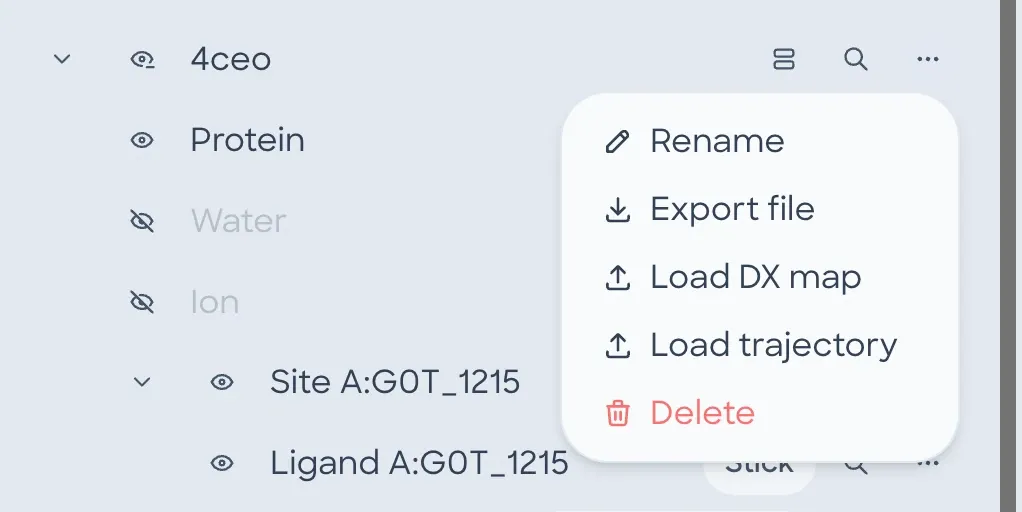
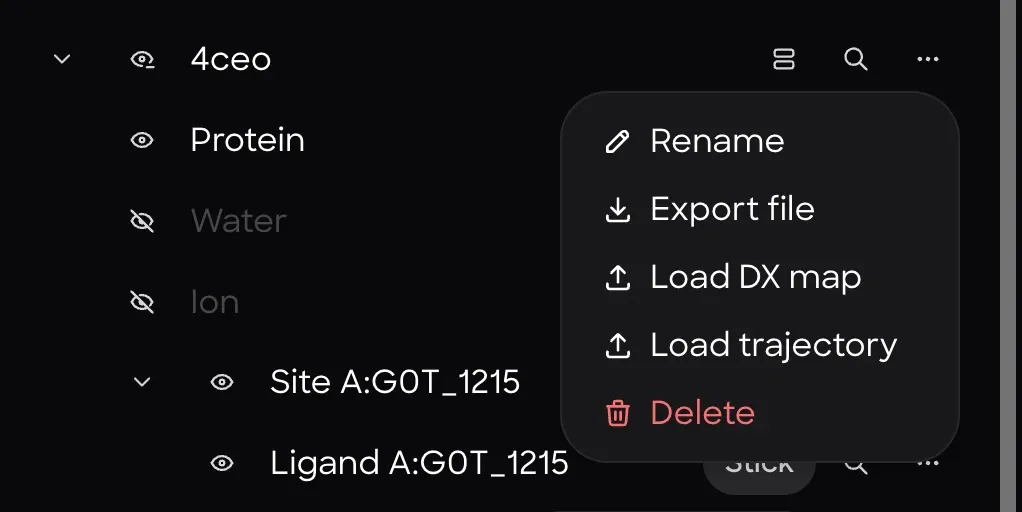
- RenameRenames the entry.
- Export fileOpens Export as PDB and Export as SDF, with a Use scene coordinates switch. With it on, the file has the atoms where they sit in the current scene, for example after Align proteins to this.
- Load DX mapAttaches an electrostatic potential map in .dx format to the entry, for coloring its surface.
- Load trajectoryAttaches a trajectory to the entry.
- DeleteRemoves the entry from the workspace. The first click turns it into Confirm delete, and a second click within 3 seconds deletes it.
File types for Export file and the trajectory and map formats are listed on Supported File Formats.