

Getting started with Nanome XR
From boxed headsets to a shared session. Nanome works best in a headset, but no headset is needed to start: it also runs in any browser at app.nanome.ai.
Hardware
Step 1 of 7 · Headsets, and where to buy them
Nanome runs on Meta Quest 3 and 3S, Samsung Galaxy XR, Apple Vision Pro, and Windows PCs over Meta Link. It also runs on Meta Quest 2 and Quest Pro, the minimum Quest headsets for Nanome XR. Quest 3 and 3S are recommended: Quest 2 and Quest Pro have a little over half the Quest 3 drawing budget, so detail drops sooner as a scene grows. Choosing Hardware compares them.
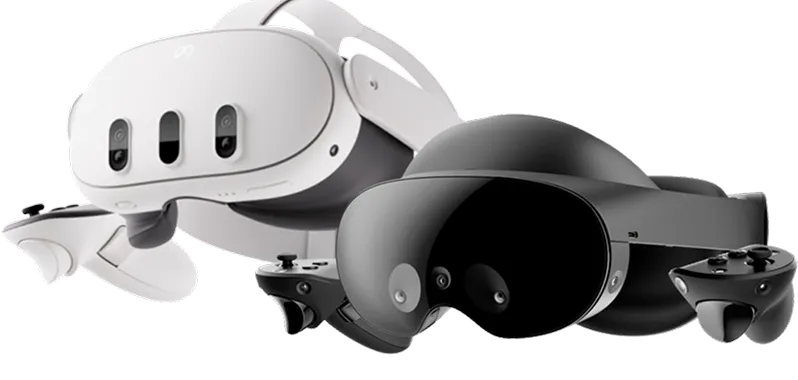
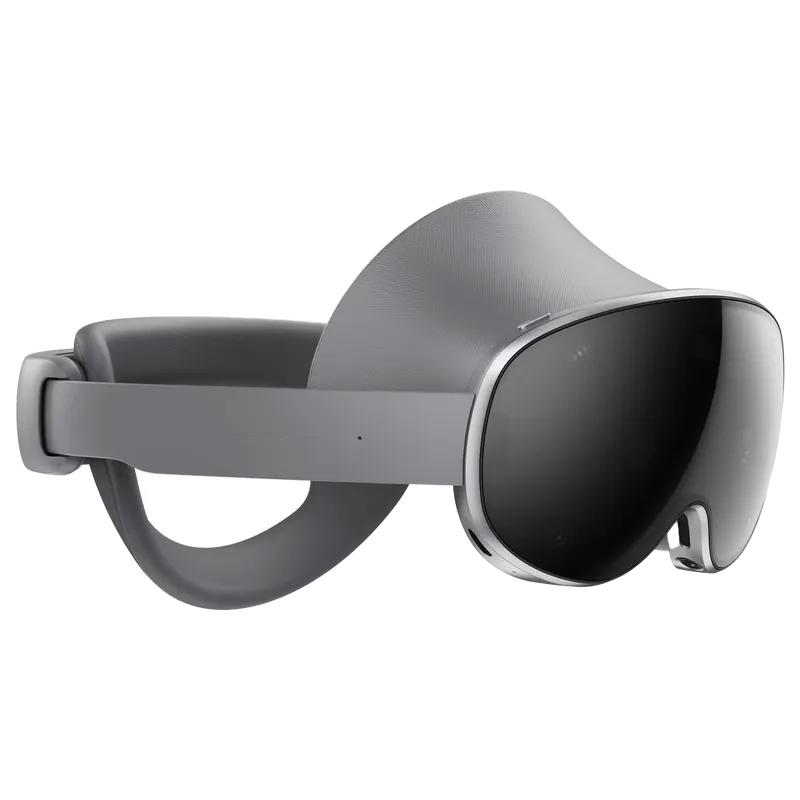
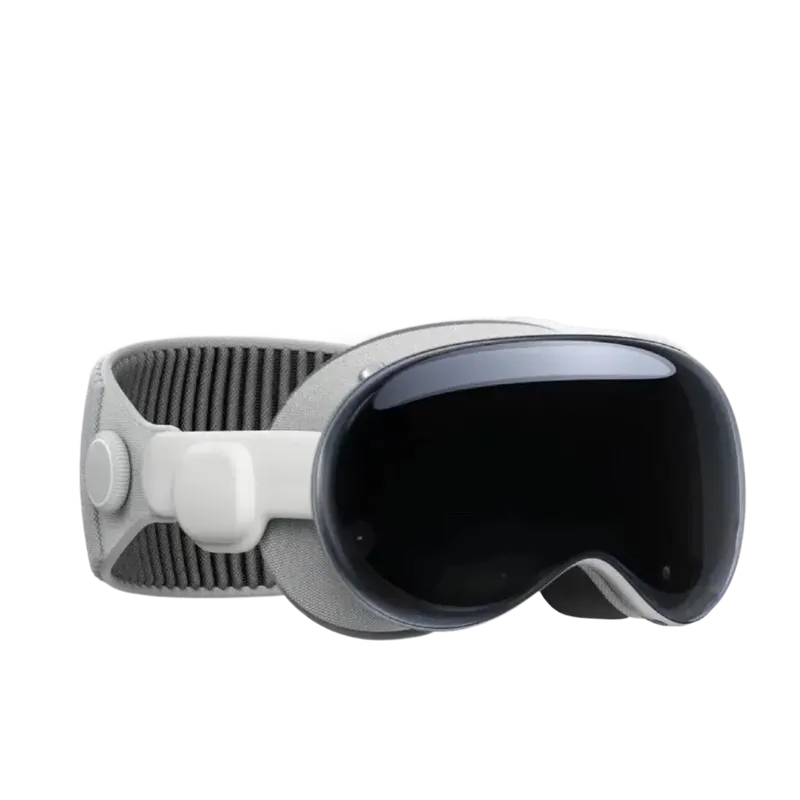
Where to buy
Nanome hardware partner
Preconfigured through VR Expert
VR Expert prepares each headset before it ships: enrolled in the organization's MDM, configured, and loaded with Nanome. The US order form lists ready-to-go Nanome kits for Quest 3 and Galaxy XR, and installation and a year of support can be added to every headset.
Choose an MDM
Step 2 of 7 · Managing a fleet of headsets
A mobile device management (MDM) service enrolls headsets into an organization, pushes Wi-Fi and apps to them, and keeps every headset on the version IT has approved. Managed headsets can also run without personal store accounts.
Which service fits
Answer up to 3 questions
1 Which headset?
Compare all 3 side by side
Meta Horizon managed services (HMS) FreeMore detailLess detail
Free since February 20, 2026. HMS was called Quest for Business before Meta renamed it.
- Manages Meta Quest headsets only, on Quest 2, 3, 3S, and Pro
- Quest headsets that aren't already enrolled in an MDM enroll through HMS on Horizon OS v74 and later
- Runs shared headsets without personal Meta accounts, with a fresh session for each user
- Device presets, Wi-Fi profiles, app and file push, and remote wipe
- Nanome is listed in the Managed App Store under Discover Apps
- Meta supports the current version for Quest 3 and 3S through January 4, 2030, with no stated date for Quest 2 and Pro
ArborXR PaidMore detailLess detail
From $7 per headset per month, billed annually, with a 30-day free trial.
- Adds a management layer on top of HMS for Quest headsets
- Also manages PICO, HTC VIVE, Samsung Galaxy XR, and Magic Leap 2 headsets, with features that vary by model
- ArborXR Home launcher or single-app kiosk, locked with an admin PIN
- Secure Wi-Fi provisioning and app, video, and file push on every plan
- Release channels hold each device group on the Nanome version IT has approved
- Remote casting and usage analytics on the Essential plan
ManageXR PaidMore detailLess detail
From $7 per headset per month, billed annually, with a 30-day free trial.
- Enrolls Quest headsets through HMS with an organization enrollment token
- Also manages Samsung Galaxy XR, PICO, and HTC VIVE headsets, with features that vary by model
- Imports Nanome from the Meta managed store as a CSV, or deploys an uploaded APK
- Single-app kiosk and Wi-Fi with certificates on the Essential plan, though Galaxy XR can't be kiosk-locked yet
- Multi-app home screen, release channels, remote screen streaming, and usage analytics on the Premium plan
MDM setup guides
Step 3 of 7 · Setting up an MDM
Each guide covers signing up, enrolling headsets, and pushing Nanome.
Choose a service
Manages Meta Quest headsets only.
Official Meta Horizon managed services documentation
- Sign up for a free HMS organization with Meta. Adding at least 2 System admins, on shared role-based email addresses, keeps access from depending on one admin.
- Factory reset any headset that has already been set up. Enrollment only happens during first-time setup.
- During setup, choose Connect to your organization and note the 8-digit code. Enter it at work.meta.com/device while signed in to a managed account. The Meta Horizon Device Setup app enrolls headsets over USB instead, straight into Shared Mode, with no account needed.
- In Device Manager, put shared headsets in a Shared Mode device preset and assign the Wi-Fi network to it.
- Add Nanome from Apps & Content > Discover Apps in Device Manager.
Wi-Fi & network
Step 4 of 7 · A network Nanome can reach
Headsets need Wi-Fi with direct internet access and a short list of hostnames allowed through the firewall. What IT allows depends on where Nanome runs.
Nanome cloud (app.nanome.ai)
6 checks, written to hand straight to IT.
Direct internet, no sign-in page More detailLess detail
Guest networks that ask for a browser sign-in (captive portals) block first-time headset setup. Quest also shows a no-internet message whenever it can't reach Meta, before Nanome ever opens.
Nanome allowed by hostname More detailLess detail
Allow outbound TCP 443 to *.nanome.ai and *.nanome.com. Nanome's servers run on Cloudflare and AWS, where IP addresses change, so IP-based rules eventually break. Collaboration and voice run over a secure WebSocket on the same port, so Nanome needs no UDP ports, and it doesn't accept incoming connections. Headsets also load structures by PDB ID straight from files.rcsb.org.
app.nanome.aiWeb app and MARAworkspaces.nanome.aiWorkspaces, live collaboration, and voicehome.nanome.aiAccounts, licenses, and organizationsapi.nanome.comSign-in, device codes, and licensing, Nanome 2.6 and later and the web appapi.nanome.aiSign-in for earlier releases and Nanome Classicdownloads.nanome.aiAPK and Windows downloads
Enterprise Wi-Fi from the MDM More detailLess detail
HMS pushes WPA2 and WPA2-Enterprise networks (EAP-TLS and EAP-PEAP). ArborXR and ManageXR add WPA3, proxy settings, EAP-TTLS, and SCEP certificate enrollment, and ArborXR also supports EST. Headsets enrolled in ArborXR or ManageXR take their apps and settings, Wi-Fi included, from that MDM.
802.1X profiles need the RADIUS server's domain and a root certificate served with its full chain, intermediates included.
HMS Wi-Fi profiles → · ArborXR Wi-Fi options → · ManageXR Wi-Fi profiles →
Networks that register devices by MAC More detailLess detail
Quest 3 uses a randomized MAC address for each network by default, and other Android-based headsets and Vision Pro do the same. For MAC registration, switch that saved network to the device MAC, or turn off randomization in the HMS, ArborXR, or ManageXR Wi-Fi profile.
Firewall allowlist More detailLess detail
Nanome (headsets and web app)
  Outbound TCP 443 (HTTPS and secure WebSockets), allowed by hostname:
  *.nanome.ai, *.nanome.com
  Includes app.nanome.ai, workspaces.nanome.ai, home.nanome.ai, api.nanome.com, api.nanome.ai, downloads.nanome.ai
  Exempt these hosts from TLS/SSL inspection.
  Collaboration and voice use a secure WebSocket on TCP 443, so no UDP ports are needed.
  Nothing inbound: Nanome does not listen for incoming connections.

Also outbound TCP 443 from headsets
  files.rcsb.org (loading structures by PDB ID)
  o185819.ingest.us.sentry.io (error reports, optional)

Meta Quest (Meta Horizon managed services requirements)
  TCP 80, 443, 3478, 3479, 8080
  UDP 40003, 40005, 40007, 40008, 50000-59999
  www.facebook.com, graph.facebook.com, graph.facebook-hardware.com, edge-mqtt.facebook.com, portal.fb.com
  static.xx.fbcdn.net, www.oculus.com, graph.oculus.com, scontent.oculuscdn.com, work.meta.com
  forwork.meta.com, www.google.com, devicemanager.meta.com
  Plus regional CDN hosts under xx.fbcdn.net, such as scontent-iad3-2.xx.fbcdn.net
  Full per-task list: https://work.meta.com/help/278069664862989

ArborXR (when used as the MDM)
  TCP 443:
  arborxr.com, *.arborxr.com, xrdm.app, *.xrdm.app, abxr.us, storage.googleapis.com
  arborxrstatic.com on ports 53, 80, and 443 (captive portal detection)
  Remote Assistance: stun.cloudflare.com (53, 1473, 3478), turn.cloudflare.com (53, 443, 3478, 5349)
  Full list: https://help.arborxr.com/en/articles/6399721-what-urls-and-ports-are-required-to-allow-whitelist-arborxr-traffic-in-my-local-network

ManageXR (when used as the MDM)
  TCP 443:
  *.managexr.com, managexrapi.com, managexrcdn.com
  mighty-platform-prod.appspot.com, mighty-platform-prod.firebaseio.com, us-central1-mighty-platform-prod.cloudfunctions.net
  *.googleapis.com
  *.crashlytics.com on ports 80 and 443 (error reporting)
  clients3.google.com and connectivitycheck.gstatic.com on port 80 (connectivity checks)
  Remote screen streaming: openrelay.metered.ca, stun.relay.metered.ca, and global.relay.metered.ca on ports 80 and 443 (TCP and UDP)
  Full list: https://help.managexr.com/en/articles/6994017-network-requirements
Testing the connection More detailLess detail
From the same network, curl -v https://api.nanome.com confirms port 443 is open (ping uses ICMP and doesn't test it). When a phone hotspot works and the office network doesn't, the network is blocking something. ArborXR and ManageXR both publish network tests that also run in the headset's browser.
On-prem or private VM
These apply only when Nanome v2 runs on the organization's own Linux VM. Nanome cloud users don't need any of them. Installation is covered in Nanome's v2 deployment guide.
Ports on the VM More detailLess detail
The VM needs TCP 80 (HTTP) open, and TCP 443 (HTTPS) when SSL certificates are provisioned. An nginx proxy on the VM routes each DNS name to its service, so headsets and browsers reach the VM only through those names, and no other port on it needs to be reachable from them.
DNS names More detailLess detail
The deployment guide writes the organization's domain as company.com. These names point to the VM, and the Nanome team needs them to configure the organization's licenses:
nanome.company.comWeb app, its API, and MARAnanome-tools.company.comMARA tool server, called by MARA rather than by headsetsworkspaces.company.comWorkspace API and live collaborationnanome-auth.company.comAuth proxy to api.nanome.com
If the VM already has an A record, add CNAME records for these names that point to it. Otherwise, create A records that point to the VM's IP address. With HTTPS, the SSL certificate covers *.company.com, or each name.
The deployment guide marks nanome-auth as optional. The deployer asks for it whenever it sets up workspaces, and headsets only need it when they can't reach api.nanome.com.
Headsets without internet access More detailLess detail
Headsets sign in and check licenses through Nanome's API at api.nanome.com, even on an on-prem deployment. When the internal network stops headsets from reaching the internet, the auth proxy on the VM takes those requests and forwards them to api.nanome.com. It starts on the VM during deployment and uses the nanome-auth name. Meta Quest and Galaxy XR read the setting from a file the MDM puts on the headset.
- Create a plain text file named
nanome_configthat containsauth_proxy=http://nanome-auth.company.com. - With the MDM, add the file to each headset at
/sdcard/Managed files/nanome_config. - Open Nanome. On Nanome Routing unreachable, choose Read routing file on device, then Allow, and accept the Android prompt for file access.
- Check that you can log in.
AI features More detailLess detail
AI features in Nanome XR and Nanome Web need access to an LLM provider: Anthropic, OpenAI, AWS Bedrock or Microsoft Foundry. Have the provider's URL and API key, or other auth details, ready before installation. For another provider, ask support@nanome.ai.
What the VM connects to More detailLess detail
- api.nanome.com, for sign-in and licensing
- Nanome's container registry on AWS (ECR, us-west-1) and Docker Hub, to pull images
- github.com, download.docker.com, and awscli.amazonaws.com, during installation
- The LLM provider: Anthropic (with api.voyageai.com for embeddings), api.openai.com, AWS Bedrock, or Microsoft Foundry
- ghcr.io, only for local embeddings (HF-TEI)
- RCSB and EBI, for structure and ligand data
- api.github.com, for importing tools from GitHub
Testing the deployment More detailLess detail
- Open nanome.company.com in a browser and log in.
- Drag a PDB file onto the page, create a workspace, and check the workspace contains the molecule.
- Log in to Nanome on a headset and check the workspace shows up with the molecule.
- While in XR, check the XR cursors appear in the web preview.
Nanome v2 on a private VM (on-prem deployments only, not Nanome cloud)
  VM inbound: TCP 80 (HTTP)
  VM inbound: TCP 443 (HTTPS), only if SSL certificates are provisioned
  Headsets and browsers reach the VM only through the names below.

DNS A or CNAME records pointing to the VM, shared with the Nanome team
  nanome.company.com (Web app, its API, and MARA)
  nanome-tools.company.com (MARA tool server, called by MARA rather than by headsets)
  workspaces.company.com (Workspace API and live collaboration)
  nanome-auth.company.com (Auth proxy to api.nanome.com)
  HTTPS: one certificate for *.company.com, or one for each name above

VM outbound
  api.nanome.com, for sign-in and licensing
  Nanome's container registry on AWS (ECR, us-west-1) and Docker Hub, to pull images
  github.com, download.docker.com, and awscli.amazonaws.com, during installation
  The LLM provider: Anthropic (with api.voyageai.com for embeddings), api.openai.com, AWS Bedrock, or Microsoft Foundry
  ghcr.io, only for local embeddings (HF-TEI)
  RCSB and EBI, for structure and ligand data
  api.github.com, for importing tools from GitHub

Headsets without internet access
  Sign-in and licensing go through the auth proxy on the VM, which forwards them to api.nanome.com.
  Meta Quest and Galaxy XR read the proxy setting from an MDM file:
  /sdcard/Managed files/nanome_config containing
  auth_proxy=http://nanome-auth.company.com

Deployment guide: https://nanome.ai/deployDownload & install
Step 5 of 7 · Downloading and installing Nanome
Nanome comes from a store, through an MDM, or as a manual download to sideload. Picking a method and a device shows the matching download and steps, always for the latest release.
Pick a method and a device
Accounts & licenses
Step 6 of 7 · Accounts and licenses
Each user signs in with their own Nanome account, even on a shared headset. Users work in the web app at app.nanome.ai, and admins manage licenses and organization membership at home.nanome.ai.
2 sites, 2 jobs
app.nanome.ai
Where users create their Nanome account, with an email or a Google, Microsoft, Apple, or SSO sign-in. It's also where the work lives: projects and workspaces, structures loaded by PDB ID or dragged in from a computer, and sharing by link, 8-character code, or email invite.
home.nanome.ai
Where admins assign and reassign licenses, invite members to the organization, set up single sign-on, download invoices under Billing, and turn on two-factor authentication.
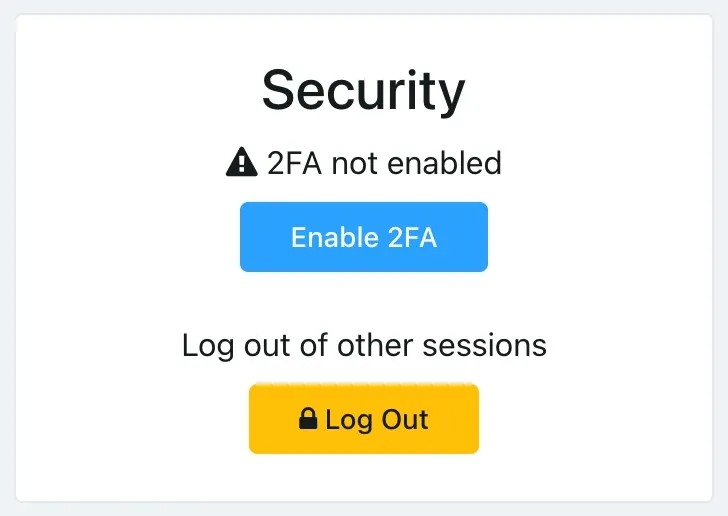
Account Settings > Security.
Getting a team ready
1. An account for each user More detailLess detail
Each user creates a Nanome account at app.nanome.ai. Every new account starts with a 14-day Full license trial.
2. A seat that includes XR More detailLess detail
Working in a headset takes a Collab or Full seat. A free license covers the browser, with 1 owned project, 3 owned workspaces and 5 structures per workspace, and view-only access to workspaces and projects others share.
3. Licenses once the trial ends More detailLess detail
After the trial, headset access continues on a paid seat. The pricing page lists what each seat includes, and the Nanome team quotes volume and academic pricing.
4. Licenses assigned by an admin More detailLess detail
An admin assigns licenses in home.nanome.ai under Licenses > Assign Users, using each user's account email. The license activates once that user confirms the email Nanome sends.
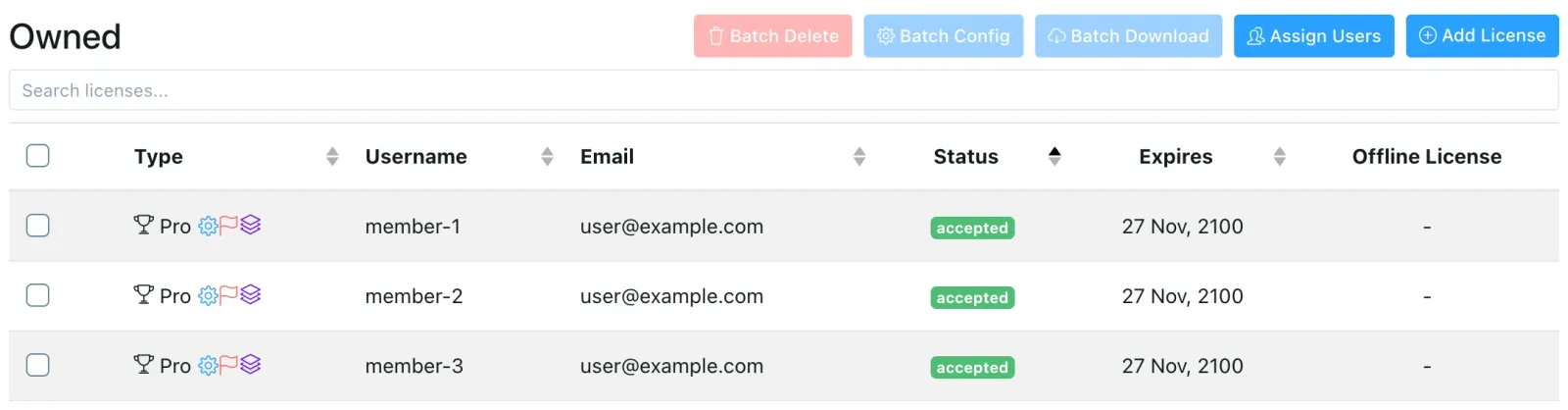
Licenses > Assign Users. Step by step: Manage Licenses.
Log in
Step 7 of 7 · Signing in on a headset
The headset login screen has 2 tabs: Password, for a username and password typed in the headset, and Code, for a short code confirmed from a phone or laptop. The Apple Vision Pro beta has only username and password, so SSO, Google, Microsoft, Apple and two-factor accounts can't sign in there yet (Vision Pro login).
2 ways in
Log in with a code More detailLess detail
- On the headset's login screen, open the Code tab. Nanome shows a short code.
- On a phone or computer, visit nanome.ai/activate, or sign in at app.nanome.ai and choose Login via Device Code.
- Enter the code. The headset signs in to that account.
Each code signs in one user's account, and a new code appears every 5 minutes. Accounts that use single sign-on (SSO), accounts created with Google, Microsoft or Apple, and accounts with two-factor authentication sign in to headsets this way.
Log in with username and password More detailLess detail
- On the Password tab, enter the Nanome username and password, then choose Log in.
- Create Account on the same screen starts a new account with a 14-day free trial.
Forgotten passwords are reset at home.nanome.ai.
Next
Headsets are set up and everyone can sign in. The Session Guide picks up from there: planning a session, building a workspace, and running it with a group.