

Login Screen
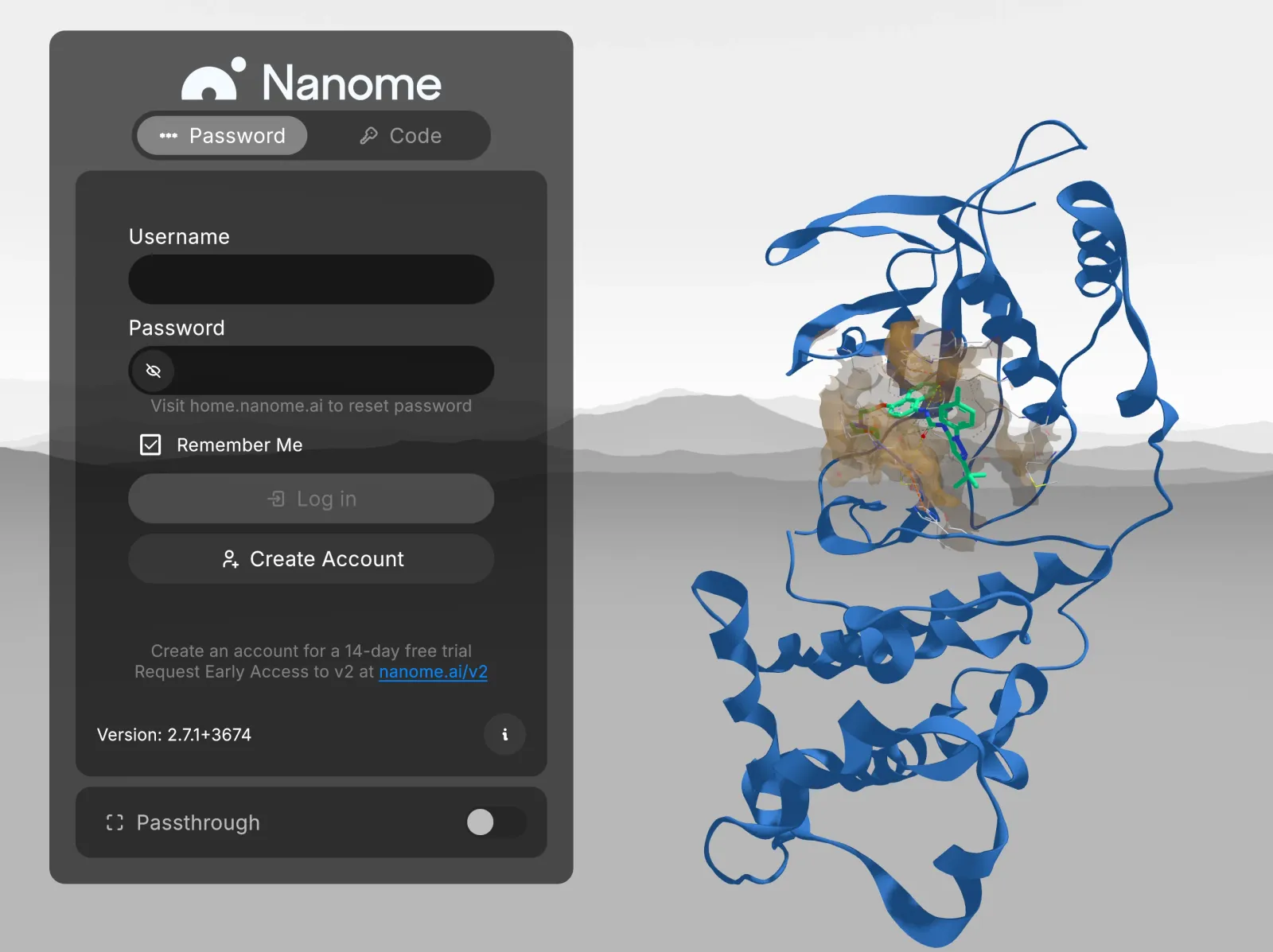
Nanome opens on the login screen. It has 2 tabs: one for your password, and one for a code you enter on another device.
Password
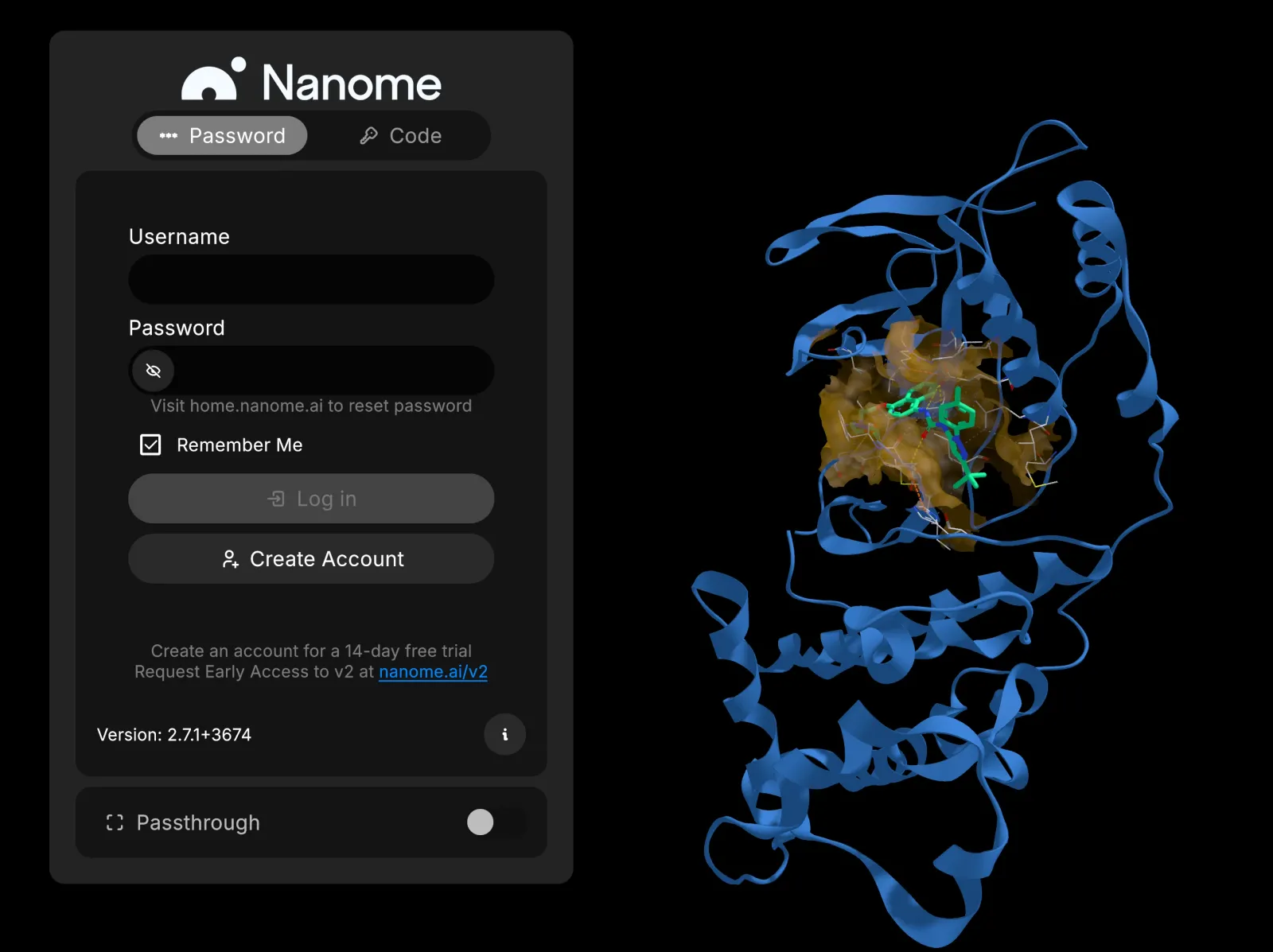
The Password tab takes your Nanome username or email address and your password. Log in signs you in. Forgotten passwords are reset at home.nanome.ai, as the line under the field says.
Code
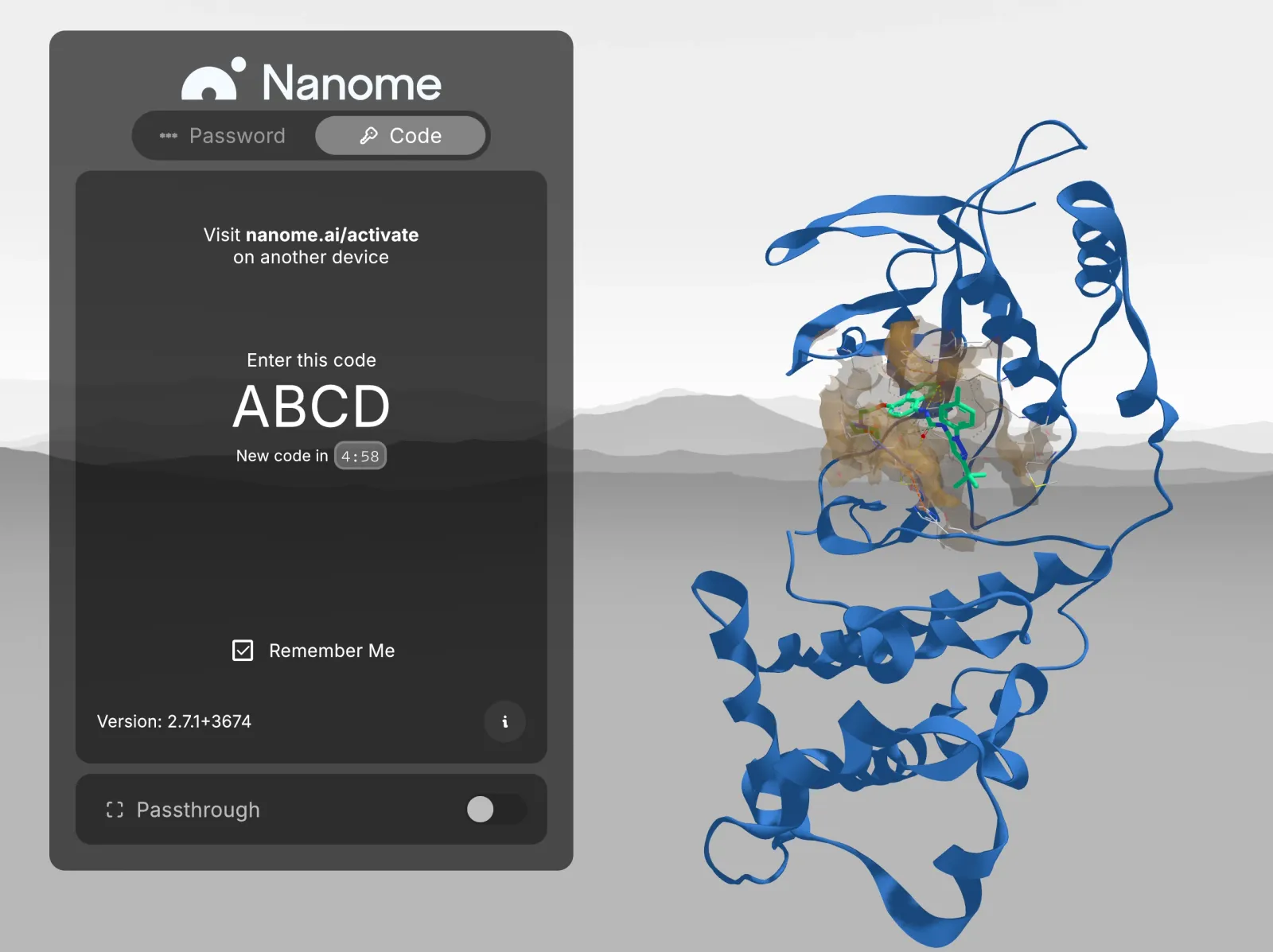
The Code tab signs you in from another device.
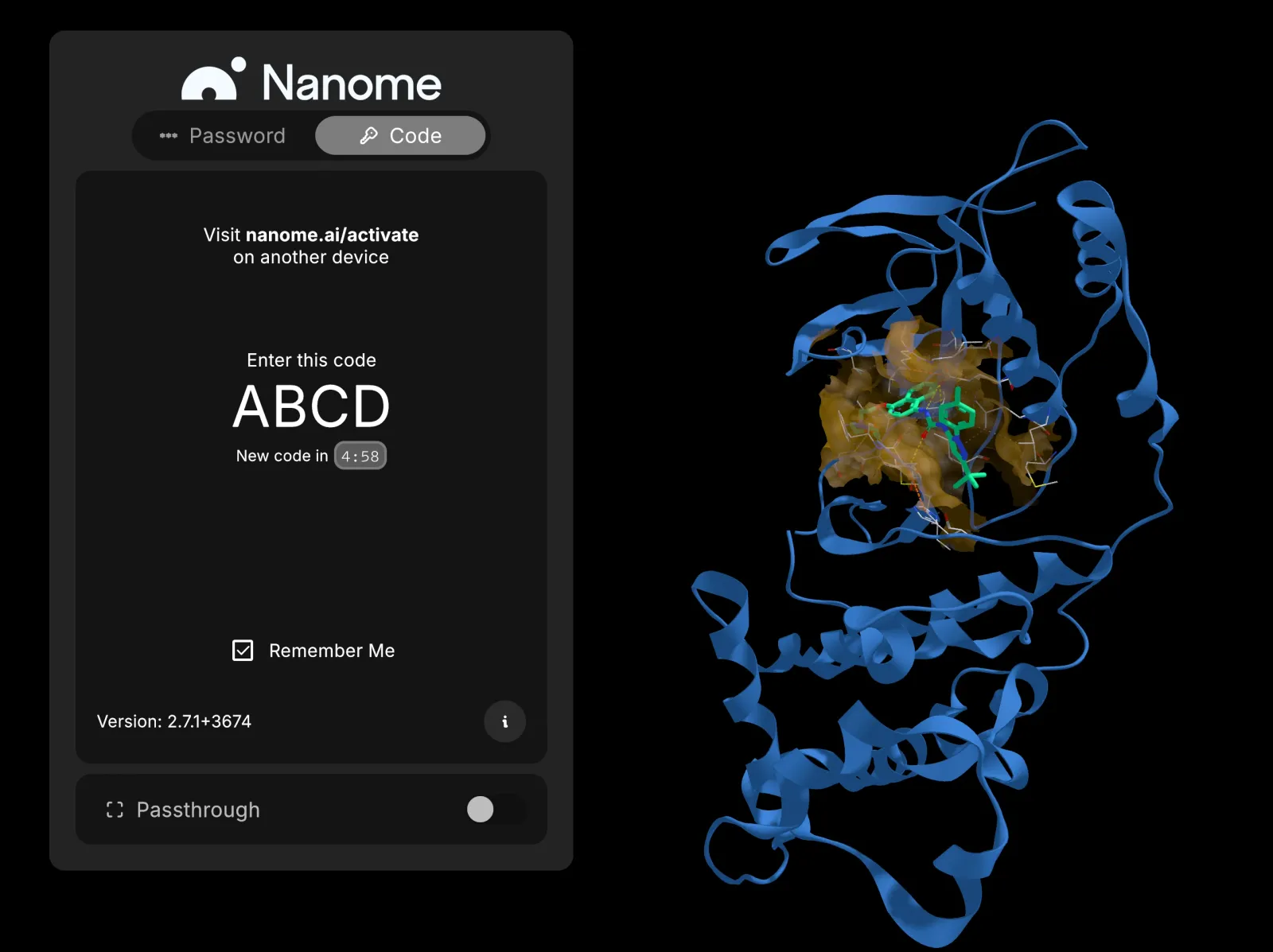
- The headset shows a 4-character code. A new code appears every 5 minutes.
- Enter the code at nanome.ai/activate, or in Login via Device Code on app.nanome.ai.
Create Account
Create Account makes a new account from the headset.
- The account's email address.
- 6 to 120 characters: lowercase letters, numbers, dots, underscores and hyphens.
- 8 to 250 characters, with an uppercase letter, a lowercase letter and a symbol.
- Classroom, Academic Lab, National Research Lab, Commercial Company or Other.
- Optional.
- Signs you up for Nanome's newsletter.
Video: Creating Your Account
Recorded in Nanome 2.4. The Collaboration tab is now called Users, and the Settings tab has more options. Since 2.6, Show other user Avatars is off to start.
Also on the screen
- Keeps you signed in on the headset.
- Closes the tutorial banner on the left, which helps new users get started. Show tutorial guides in the Settings tab turns it back on.
- The Nanome version and build number.
- About NanomeThe i button beside the version. Shows the app details and attributions.
- PassthroughBelow the login screen. On by default on headsets that support passthrough.
Sign-in messages
Since release 2.7, sign-in errors say what went wrong, with a Details button that shows the error code, HTTP status and time. The messages cover:
- a wrong username or password
- an account that has to use the Code tab (Google, Microsoft, Apple, SSO or 2FA)
- an organization IP restriction
- an account without a license for Nanome XR
- network problems
Each Nanome license covers one device at a time. When the account is already in use on another device, a Device Limit screen lists the other sessions, each with Sign Out, and Retry continues. Signing in on another device can sign this one out, with a notice.
Nanome warns when your license will expire within 30 days. When it expires, Nanome signs out with a notice.