

Running a session in Nanome
Once people can reach a workspace, in a browser or a headset, these steps take a group from an empty workspace to a working session. Each step links to the reference page that covers its buttons.
Plan the session
A session rests on 3 things: how many people join, what they join from, and how much structure is on screen.
Find the shape of your session
Splitting a large group More detailLess detail
One workspace works while the group fits in one conversation. Past that, each group gets its own copy built from the same material, so a change one group makes stays with that group.
Duplicate, in a workspace's menu in Nanome XR or Nanome Web, makes the copy: the same structures and scenes, under the original name with "- Copy" added, owned by whoever made it. The copy keeps the global level but not the people added by email, and every workspace has its own code. On a free license, each copy counts toward the 3 workspaces you can own.
Build the workspace
A workspace holds structures, their components and representations, scenes and permissions. It can be built in Nanome Web, by a coding agent or in a headset, and opens the same way in both apps.
Pick a build path
Scenes
Scenes are saved views in a workspace. Each one holds its own components, annotations, molecule positions and point of view, so each scene can show one step while the group moves through them together.
Building a sequence
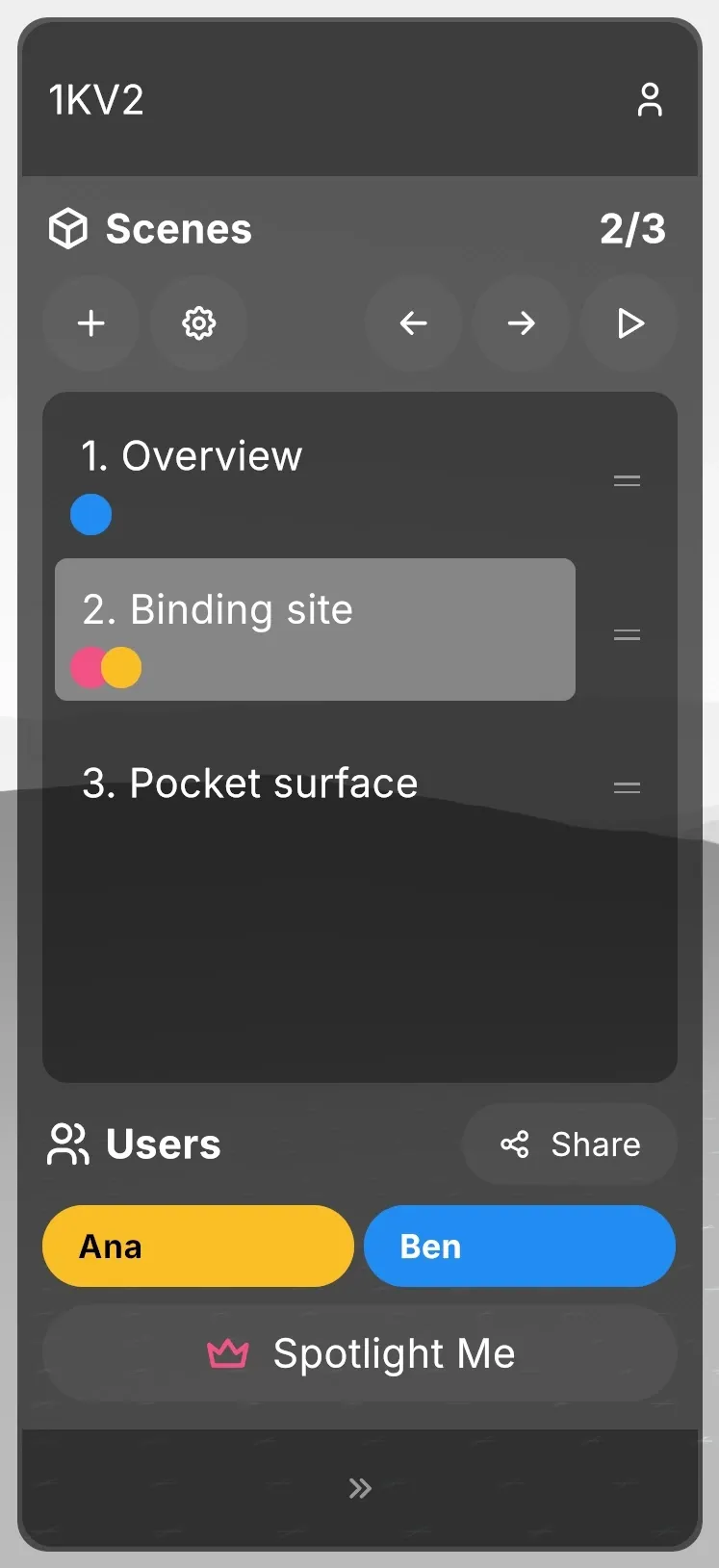
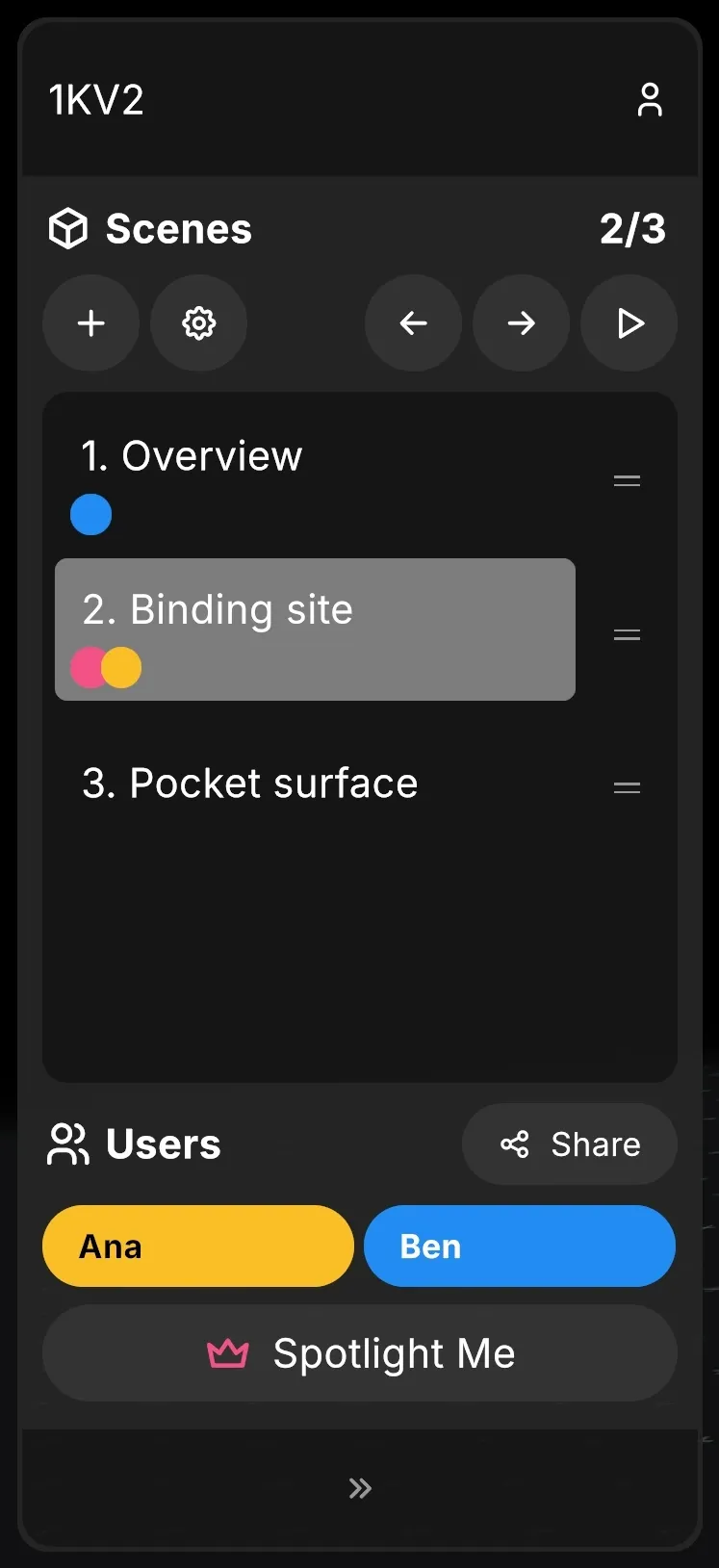
- Create sceneAdds an empty scene. Editors only.
- Scene settingsSet scene POV, Disable Scene POVs and Recenter Self. Editors only.
- Previous and Next sceneSteps through the scenes. Anyone can use them.
- Play scenesPlays the scenes, with their recordings.
- Reorders the scenes.
- One dot for each person in that scene, in their color, you included.
- The others in the workspace. Selecting a chip follows that person.
- Create scene adds an empty scene: each entry in it starts hidden, and the entry's eye in the Components tab brings back its default components.
- Set scene POV, in Scene settings, saves your current view as the scene's point of view. Going to the scene then moves each person to that view.
- Duplicate, in the scene's menu, copies the scene with its components, annotations and positions. One change in the copy makes the next step, so each scene shows a little more than the one before.
- Rename, in the same menu, names each scene for what it shows, and the drag handle puts the scenes in order.
A late change can still reach scenes already built: Copy components, in an entry's Structure actions, copies its components to other scenes, and Copy Scene POV copies a point of view. Every button is on Scenes Panel.
What makes a sequence work
Hide what the scene doesn't need More detailLess detail
Nanome counts every shown atom, bond, cartoon and surface when it works out what a scene costs to draw, including atoms behind an opaque surface. Keep it comfortable covers how much a headset shows.
Name scenes for what they show More detailLess detail
Names such as Overview, Binding site and Pocket surface let anyone go straight to the right step, which matters most once the session splits into groups.
See where everyone is More detailLess detail
Each person has a color, shown on their name chip and as a dot on the scene they're in. Pointing at the dots lists the names, so a glance shows whether the group is together.
Keep the sequence short More detailLess detail
A long sequence built before the first session often gets rebuilt after it. Starting with the handful of views the discussion needs, and adding scenes as questions come up, saves that work.
A recording locks the workspace More detailLess detail
A scene can hold a recorded walkthrough, with the presenter's voice and pointer, that plays with Play scenes. A workspace that holds a recording is locked against changes until someone chooses Modify anyway.
Keep it comfortable
Comfort in a headset depends on a steady frame rate. Every shown atom, bond, cartoon residue, surface and label adds to the work each frame.
Comfort by shown atom count
Nanome suggests these shown atom counts as starting points for each headset, with nothing else on screen.
| Shown atoms | Quest 3 / 3S | Galaxy XR | Vision Pro (M2) | PCVR |
|---|---|---|---|---|
| 7,500 | Comfortable | Comfortable | Comfortable | Comfortable |
| 10,000 | Moderate | Moderate | Comfortable | Comfortable |
| 15,000 | Not recommended | Not recommended | Comfortable | Comfortable |
| 20,000 | Not recommended | Not recommended | Comfortable | Comfortable |
Galaxy XR ratings are estimates: Nanome gives it the same drawing budget as Quest 3. PCVR ratings carry over from Nanome Classic (v1.24). Quest 2 and Quest Pro get a little over half the Quest 3 budget, so heavy scenes lose detail and hide entries sooner on them.
The count covers what's shown: a large structure can sit in the workspace with most of it hidden.
Every headset and Nanome Web →
When a scene is too heavy
On Quest, Galaxy XR and Vision Pro, Nanome estimates what each shown entry costs to draw and aims to keep the scene within a budget for that headset. Over budget, it lowers the detail of the largest entry first, then the next, with no message. A cartoon gets visibly coarser, and surfaces keep their full detail. If the scene stays far over budget, Nanome hides whole entries, largest first.
On Quest and Galaxy XR, a hidden entry leaves a pill with its name where it was, and its eye in the Components tab turns amber. Selecting either opens Show Entry?, with Keep hidden, Show Entry, Show Entry in all scenes and Show all Entries.
If the frame rate stays under 15 FPS for more than 5 seconds, Nanome opens Slowdown detected and hides every entry. They stay hidden until someone shows them again. The popup offers Leave workspace, Disable detection, which turns the check off until another workspace opens, and Close popup. This check also runs on PCVR, which has no drawing budget. On Vision Pro, it hides entries without the popup.
Each headset does this on its own, so one person can lose an entry that everyone else still sees.
Spending the budget well
Hide first
Hide All, at the top of the Components tab, hides every entry, and each entry's eye brings one back. Everything shown counts, even behind an opaque surface.
Keep surfaces small
A surface draws the same geometry at every detail level and opacity: Sheer and Semi only change how see-through it is, so they don't lighten the scene. A surface on the pocket costs far less than one over the whole protein.
Atoms where the discussion is
Cartoon for the fold, and atoms only for the part under discussion, keep the shown atom count low. Components give each part of a structure its own style.
Every style, drawn on 1KV2, is in the copy of the representations panel on Main Panel.
Permissions
Permissions are set per workspace. The global level applies to anyone who joins with the code, so it's best set before the code goes out.
The four levels
Viewer
The usual level for a group. Viewers look around, select, point, follow, spotlight and move between scenes, and the workspace stays as it is. They can add comments in Nanome Web and read them in Nanome XR.
Editor
For the people building or changing the workspace. Editors can also open Share to add people and change their level.
Owner
Each workspace has 1 Owner, who can do everything an Editor can, remove people and delete the workspace.
None
As the global level, it keeps the workspace private: only people added by email, or through its project, can open it.
On a free license, people have Viewer access to workspaces they don't own, even when they're added as Editors. Like every Viewer, they can still spotlight and follow.
Setting them
- In Nanome XR, open the Users tab and choose Share. In Nanome Web, open the workspace's Users tab.
- Set the global level: Viewer for a prepared workspace, or None to keep it private. Nanome Web calls it Link access: Members only, Anyone can view or Anyone can edit.
- Add anyone who needs their own level with Add people by email. The address has to match their Nanome account exactly.
- To change one person later, open the menu beside their address: Make Editor or Make Viewer, and Remove User for the Owner.
Share dialog in Nanome XR → · Link access in Nanome Web →
Share the workspace
A workspace reaches other people 3 ways:
The workspace code
Every workspace has its own 8-character code, shown as XXXX-XXXX in the Share dialog and at the top of the Users tab in Nanome Web. Anyone who enters it joins at the global level, from a headset or a browser.
- Set the global level first. While it's None, the code works only for people added by email or through the project.
- Send the code with the invitation or in the chat. Copy link, beside the code in Nanome Web, copies a link to the workspace and leaves access as it is.
- In a headset, the code goes in Join Workspace at the top of the Workspaces tab. In a browser, it goes in Join via Code.
Copy shareable link, in a workspace's menu in Nanome Web, changes Members only to Anyone can view before it copies the link.
Named access by email
Add people by email gives one address its own level, Editor or Viewer, whatever the code allows. It suits a workspace that stays private, or one person who edits while the rest watch.
Colleagues already online
Users in organization, in the Users tab, lists colleagues who are online.
- InviteAsks them into your current workspace. They see Join Workspace? with Refuse or Accept.
- JoinGoes to the workspace they're in. Without access, it sends them a join request, which they can accept as Viewer or Editor.
Run the session
Nobody has to be the designated presenter. Anyone in the workspace can spotlight their view or follow someone else, whatever their permission level or seat, so handing over the session is a matter of who spotlights next.
Spotlight and follow
The copy of the Users section below works like Nanome XR's: selecting Ana or Ben follows them, and Spotlight Me has both of them follow you.
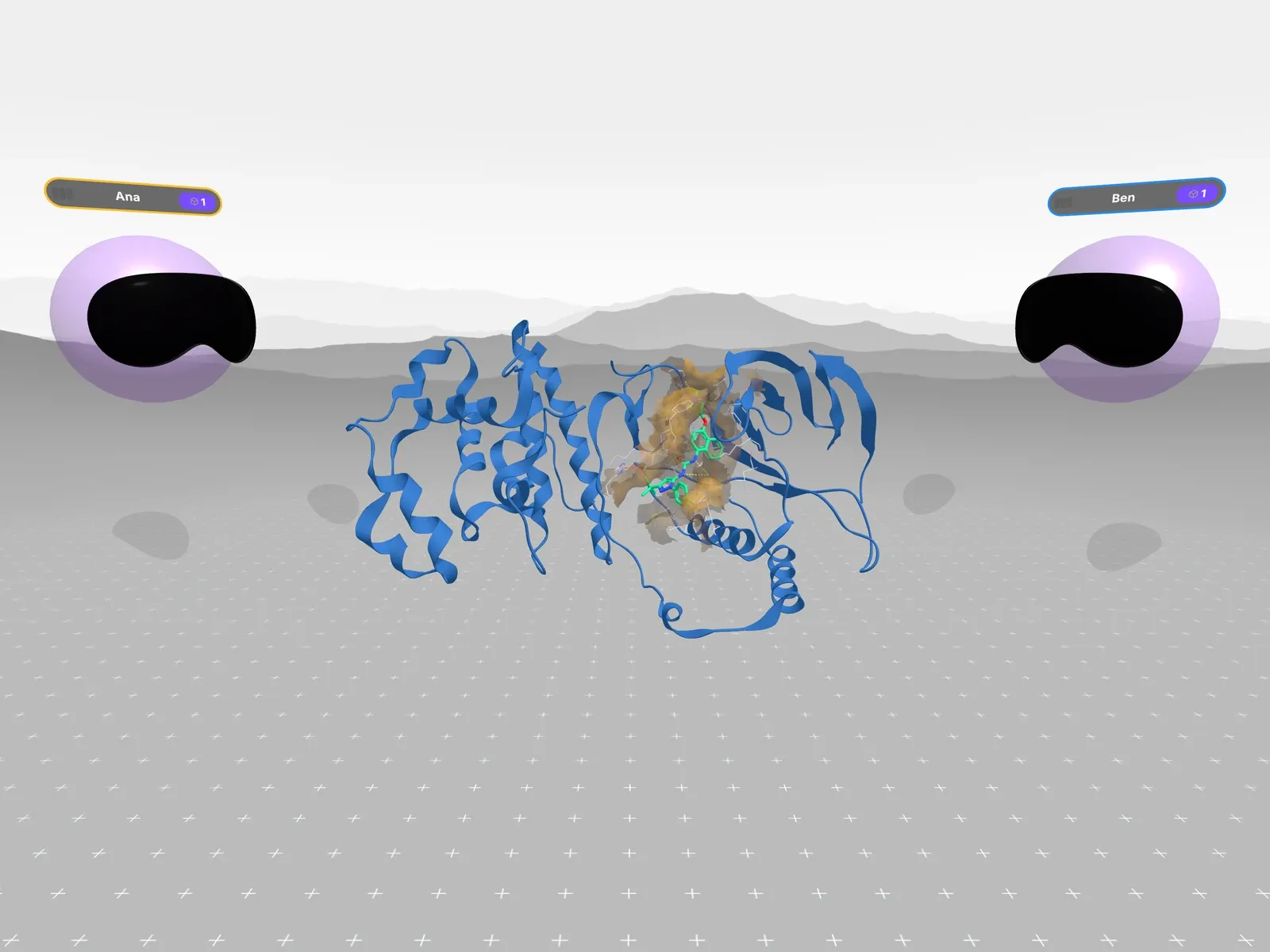
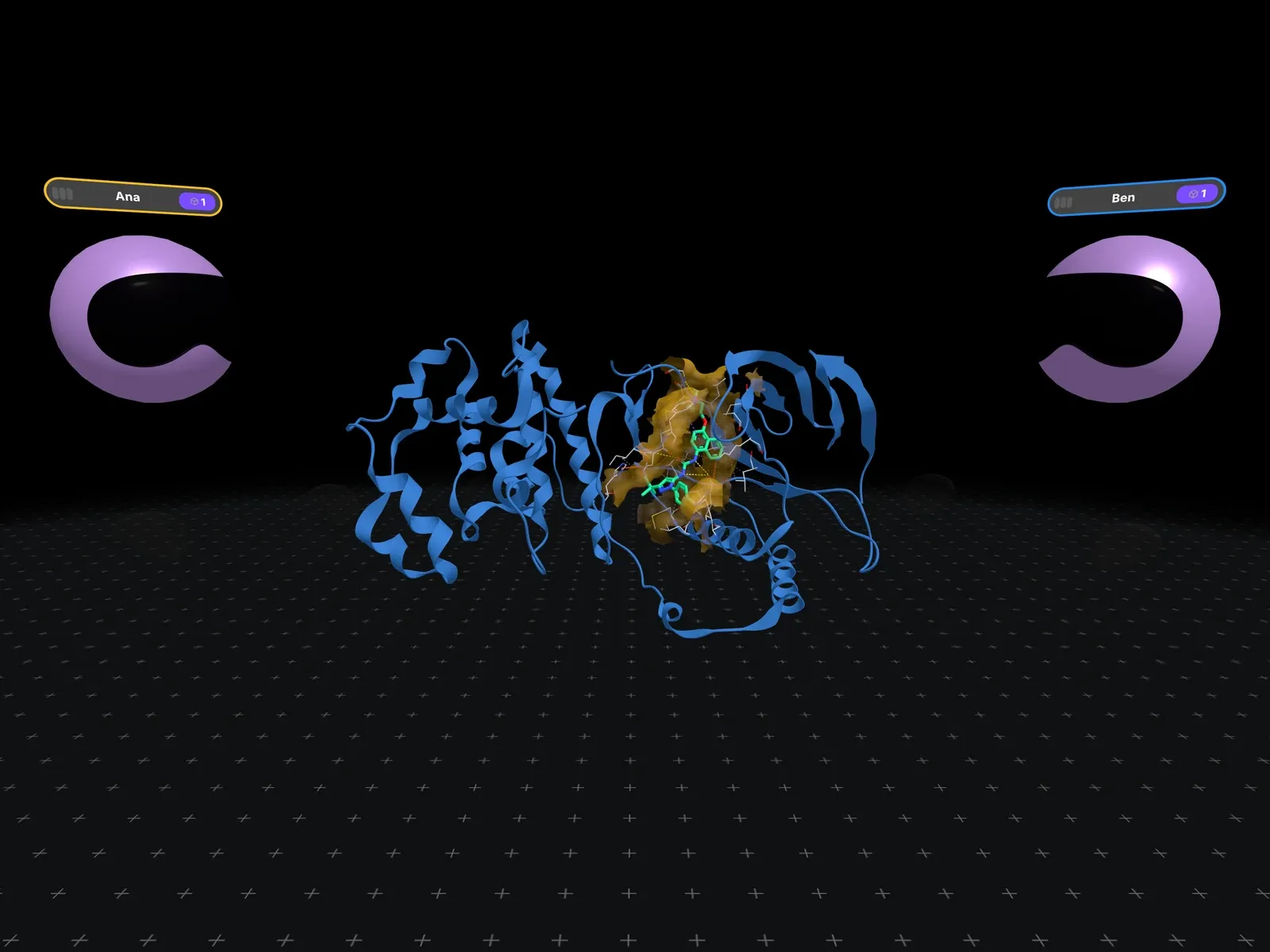
- In a headset, a new spotlight shows a prompt, and the headset follows after about 6 seconds unless the person chooses Not now. Nanome Web follows straight away.
- People who join or reconnect during a spotlight follow it too, and followers see the leader's scene, tool and edits as they happen.
- Pointers sit on the same part of the structure for everyone, so pointing at a residue works even when nobody is following.
Spotlight Mode → · Following from Nanome Web →
Moving the group
Load for All, in the Workspaces tab, takes everyone in your session to the selected workspace. Each of them sees Loading Workspace, with Cancel to stay or Go Now, and moves with you if they do nothing. When some of them can't open the destination, Nanome first offers to add them as Viewers or Editors. Load moves only you.
In Nanome Web, Queue for All, at the bottom of a workspace's Users tab, sends it to every member. People in a headset move to it right away, and the rest get it the next time they open Nanome XR.
Before the group arrives
Recenter each headset More detailLess detail
On Meta Quest, holding the Meta button recenters your view. Each person can do this before the session, and again if the spotlight sits off-center for them. Editors also have Recenter Self in Scene settings.
Check audio in the Users tab More detailLess detail
The Users tab shows your mic with a level meter, the display name others see, and a menu beside each person with Mute, which mutes them for you only. The off-hand controller's primary button (X, or A when left-handed) and the Wrist Menu also mute you.
Step through every scene once More detailLess detail
Going through the sequence once on the least powerful headset shows whether any scene loses detail or hides an entry before the group sees it. On Quest and Galaxy XR, a hidden entry leaves a pill with its name.
Troubleshooting
Most live problems come from 3 places: too much on screen, a permission set after the code went out, or a network the headsets can't reach.
The headset feels slow, or an entry vanished More detailLess detail
When a scene is far over a headset's budget, Nanome lowers detail and then hides entries, and after a long slowdown it hides every entry. Hiding everything and bringing back only what the current scene is about usually fixes it, and a surface on the pocket costs far less than one over the whole protein.
Someone can't change anything More detailLess detail
My Permission, at the top of the Users tab, shows each person their own level. An Editor or the Owner can choose Make Editor from the menu beside their address in the Share dialog. On a free license, people stay Viewers in workspaces they don't own. A Collab seat stays a Viewer in Nanome XR whatever its level, under a You have a Viewer seat banner.
Someone can't get in with the code More detailLess detail
While the global level is None (Members only in Nanome Web), the code works only for people added by email or through the workspace's project. Setting it to Viewer, or adding the person by email, lets them in.
A follower's view is turned sideways More detailLess detail
While following, Reset orientation, in the bar under the name chips, lines the leader's view up with the way the follower faces now.
Headsets struggle while browsers are fine More detailLess detail
Headsets often sit on a separate network from laptops, and that network can be slower or more restricted. While a connection is poor, a warning icon appears beside the workspace name in the left sidebar, and its tooltip shows the ping. A phone hotspot makes a quick comparison.
Nanome Web shows 3D viewer unavailable More detailLess detail
The viewer needs WebGL 2. The message lists fixes for the browser in use, such as restarting it or turning on hardware acceleration, and Technical details holds a report to send to support.