

Sample Workflows and Usage
Below are some examples of workflows that can be accomplished in Nanome v2, including using MARA to open and prep structures.
Opening from MARA
- Log into MARA and Nanome with the same account credentials.
- Create a new MARA chat.
- Prompt MARA to load a structure of your choice and MARA will render the structure in the Molstar Visualizer.
- Example Prompt: "Load 67o" --> loads in Molstar viewer panel.
- Click the button to "Open in XR", and a message will appear in MARA.
- Go to the Nanome app in your XR headset - the structure will be there as a new workspace named after the chat.
Note: The workspace will be set to 'Private' permission level, so it cannot be shared.
Limitation: Each 'open in headset' action from MARA will create a new workspace. Representations might not be exact between Molstar and Nanome. In those cases, our team is happy to help. Please reach out to us at support@nanome.ai to help us build solutions for representations.
Sharing Workspace
- Open the Users Tab and click ‘Permissions’. There are two main methods to do this:
- Set the workspace code from ‘Private’ to ‘Viewer’ or ‘Editor’ depending on your needs, then tell your colleagues the code.
- Invite a user directly by email if they have a Nanome account. (This must be an exact email match, there is no auto-completion.)
- Each user that joins with the code or was added via email will appear in the workspace list.
- Each user permission can be individually managed (including setting to none).
Displaying Interactions Between Structures
Video: Cross-Entry Interaction Components
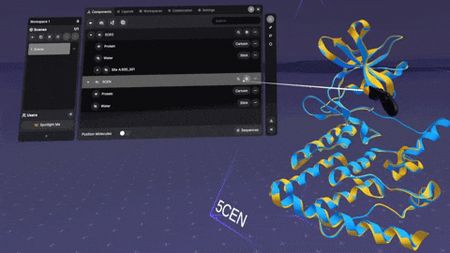
- Make sure your structures show up as entries in the main section of the Main Panel.
- Find one of the entries, then click on the 'Structure Actions' button to the right of the entry name.
- Select 'Create interaction components' and choose either 'Polymer-Ligand' or 'Polymer-Polymer' depending on the type of interaction you want to display, then select the target entry and click 'Create'.
▶
Video: Chemical Interactions Menu
Once interaction components exist, the Chemical Interactions panel lists every interaction found. Hover over an entry in the list to highlight the corresponding bond in 3D, pin the interactions you want to keep to hand, and toggle clash detection.
Aligning Proteins in XR
Video: Aligning Proteins
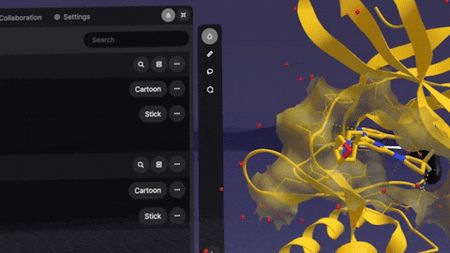
- Make sure your proteins show up as entries in the main section of the Main Panel.
- Find one of the entries, then click on the 'Structure Actions' button to the right of the entry name.
- Select 'Align proteins to this', then choose which entry you want to align to and click 'Align'.
▶