

Scenes Panel
Video: Working with Scenes
The Scenes Panel is accessible from the left side of the interface and manages scene views within a workspace.
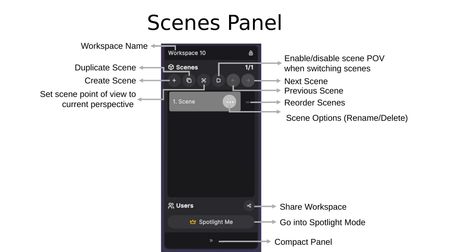
Controls
- Workspace Name — Displayed at the top of the panel, along with a lock icon indicating permission status.
- Create Scene (+) — Add a new scene to the workspace.
- Duplicate Scene — Copy the current scene with all its representations and settings.
- Set Scene POV — Set the scene point of view to your current perspective.
- Enable/Disable Scene POV — Toggle whether switching scenes adjusts your viewpoint.
- Previous / Next Scene — Navigate between scenes using the arrow buttons.
- Scene Options (...) — Rename or delete individual scenes.
- Reorder Scenes (=) — Drag to rearrange scenes in the list.
Users Section
At the bottom of the Scenes Panel, the Users section shows who is currently in the workspace. Each user is assigned a personal color, displayed on their name tag and their crown icon. A Share Workspace button allows you to invite others, Go into Spotlight Mode starts spotlighting, and Close Panel collapses the panel.
Multi-User Scene Indicators
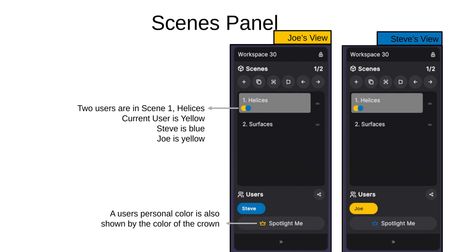
When multiple users are in a workspace, colored dots on each scene indicate which users are currently viewing that scene. Each user's personal color corresponds to their name tag in the Users section and to the color of their crown.
Spotlight Mode
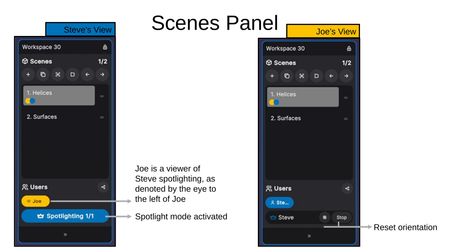
Clicking Spotlight Me activates Spotlight Mode, making your view the shared perspective for all followers.
- Spotlighter's View — The "Spotlighting 1/1" indicator shows Spotlight Mode is active and how many users are following. Followers are listed with an eye icon next to their name.
- Follower's View — Followers see the spotlighter's name with a crown icon, along with a Reset Orientation button and a Stop button to exit follow mode.