

Tools Panel
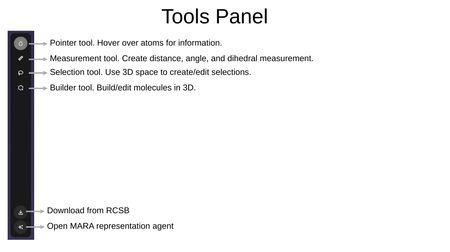
The Tools Panel is a vertical toolbar on the right side of the interface providing access to interaction tools. From top to bottom:
- Pointer Tool — Hover over atoms to display information.
- Measurement Tool — Create distance, angle, and dihedral measurements.
- Selection Tool — Use 3D space to create and edit selections.
- Builder Tool — Build and edit molecules in 3D.
- Torsion Tool — Rotate bonds to adjust molecular conformation.
- Download from RCSB — Import structures directly from the RCSB Protein Data Bank.
- Open MARA — Launch the MARA representation agent.
Selection Tool
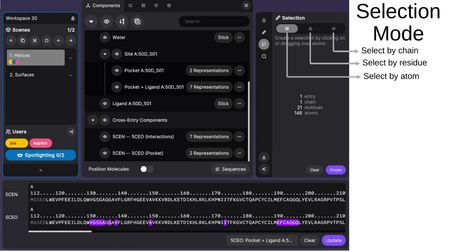
The Selection Tool allows you to create selections by clicking on or dragging over atoms in 3D space. Selection granularity options include:
- Select by chain — Select entire chains.
- Select by residue — Select individual residues.
- Select by atom — Select individual atoms.
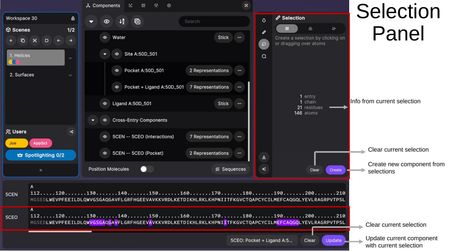
The Selection Panel shows information about the current selection (entry count, chains, residues, atoms) and provides:
- Clear — Clear the current selection.
- Create — Create a new component from the current selection.
- Update — Update the current component with the current selection.
Measurement Tool
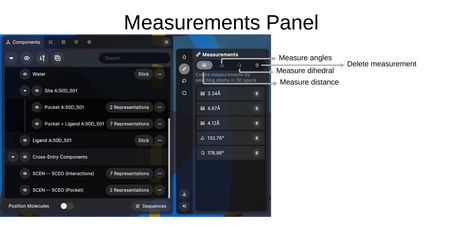
The Measurement Tool creates measurements by selecting atoms in 3D space. Measurement types include:
- Measure distance — Measure the distance between two atoms (displayed in Ångströms).
- Measure angles — Measure the angle between three atoms (displayed in degrees).
- Measure dihedral — Measure the dihedral angle between four atoms (displayed in degrees).
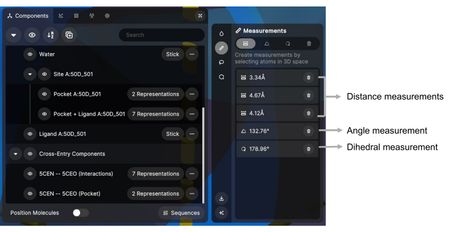
Each measurement appears as a row in the Measurements Panel with a delete button to remove individual measurements. Hovering over a measurement row in the panel highlights that measurement in the 3D view.
Builder Tool
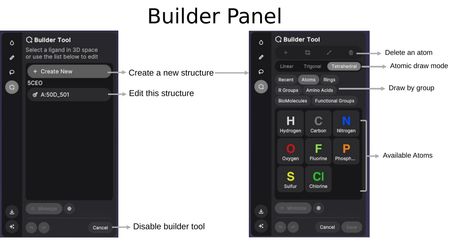
The Builder Tool enables 3D molecular construction and editing. Upon activation, you can choose to:
- Create a new structure — Start building a new molecule from scratch.
- Edit this structure — Select an existing ligand to modify.
The Builder Panel provides the following modes:
- Atomic draw mode — Place individual atoms. Geometry options determine the number of dummy bonds: Linear (one), Trigonal (two), or Tetrahedral (three).
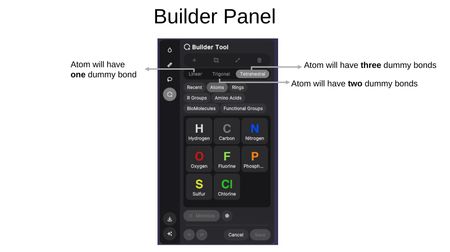
- Draw by group — Insert pre-built groups from categories including: Recent, Atoms, Rings, R Groups, Amino Acids, BioMolecules, and Functional Groups.
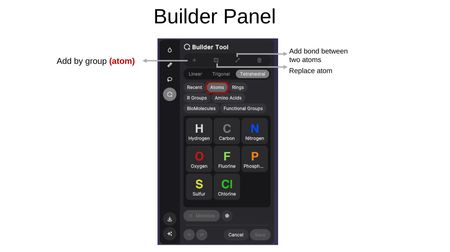
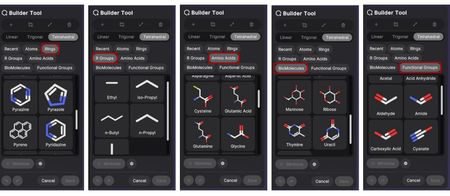
- Add bond — Create a bond between two existing atoms.
- Replace atom — Swap one atom type for another.
- Delete an atom — Remove atoms from the structure.
- Disable builder tool — Exit the Builder Tool.
Available Atoms: Hydrogen (H), Carbon (C), Nitrogen (N), Oxygen (O), Fluorine (F), Phosphorus (P), Sulfur (S), and Chlorine (Cl).
Minimization
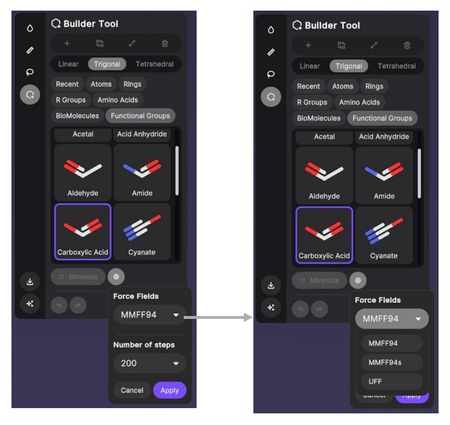
The gear icon beside Minimize opens the force field settings:
- Force Fields — Choose the force field used for minimization: MMFF94, MMFF94s, or UFF.
- Number of steps — Set how many minimization steps to run (e.g., 200).
Click Apply to confirm, or Cancel to dismiss.
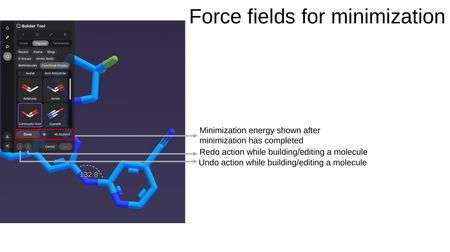
While in the Builder Tool, clicking Minimize runs a force field minimization on the structure. After minimization completes:
- The minimization energy is displayed (e.g., 46.6 kJ/mol).
- Undo/Redo buttons allow you to step through edits made while building or editing a molecule.
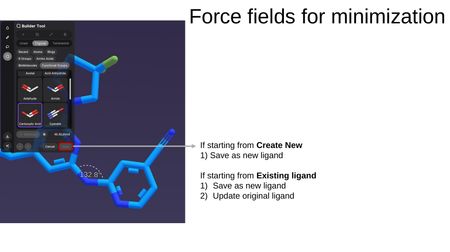
When saving, the options depend on your starting point:
- Starting from Create New — Save as new ligand.
- Starting from an existing ligand — Save as new ligand, or update the original ligand.
Torsion Tool
Video: Torsion Tool (Beta)
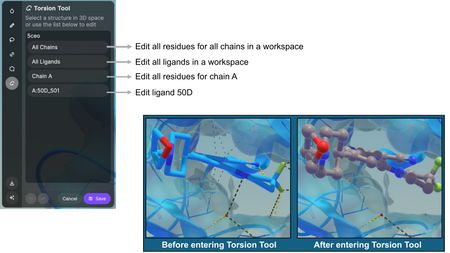
The Torsion Tool rotates bonds to adjust the conformation of a structure. Select a structure in 3D space, or use the list in the panel to choose what to edit:
- All Chains — Edit all residues for all chains in a workspace.
- All Ligands — Edit all ligands in a workspace.
- Chain A — Edit all residues for a single chain.
- A:50D_501 — Edit an individual ligand.
Structures switch to a ball-and-stick representation on entering the Torsion Tool, and return to their previous representation on exit.
To rotate a bond, hover over one half of it and pull the trigger. A Show torsion for the entire molecule option displays torsions across the whole structure. Undo/Redo step through changes, Save commits them, and Cancel discards them.