

Nanome Vault
Nanome Vault is a plugin for storing files in the cloud. You can upload and download them from a VR headset or a web browser. A file you drop into the browser is then ready to load in your Nanome session.
Standalone headsets such as Quest store files on the headset, so moving files usually means connecting it to a computer with a USB cable. Nanome Vault allows users to open up a web browser on any computer to access cloud storage that is integrated directly into your Nanome session and linked to your Nanome account. You can visit the Nanome-hosted Vault Plugin at https://vault.nanome.ai. Note that if you are an Enterprise customer, your Organization will have a different web address for the private-cloud deployment of the Nanome Vault; your Nanome administrator has the correct URL.
There are 3 main folders in Nanome Vault:
- shared: a public folder everyone can see
- my org: shared only with users in your organization (requires an Organization set up at https://home.nanome.ai)
- account: a folder only you can see
Nanome saves exports to folders inside account, such as Workspaces, Structures, Recordings and Pictures. Each one appears the first time something is saved there. You can also create folders, move files and encrypt folders.
When accessing Vault from the web browser (at https://vault.nanome.ai), it asks you to log in with your Nanome account.
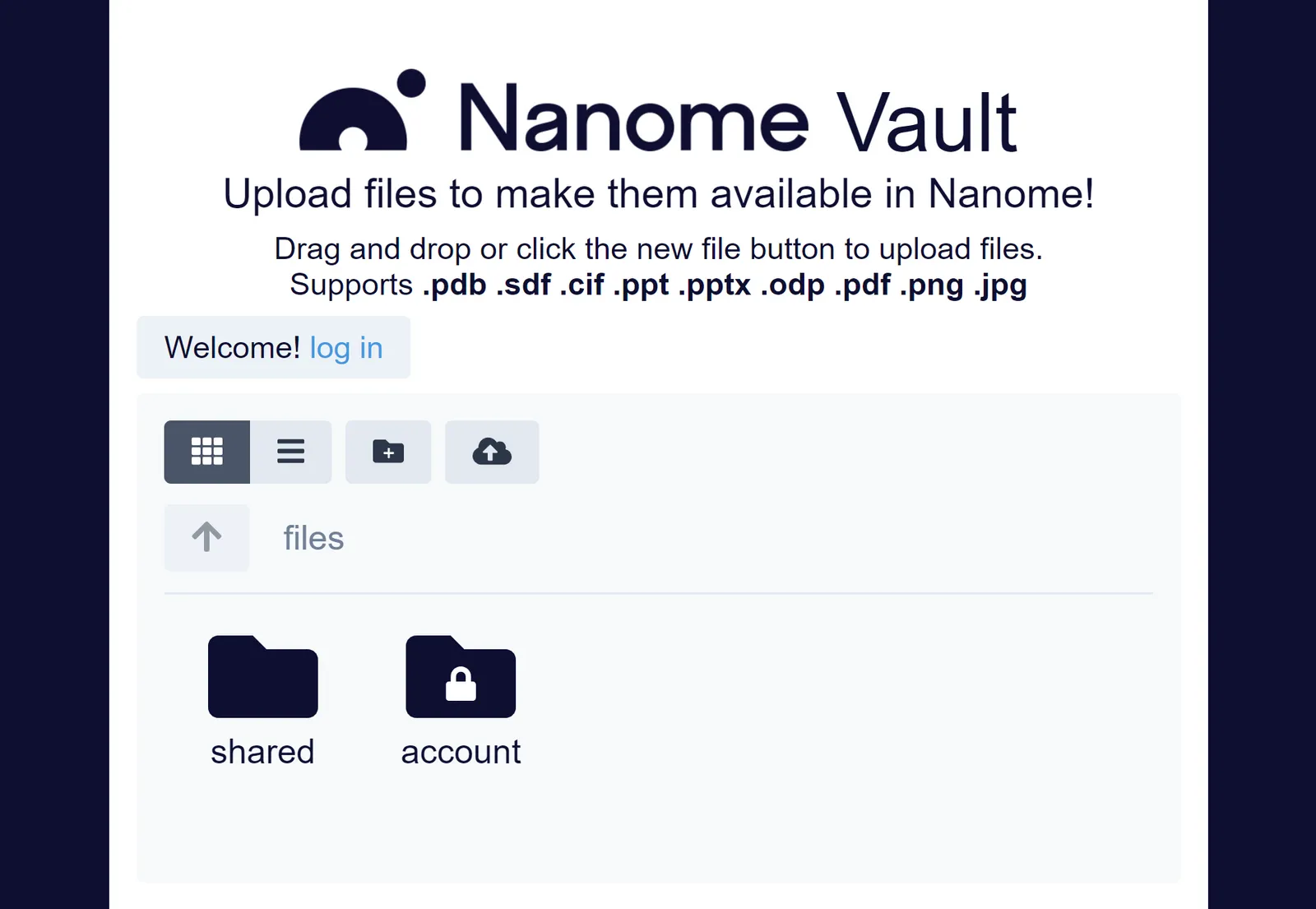
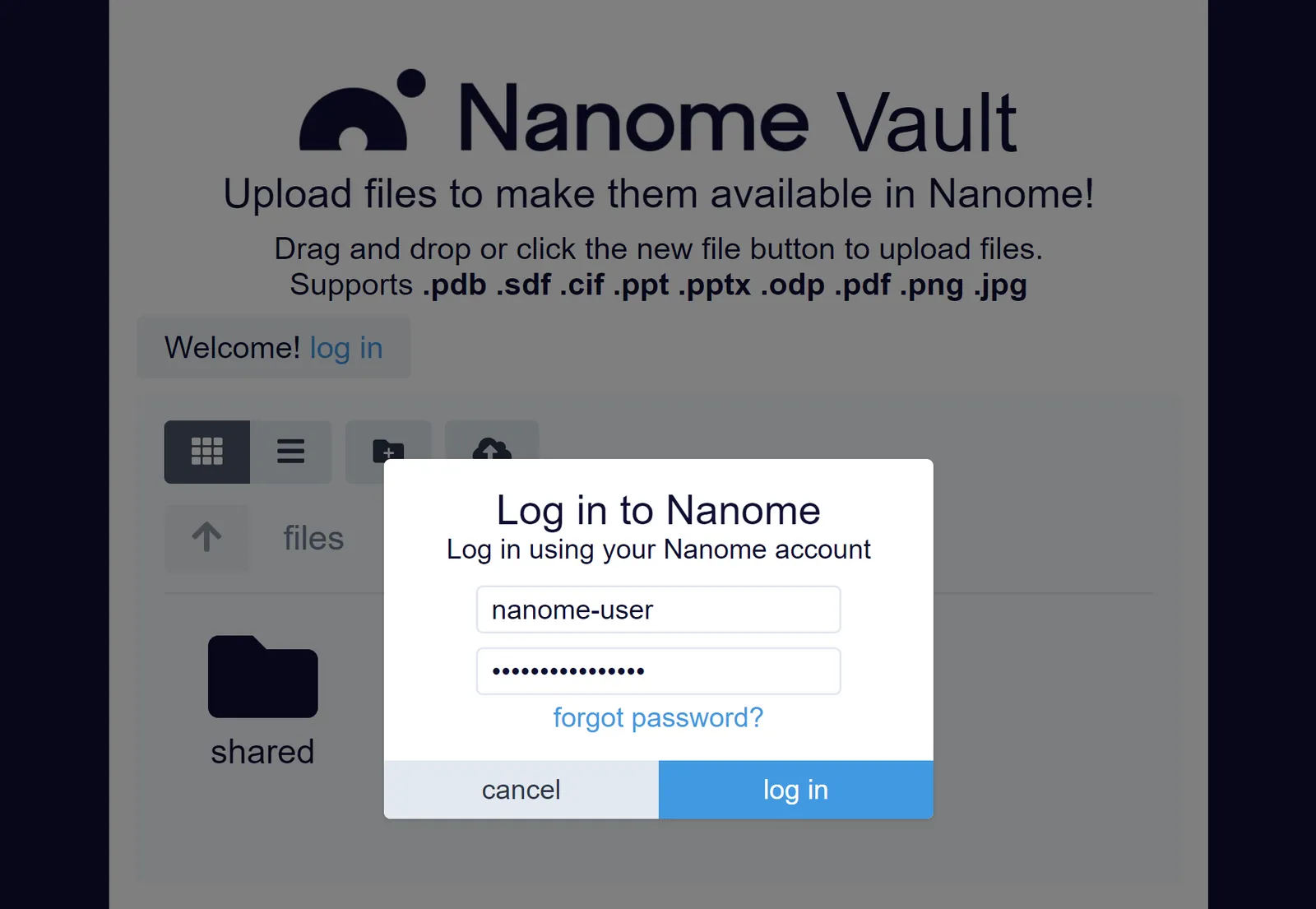
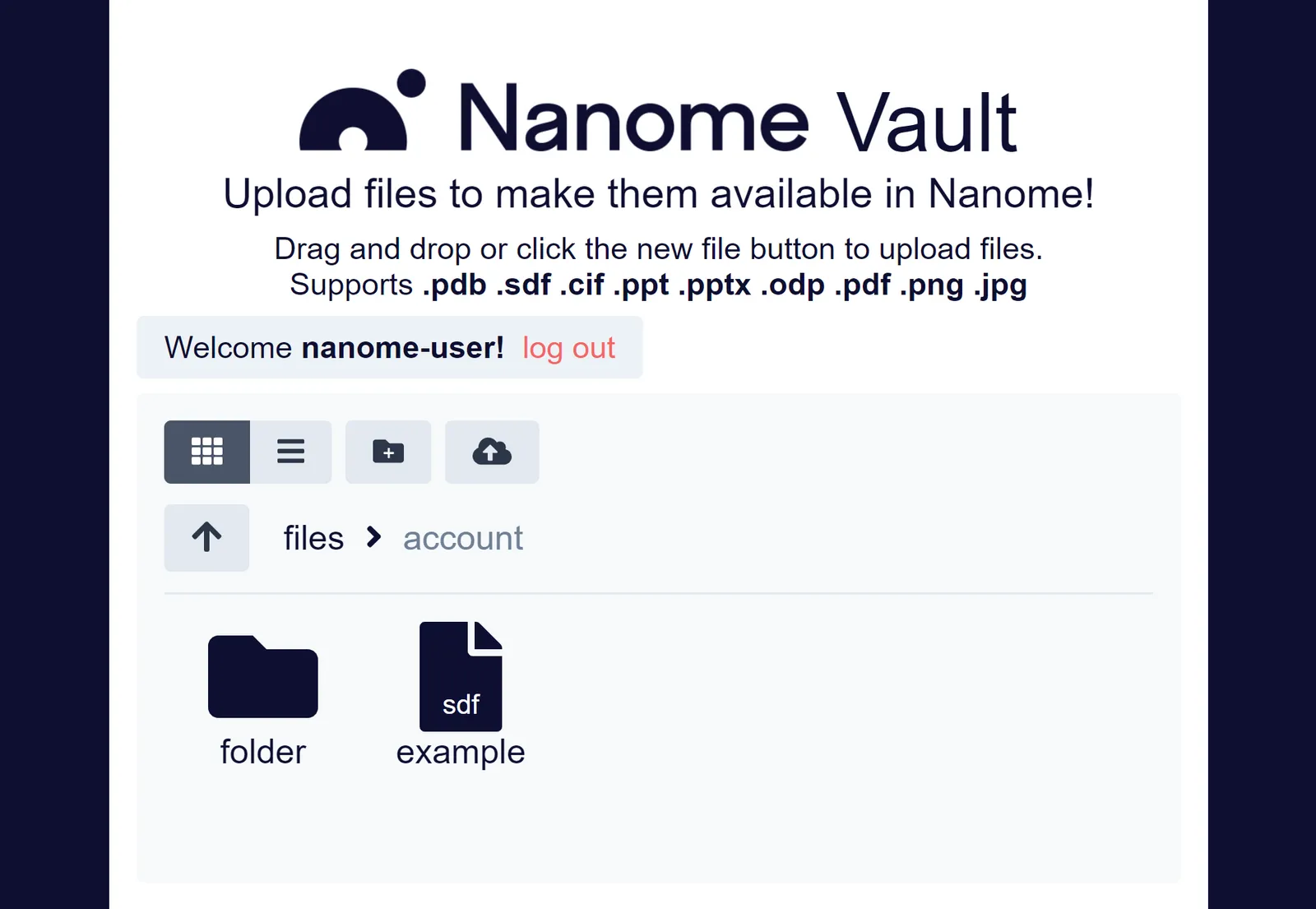
From here you can drag and drop files into the web browser as well as rename, move, and delete them.
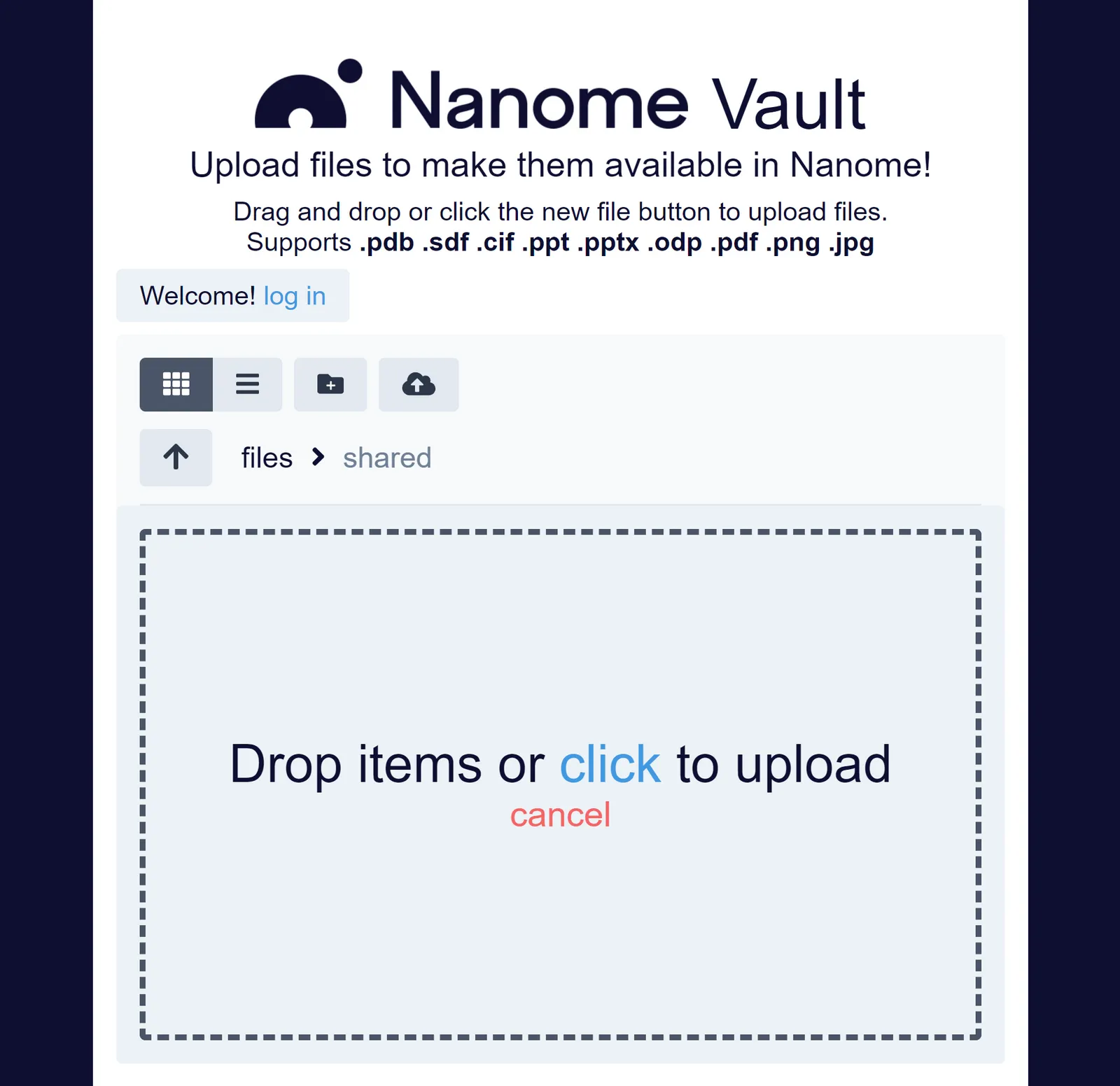
After you launch Nanome, open up the Load Menu and go to the "Stacks" tab. This will show the Nanome Vault which you can now click and navigate through to see what you have uploaded.
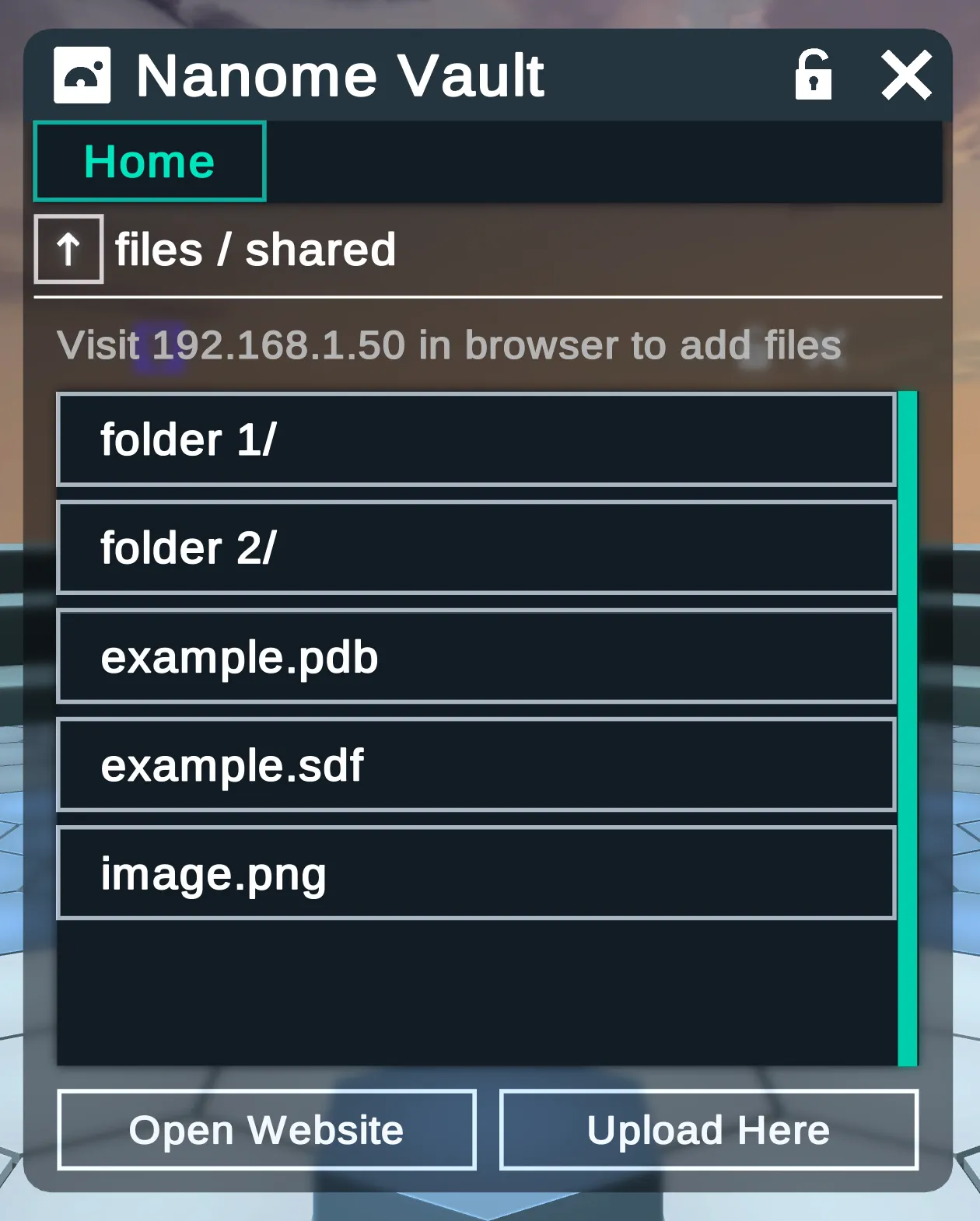
Additionally, users can upload from inside a Nanome session to the Nanome Vault to use for other applications or come back to later.
Whenever you have a prompt to export (e.g. Workspace Session File, Molecule, Image), there is a "where" field on the destination you would like to save your file to. Each of these file destination dropdowns contains a "Vault - Browse" option that lets you navigate through the Nanome vault and select a specific file save location.
This is particularly useful if you've made several ligand design iterations and want to share them with colleagues.
You can also access the Scene Viewer from Vault, which allows you to arrange content in Nanome. The Scene Viewer page has more.