

Comments
Comments, added in release 2.7, are threaded discussions stored inside a workspace. A comment can belong to the whole workspace, to a scene, or to an annotation, and it can point at specific atoms. Everyone in the workspace sees new comments as they're posted, in Nanome Web and in Nanome XR.
The Comments tab
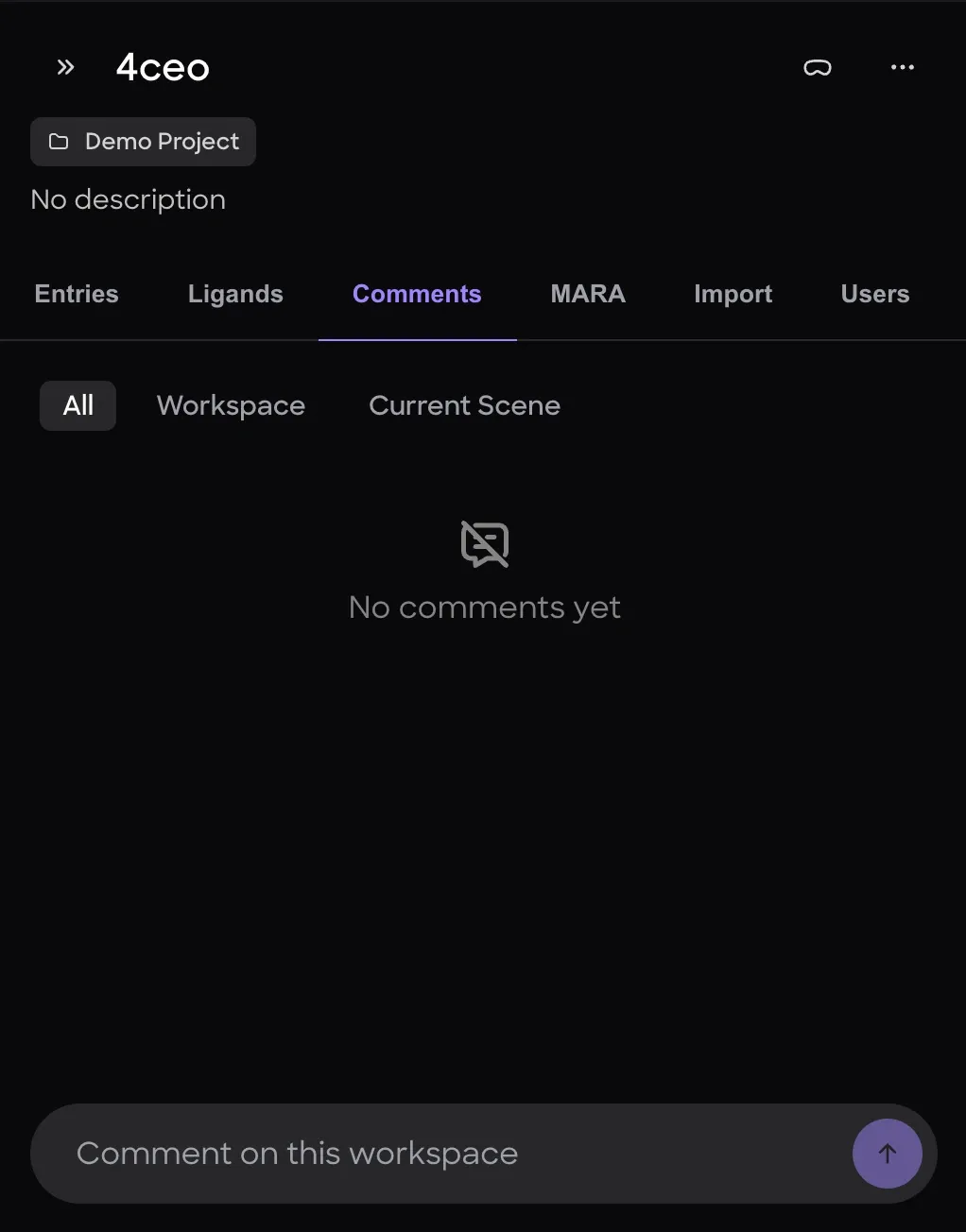
The Comments tab in the workspace panel lists the workspace's comments, with the filter at the top and the comment box at the bottom.
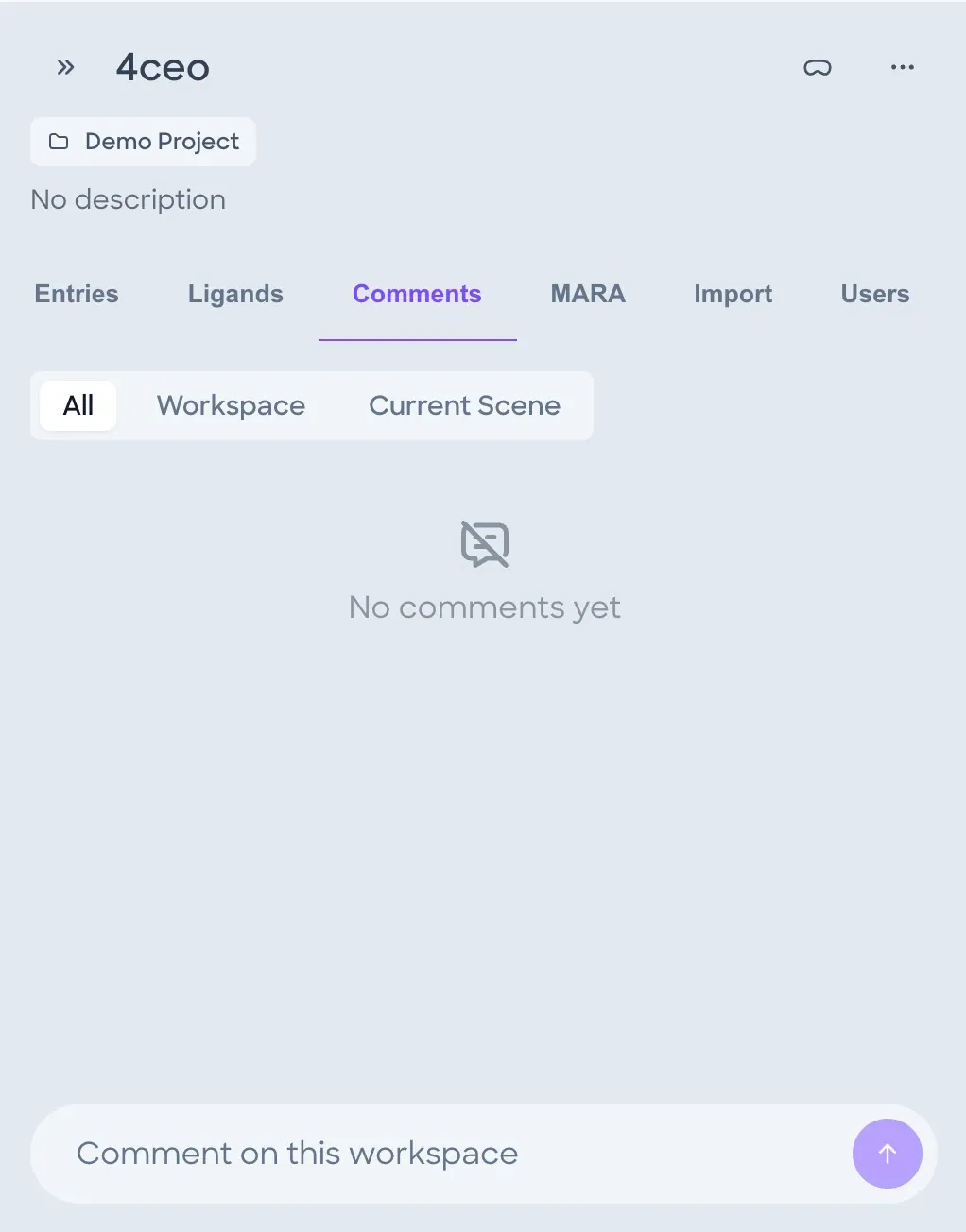
- Shows all comments.
- Shows only the comments on the workspace.
- Shows only the comments on the current scene.
- The box at the bottom: posts a new comment to the workspace. With Current Scene picked, it reads Comment on this scene and posts to the current scene. With atoms selected, it anchors the comment to them.
- SendPosts what's in the box.
A workspace with no comments shows No comments yet.
What a comment can hold
- The author's avatar and name, and how long ago the comment was posted, such as
18mornow. - Scene chipOn a comment tied to a scene: the scene's number and name, such as
6: 1KV2comments. - Atom chipA link to specific atoms, such as
1KV2 A|B96'391 C4, C5. Hovering it highlights those atoms in the viewer, and clicking it zooms to them. - A comment can mention a colleague by name. The mention is highlighted in the text, and that person is notified. When someone mentioned has no access to the workspace, the comment box warns that they won't be notified, and an Editor can add them from there.
- ReactionsEmoji reactions under the comment, with a count beside each emoji.
- RepliesA count under the comment shows how many replies its thread has.
Threads
Each comment starts a thread. Clicking a comment's reply count, or Reply in thread in the row of buttons that shows on hover, opens it: the first comment sits at the top, the replies follow under it in the order they were posted, and the box at the bottom posts a new reply.
Replies belong to their thread, so they don't show scene or atom chips of their own. They take mentions and reactions like any other comment.
Reactions
Hovering a comment shows a row of buttons at its top right, starting with thumbs up, thumbs down and an emoji picker. Reactions show under the comment as an emoji with a count, followed by a button for adding another.
A reaction is a toggle: picking an emoji you've already added to a comment removes your reaction.
The More actions button at the end of the row has Watch thread and Copy link, and Edit and Delete on your own comments.
Anchoring to atoms
When atoms are selected in the viewer and the filter is All or Current Scene, the comment box shows an Anchor to chip that names them, and its placeholder changes to Annotate the selection. The new comment is attached to those atoms. The × on the chip removes it. Anchoring needs Editor access.
- Select atoms: click them with the Default tool or the Selection tool, or pick residues in the sequence viewer.
- Type the comment. The Anchor to chip shows which atoms it will point at.
- Post it with the send button.
The comment becomes a text note in the current scene, attached to those atoms. Its text appears in the 3D view at the atoms, and everyone in the workspace sees it, in Nanome Web and in Nanome XR. In the list, the comment shows the scene chip and an atom chip.
- The note belongs to the scene that was current when it was posted, so the viewer shows it only in that scene.
- Hovering the atom chip highlights the atoms while that scene is the current one. Clicking the chip zooms the view to them.
- Editors can hide the note from its comment. While the note's scene is the current one, the row of buttons that shows on hover has Hide annotation, which reads Show annotation once the note is hidden. The change applies for everyone in the workspace. Hide all annotations, at the right end of the filter row, does the same for every note in the current scene.
- In Nanome Web, a note made this way is always white and at the default size. Text notes with other sizes and colors, and sound notes, are made with the Comments tool in Nanome XR. They're covered on Text and sound notes.
Reading an atom chip More detailLess detail
The Anchor to chip and the atom chips on comments use the same labels. A label gives the entry and chain, then the residues and atoms: 1KV2 A|B96'391 C4, C5 is atoms C4 and C5 of residue B96 number 391, in chain A of the entry 1KV2.
- A residue is written as its name, an apostrophe and its number, such as
PHE'169. An insertion code follows the number. - A residue with all its atoms picked has no atom names after it. Up to 3 picked atoms are named, and more show as a count, such as
B96'391 (12 atoms). - Up to 3 residues of a chain are listed, such as
1KV2 A|MET'109 N, B96'391 O47. More whole residues with consecutive numbers show as a range, such as1KV2 A|104–110, and other larger sets as a count, such as1KV2 A: 12 residues. When more than 100 residues are picked, not counting whole chains, a chain shows only its residue count. - A whole chain shows as the entry and chain, such as
1KV2 A. 2 or 3 whole chains of one entry show as1KV2 A, B. - When every picked entry is whole, up to 3 of them show by name, such as
1KV2, 4CEO. - Any other set that spans more than one chain shows as an atom count, such as
57 atoms.
How an anchor is kept More detailLess detail
- The anchor stores the selection in groups: a whole entry as the entry, a whole chain as the chain, whole residues as residues, and any other atoms one by one.
- For an entry with more than one model, the anchor follows the model the scene shows instead of the one the atoms were picked in.
- If the anchored atoms are no longer in the workspace, the comment shows no atom chip.
- Clicking an atom chip fits those atoms in the view, framing at least 5 Å on each side of their center, so a single atom keeps its neighbors in view.
Adding a comment from the viewer
The Add a comment button on the viewer's tool rail starts a comment from the 3D view.
Unread comments
Nanome tracks which threads have changed since you last looked, and marks the unread ones. In Nanome Web, a dot on the Comments tab shows there are unread comments, and the list marks where the new ones start. In Nanome XR, a dot on the Comments tool shows that there are unread comments.
Unread state is kept for each signed-in account. Anonymous viewers of a public workspace have none.
AI assistants
AI assistants connected through the Nanome MCP server can read a summary of a workspace and add text, distance, angle and dihedral annotations to it. The MCP server has no tools for comments, so assistants can't read or post them. Setup is on Account & Settings.