

Conversations
Conversations in Nanome Web's top bar is where you chat with MARA. Its other 2 tabs collect the comment threads you watch and the comments that mention you.
Chats started in a workspace's MARA tab stay with that workspace, so this page doesn't list them. Chats in a workspace compares the two.
Chat
The Chat tab lists the chats started on this page, newest first: pinned chats at the top, then Today, Past week, Past month, the earlier months of this year, and older years. With no chat open, the page shows 3 starting points, a few prompts to try, and the message box.
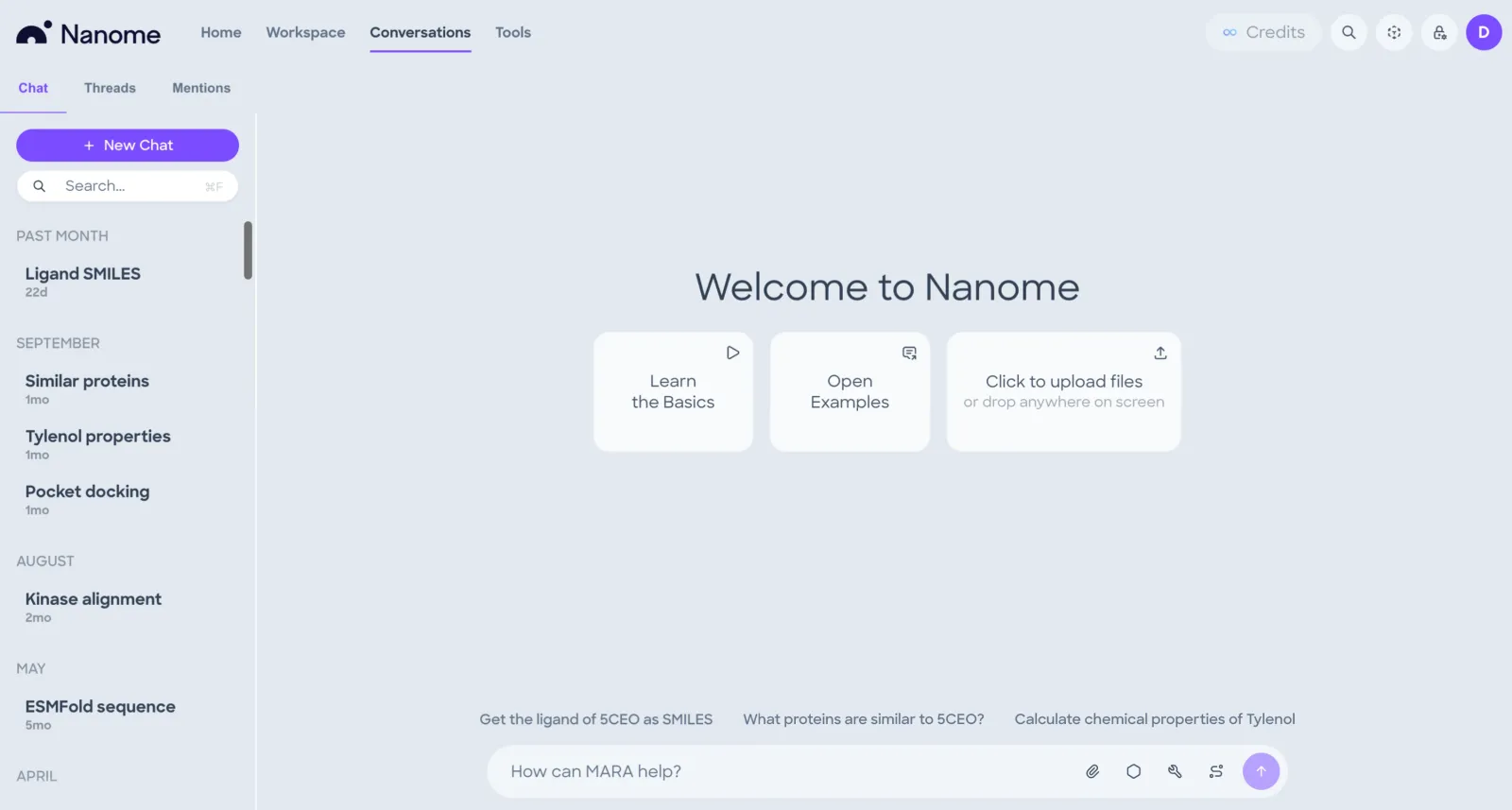
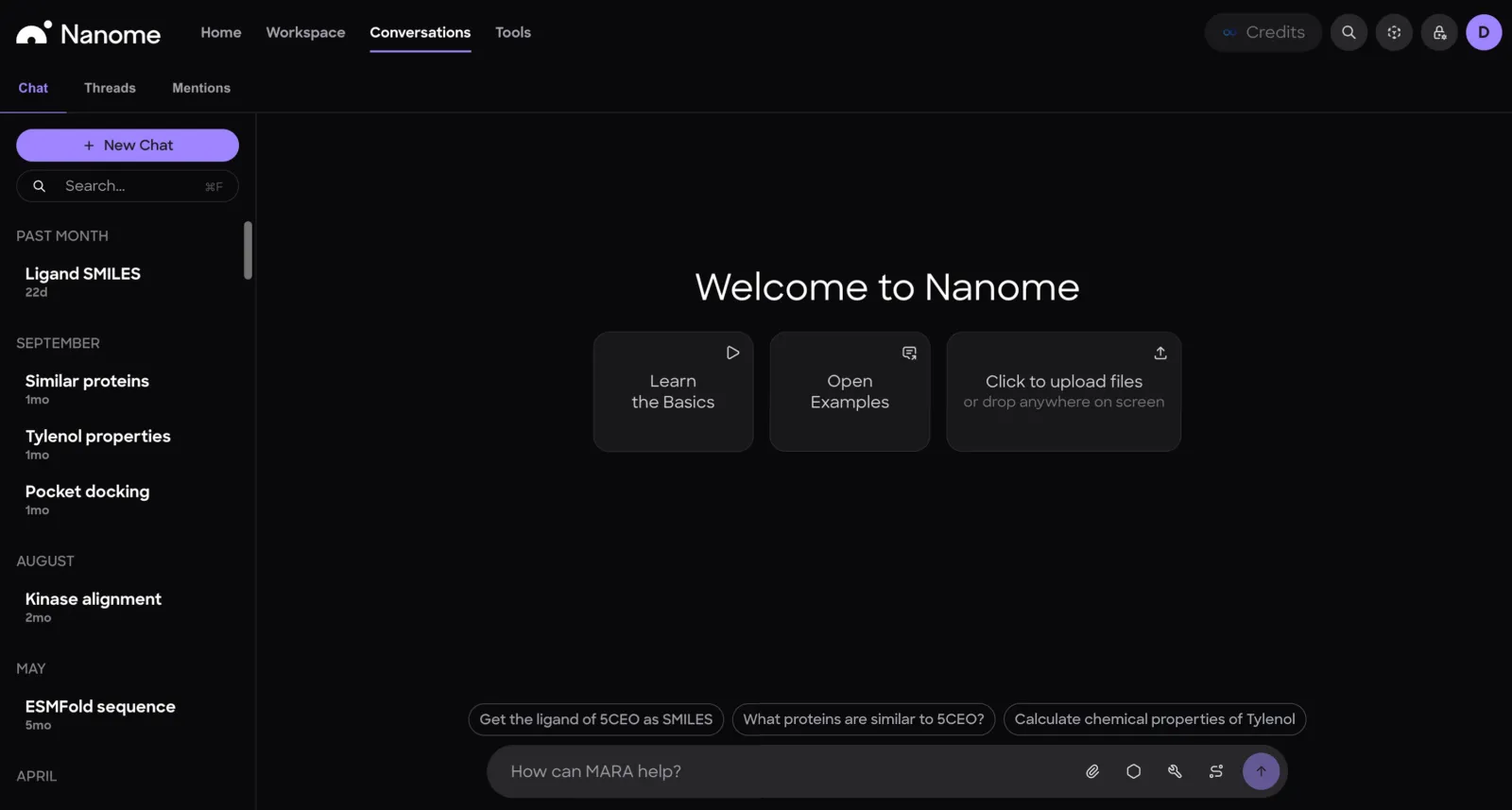
- New ChatStarts a new chat.
- Search (⌘F)Searches your chat titles. On Windows and Linux the shortcut is Ctrl+F.
- Learn the BasicsPlays a walkthrough video of Nanome and MARA.
- Open Examples4 example chats, one for each field.
- Click to upload filesOpens a file picker, then asks what to do with the files, such as attach them to the chat or add them to a workspace. Files dropped anywhere on the page upload too.
Hovering a chat in the list shows Pin, which moves it to Pinned at the top, and Delete, which asks for a second click.
Message box


- Attach fileAdds a file to your message.
- Draw SMILESOpens Sketch Molecule, to draw a structure.
- Run toolOpens Select tool, to pick a MARA tool to run.
- Run workflowOpens Select workflow, to pick a workflow to run.
- SendSends your message.
The same message box sits in each workspace's MARA tab.
Example chats
Open Examples shows one card for each field, with the tasks its example covers. Open on a card opens that example chat.
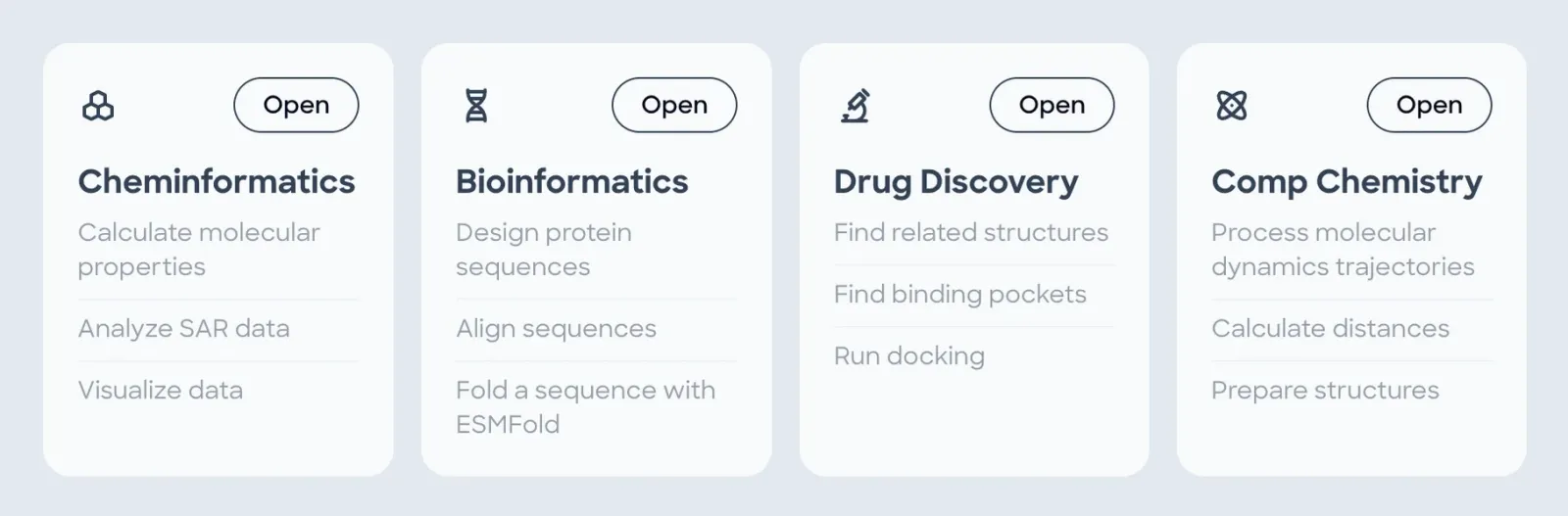
- CheminformaticsCalculate molecular properties, analyze SAR data, visualize data.
- BioinformaticsDesign protein sequences, align sequences, fold a sequence with ESMFold.
- Drug DiscoveryFind related structures, find binding pockets, run docking.
- Comp ChemistryProcess molecular dynamics trajectories, calculate distances, prepare structures.
An example chat is marked Example and has no message box. Continue this chat with your own copy, at the bottom, copies it into your own chats so you can carry on from there.
In a chat
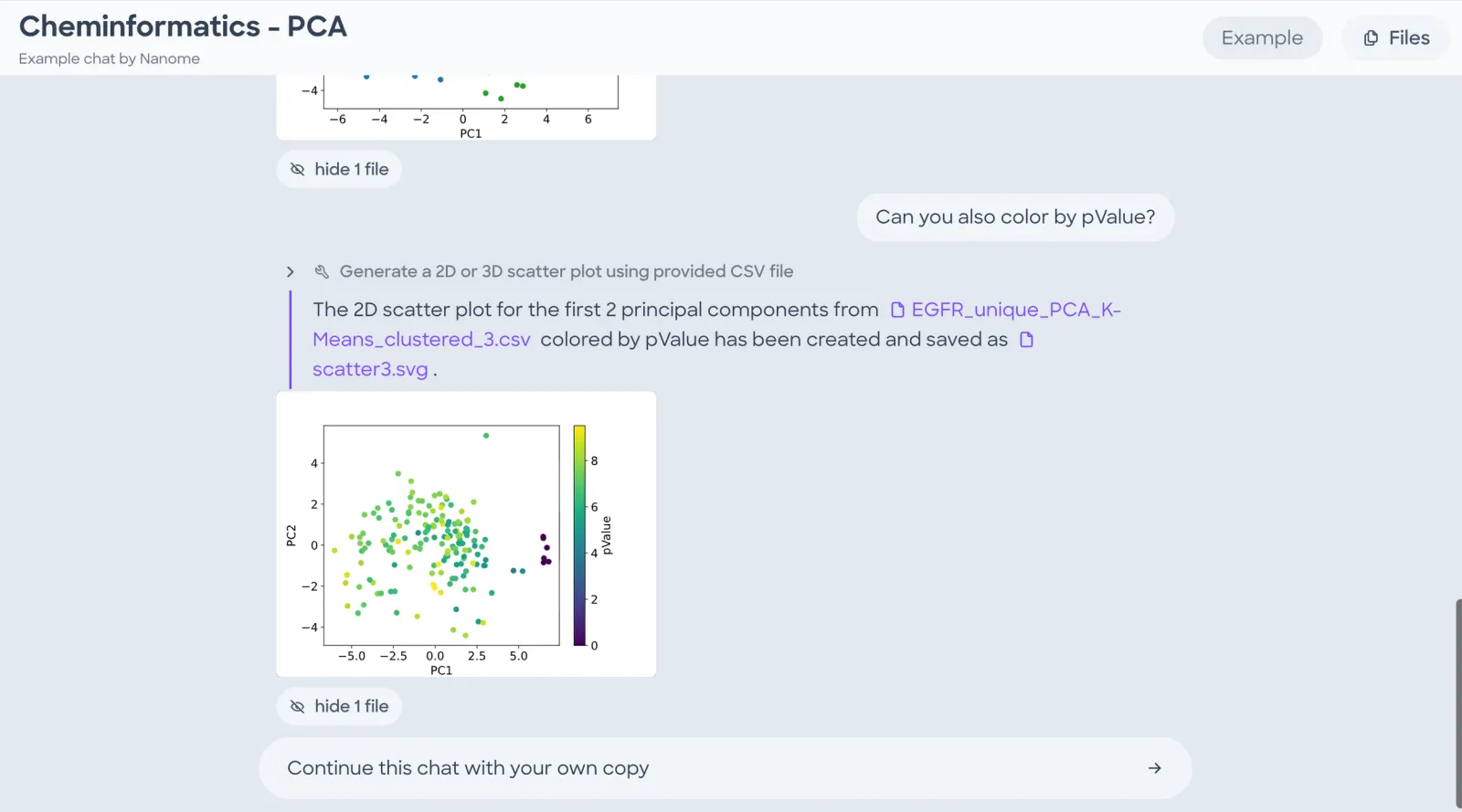
In your own chats, the header has Rename next to the title, and Share.
Above each answer, MARA names the tool or workflow it ran. The chevron beside it expands the step to show the tool's inputs and output. Files that MARA makes appear as links in the answer, and images and structures show under it.
- FilesThe chat's files, tables and context.
- hide 1 fileHides the file previews under the answer.
3D viewer
A structure file opens in a small 3D viewer inside the chat.
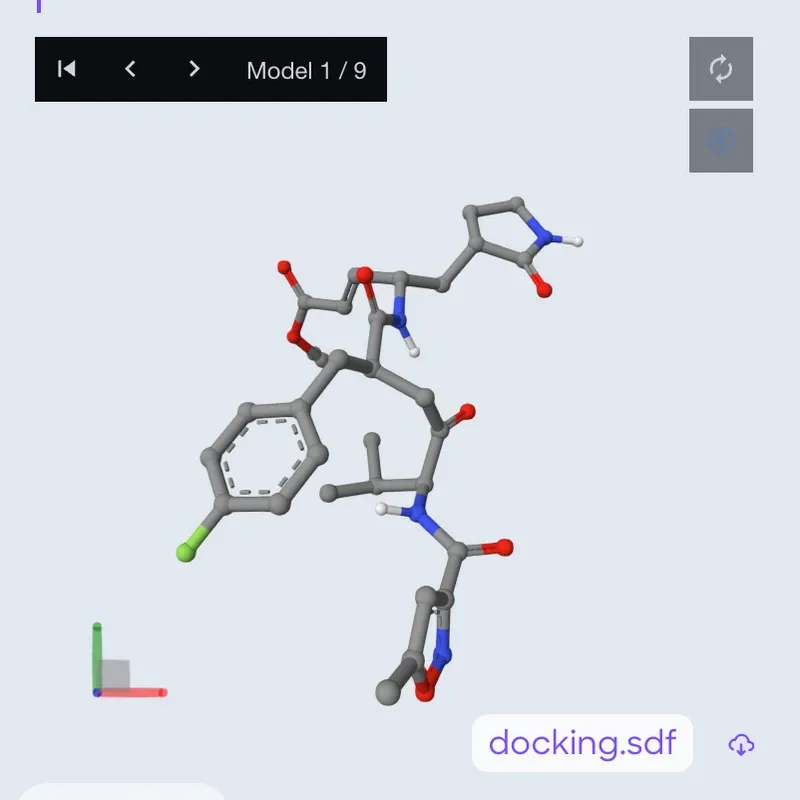
- Goes to the first model in a file with several, such as docking poses.
- Steps back one model.
- Steps forward one model. The bar shows which model is on screen, such as Model 1 / 9.
- Fits the structure back into the view.
- Saves an image or the viewer's state.
- DownloadBeside the file's name under the viewer. Downloads the structure file.
Sharing a chat
Share, in your own chat's header, sets who can see the chat.
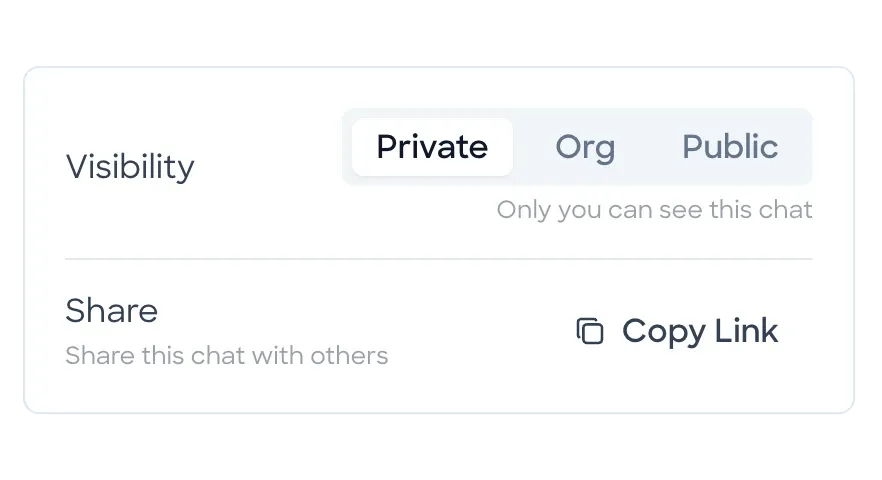
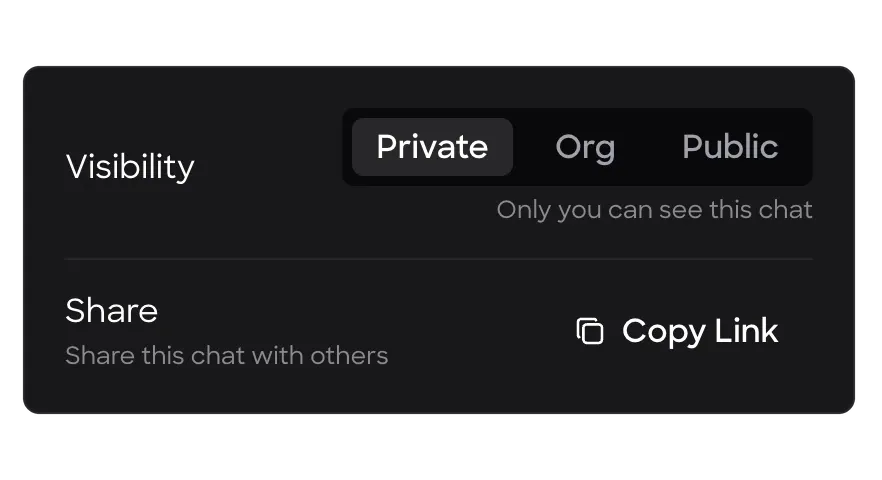
- Only you can see the chat.
- Members of your organization can see the chat. It's shown when you're in an organization.
- Anyone with the link can see the chat.
- Copy LinkCopies a link to the chat. On a Private chat, it first switches the chat to Org, or to Public if you're not in an organization.
Someone else who opens a shared chat sees it marked View Only, with the owner's name under the title and no message box.
Chats in a workspace's MARA tab have no Share button.
Files panel
Files opens a panel on the right with 3 sections.
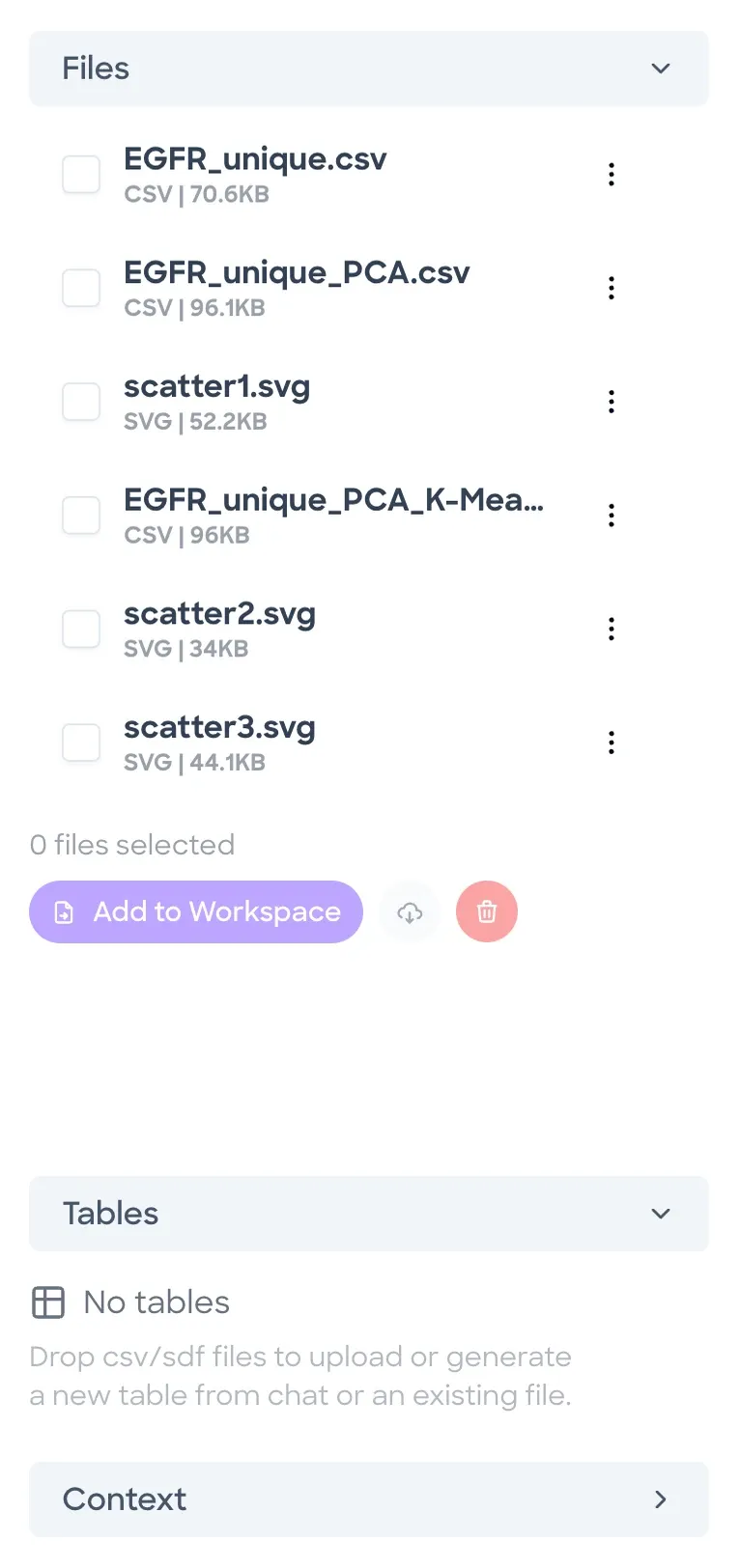
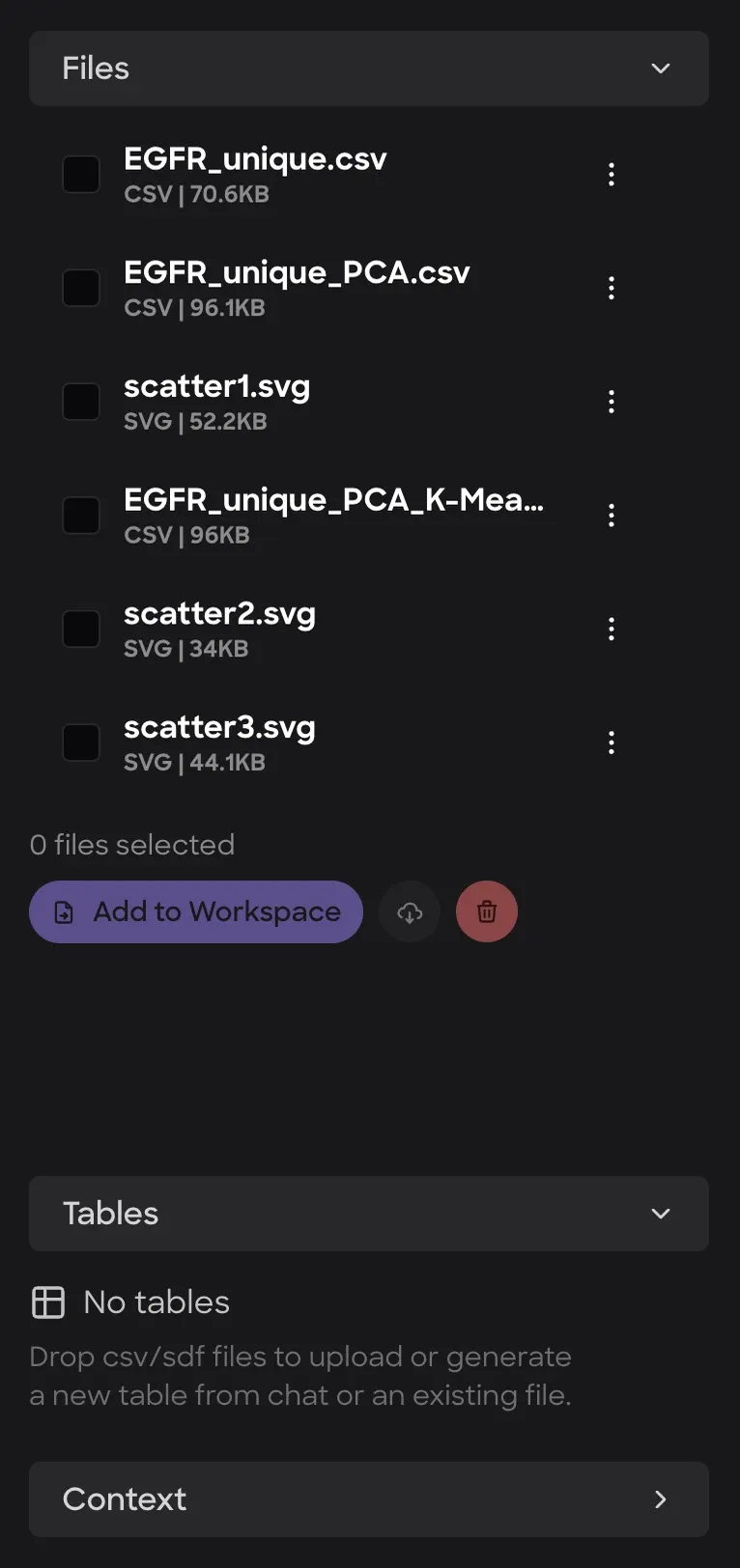
- Every file in the chat, uploaded or made by MARA. Tick files to act on several at once.
- More (⋮)On a file: Add to Workspace and Download. In your own chats, also Open as Data Table (CSV and SDF files) and Delete.
- Add to WorkspaceLoads the ticked files into a workspace.
- DownloadDownloads the ticked files.
- DeleteDeletes the ticked files.
- TablesData tables for the chat. CSV or SDF files dropped here become tables, and MARA can make one from a file.
- Values from tool results and the conversation that MARA keeps for this chat. In your own chats you can edit it.
Chats in a workspace
A chat starts either on this page or in a workspace's MARA tab. Each chat stays where it started, and the app has no control for moving a chat from one to the other.
| Conversations | MARA tab | |
|---|---|---|
| Listed in | This page | Chat History |
| Workspace | None attached | This one |
| File link | Opens beside the chat | Asks where to open it |
| Files | A side panel, with Tables | Replaces the chat |
| Add to Workspace | Asks which workspace | Asks which workspace |
| Rename, Pin, Share | Yes | No |
A chat on this page has no workspace attached, but MARA's Nanome tools can still make a workspace and load files into it. In both kinds of chat, Add to Workspace in Files asks which workspace to load into. In the MARA tab it doesn't fill in the one you're in.
In the MARA tab, a question can say "this scene" or "this workspace". The chat belongs to the workspace it started in, and each message also tells MARA which scene is on screen. In the chat below, the question names no workspace, and MARA runs Export Entry from Nanome Workspace on this one.
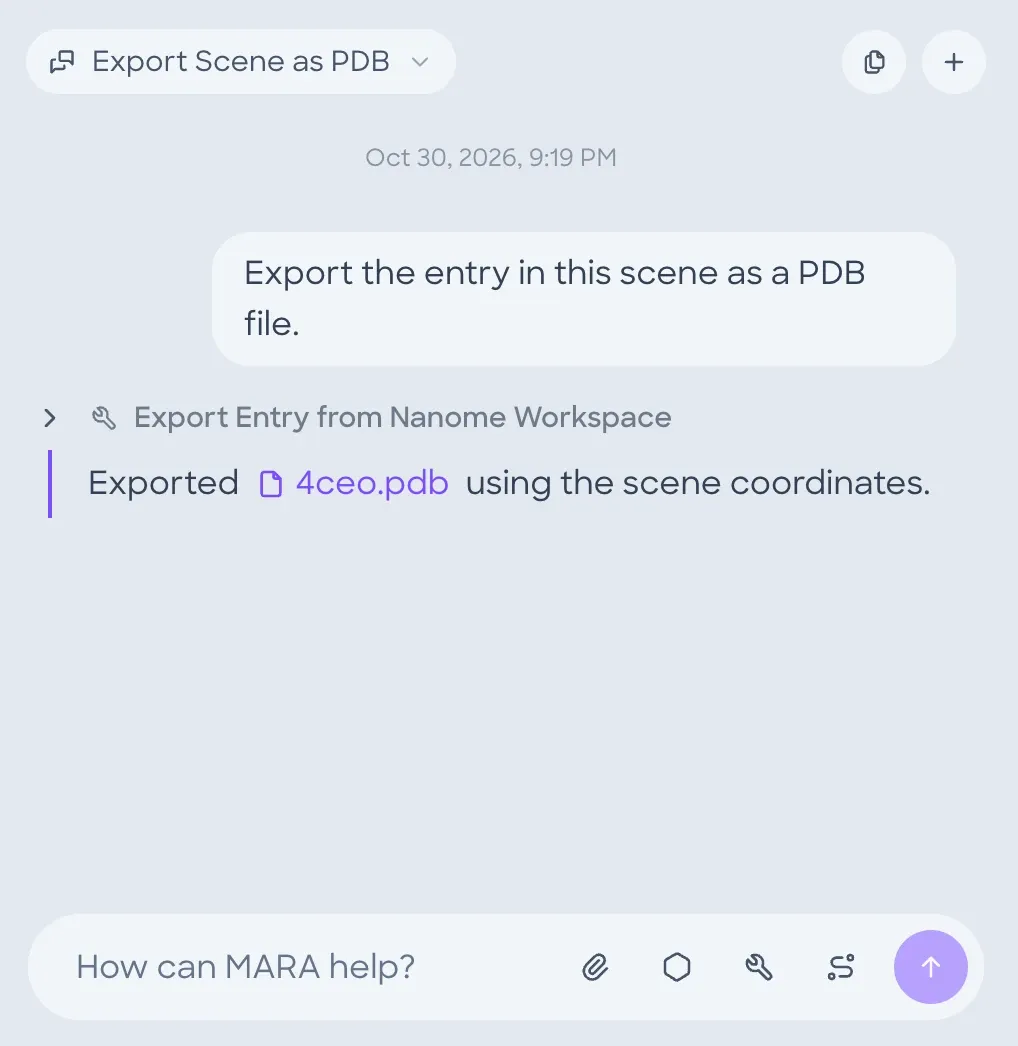
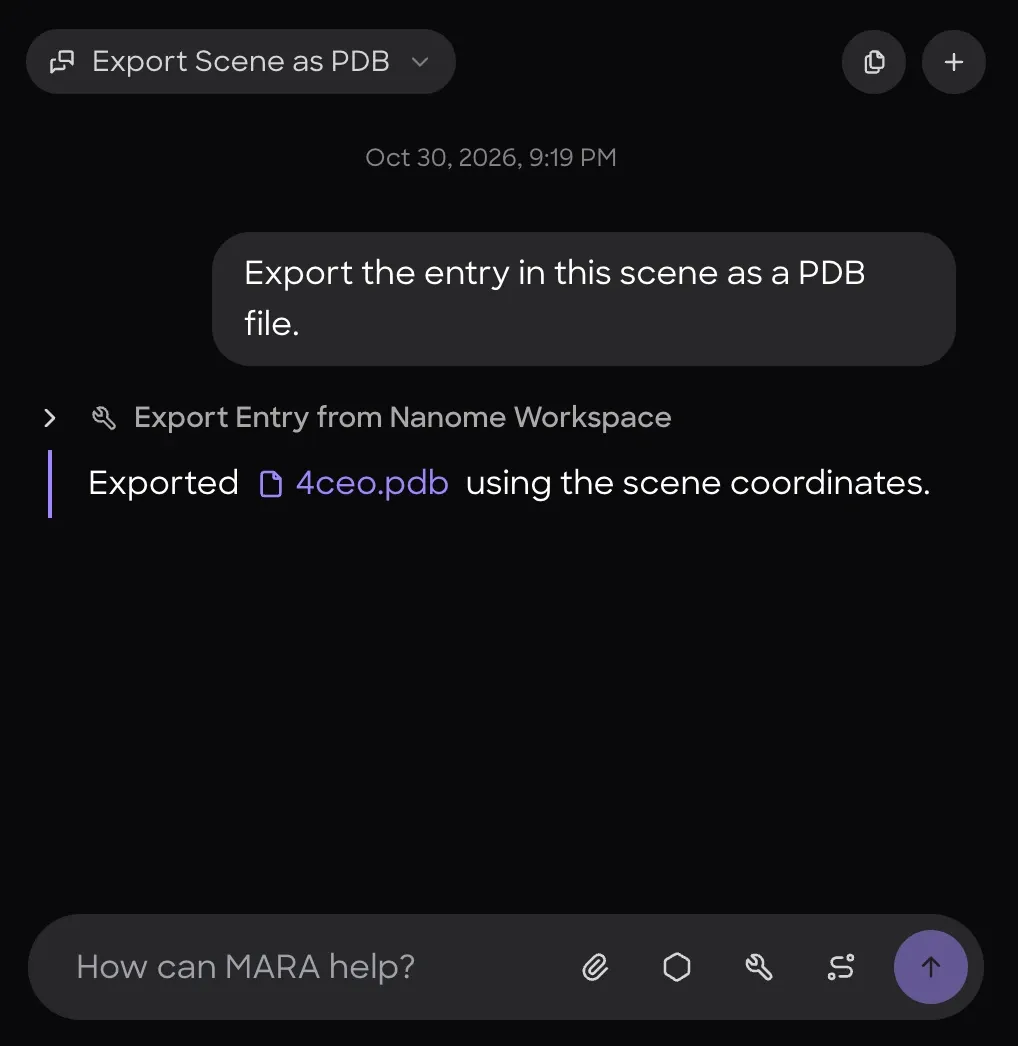
- Chat HistoryShows the open chat's title, and lists the chats started in this workspace. Hovering one shows Delete, which asks for a second click.
- FilesShows the chat's files and context in place of the chat. Back returns to the chat.
- New ChatStarts another chat in this workspace.
- Tool stepThe tool MARA ran. The chevron beside it shows the tool's inputs and output.
- File linkAsks where to open the file.
Opening a file from the MARA tab
In the MARA tab, clicking a file link opens a dialog with 4 choices. On this page, the same click opens the file beside the chat.
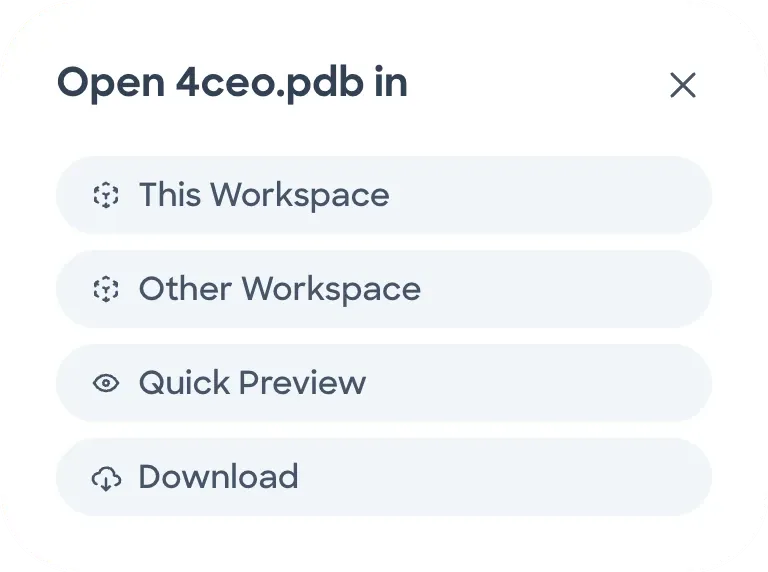
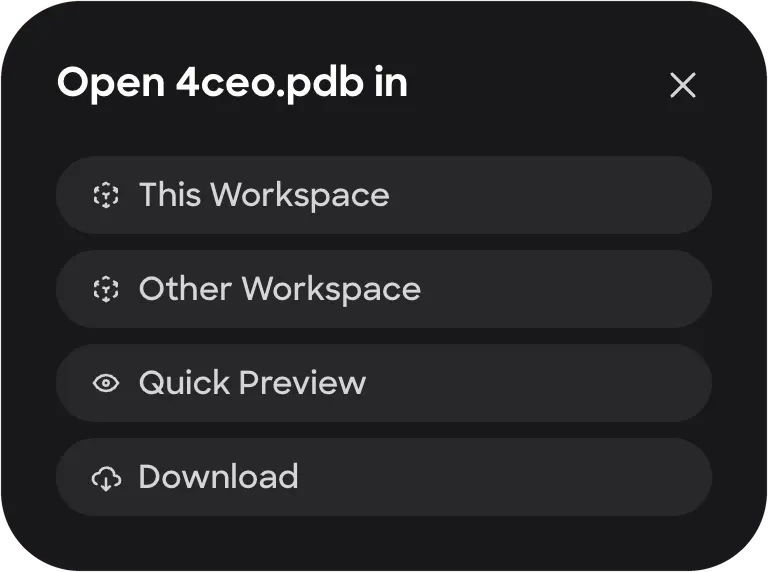
- This WorkspaceLoads the file into this workspace.
- Other WorkspaceOpens the Add to Workspace dialog, to pick another workspace.
- Quick PreviewShows the file in a window, without loading it into the workspace.
- DownloadDownloads the file.
Threads
The Threads tab lists the comment threads you watch, from all your workspaces. Each row shows who started the thread, the workspace, the first comment and the number of replies. Clicking a row opens the thread on the right. A thread's menu has Unwatch thread, or Watch thread on one you don't watch.
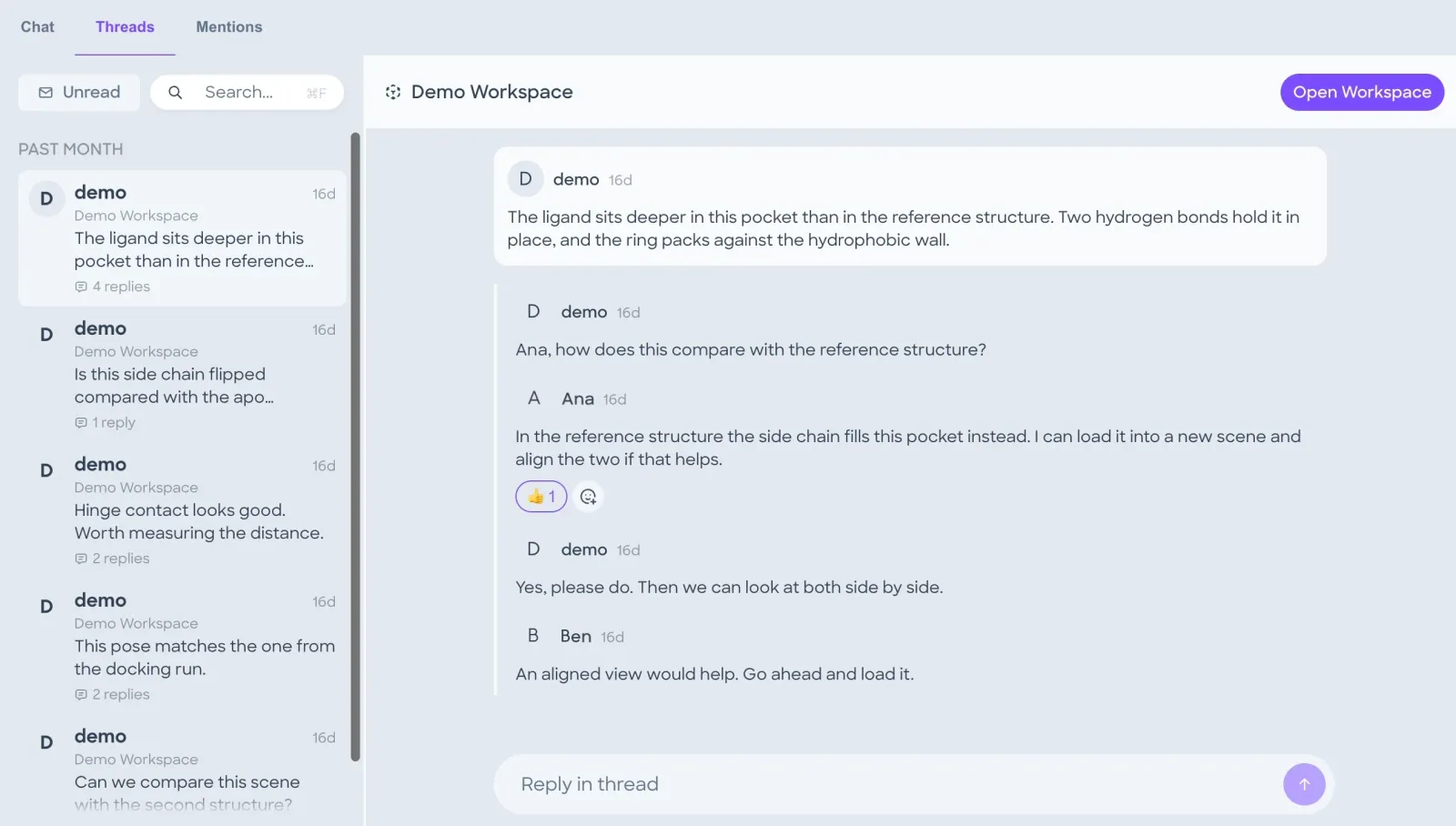
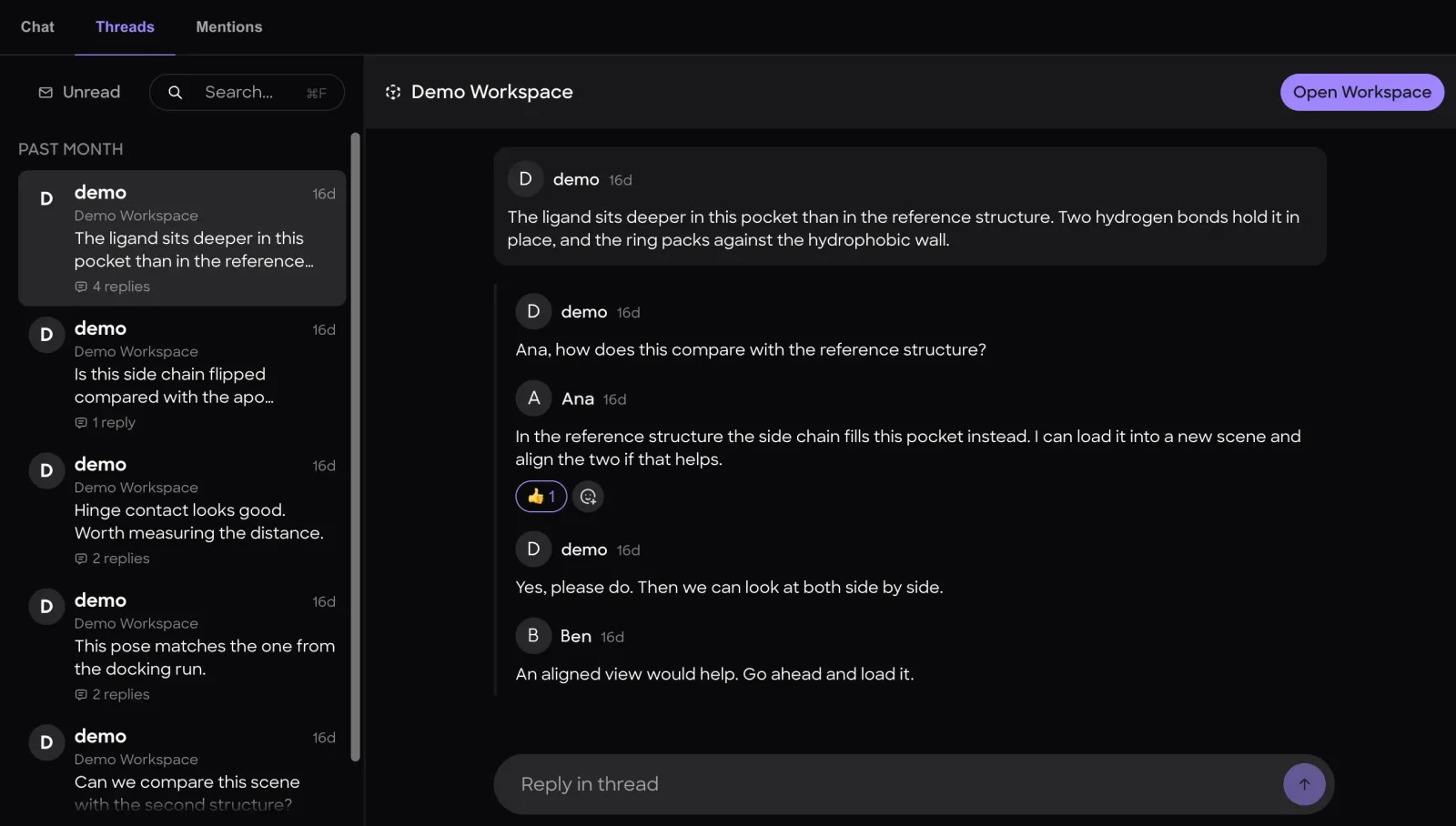
- UnreadShows only threads with comments you haven't read.
- Search (⌘F)Searches the threads. On Windows and Linux the shortcut is Ctrl+F.
- Opens the thread's workspace.
- Adds a reply, the same as in the workspace's Comments tab.
Mentions
The Mentions tab lists the comments that mention you, with the same Unread filter and search as Threads.