

Tools
Tools in Nanome Web's top bar holds what MARA works with: the tools it runs, the integrations that connect it to other platforms, the workflows that chain tools together, and the knowledge it draws on. The left sidebar switches between them.
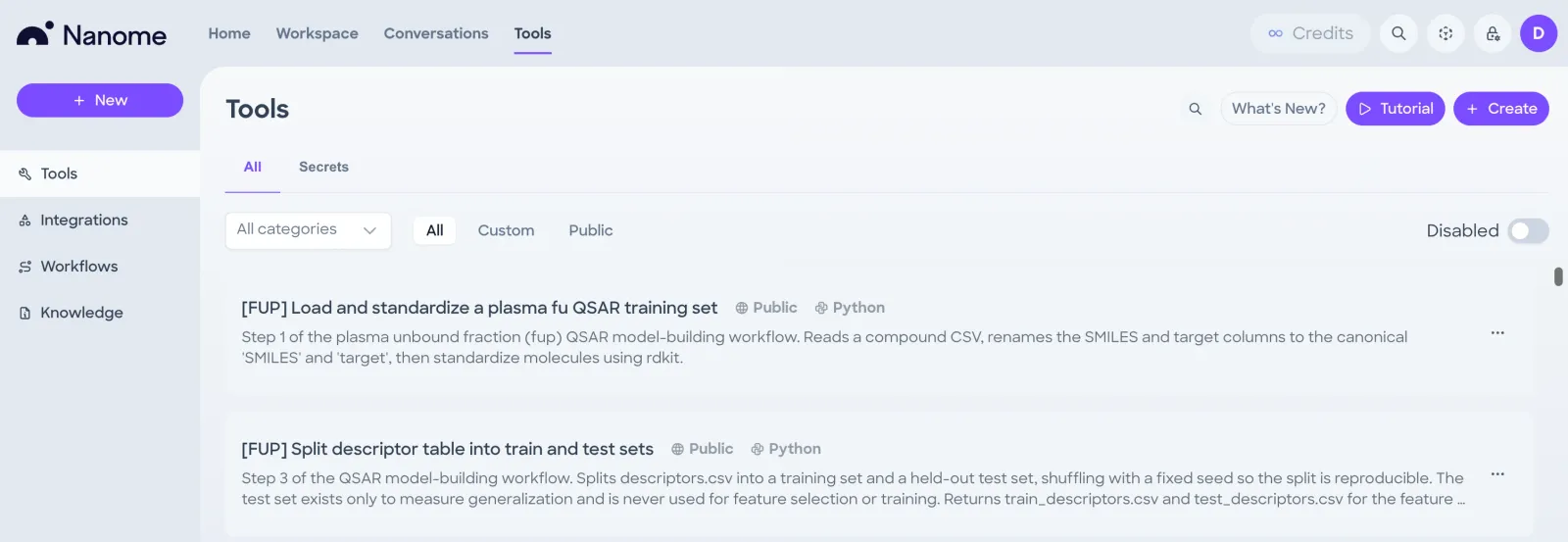
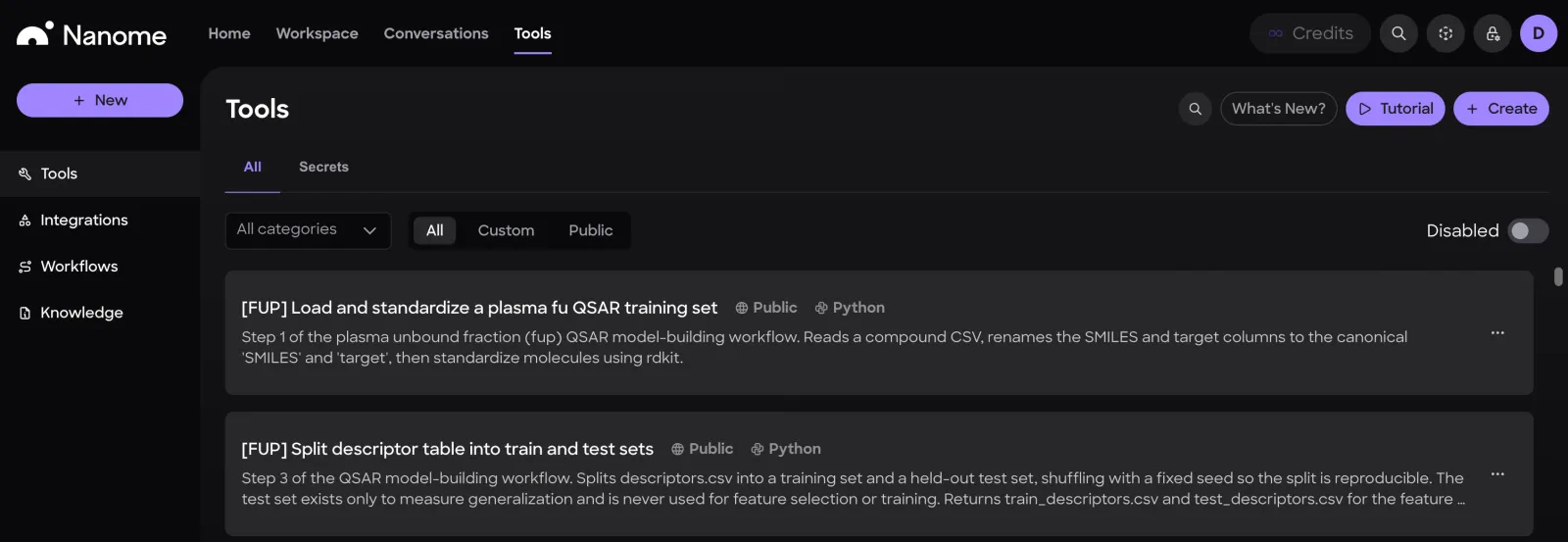
Tools
The list shows every tool MARA can run, including your organization's custom tools and public ones. Clicking one opens its page, with its description, its arguments (Args), its script or endpoint, and a Run section that runs the tool with values you enter for its arguments.
Most tool pages have Pin at the top right. It moves the tool into Pinned at the top of the list, above All tools, and Unpin moves it back.
Tool tags
Tags beside a tool's name:
- PublicShown only to Nanome's own team. Other users see Premium on public tools that are only for Premium users.
- PythonThe tool runs a Python script. HTTP and SQL tools show their type the same way.
Tool menu
In an organization, the button at the end of a tool's row opens its settings. Outside an organization, the row ends in an on/off switch instead.
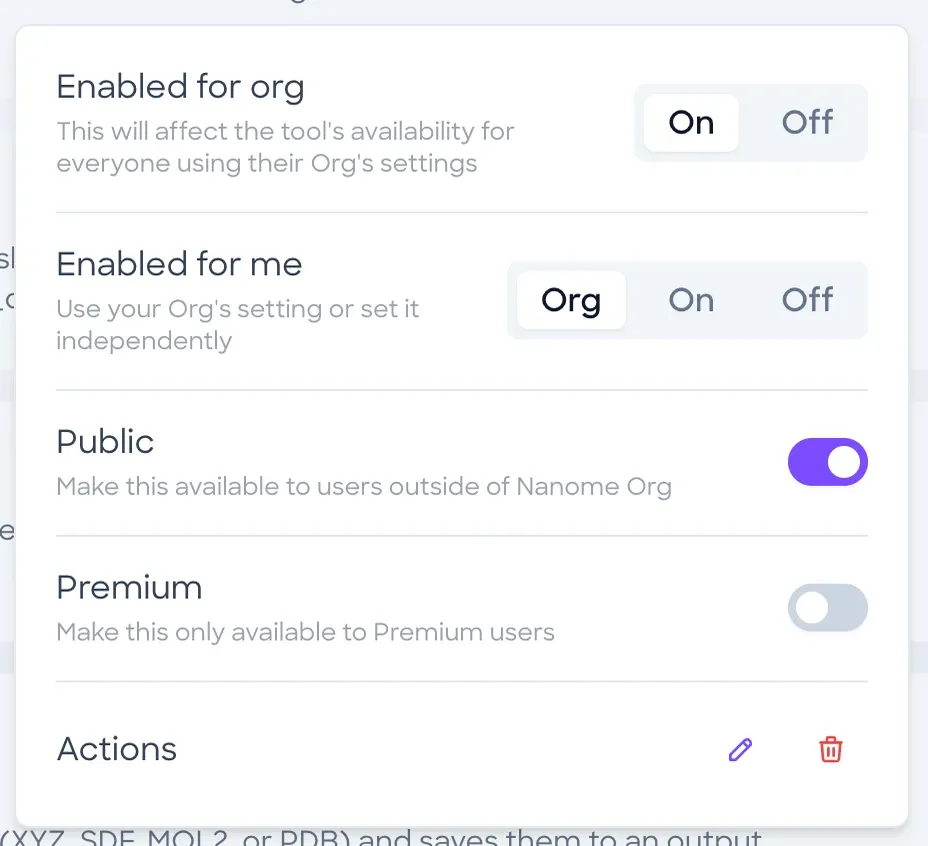
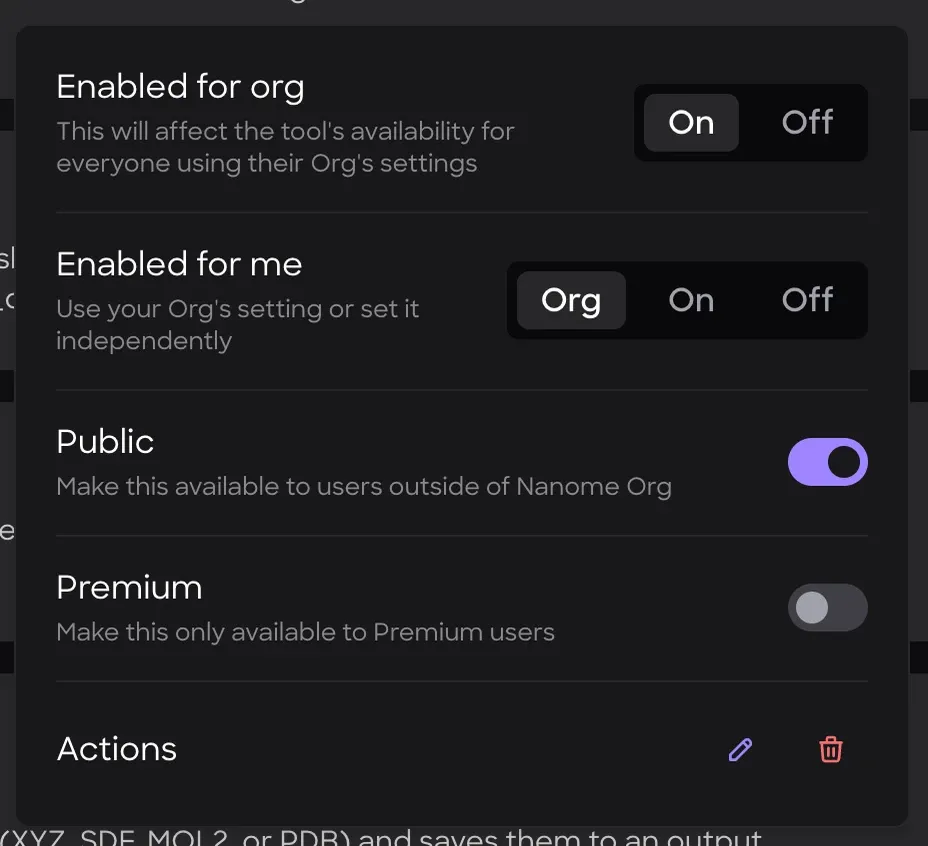
- On or Off: whether the tool is available to everyone in your organization.
- Org, On or Off: follow your organization's setting, or set it just for you.
- Only Nanome's own team sees this switch. It makes the tool available to every Nanome user.
- Only Nanome's own team sees this switch. It limits a public tool to Premium users.
- EditOn custom tools. Opens the tool's form.
- DeleteOn custom tools. Deletes the tool.
Creating a tool
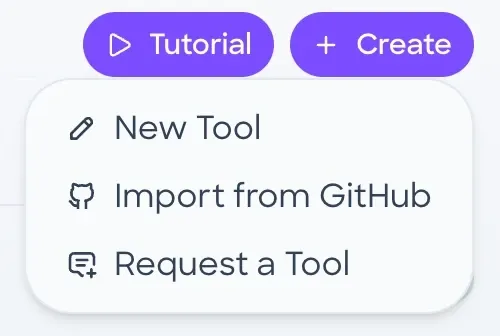
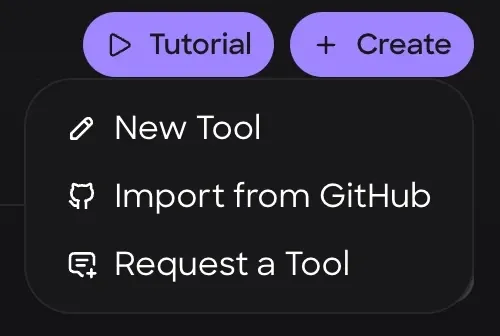
- New ToolOpens the Create Tool form.
- Import from GitHubMakes a tool from code on GitHub.
- Request a ToolAsks for a tool you need.
- Under Info, give the tool a Name, a Category and a Description. MARA reads them to decide when to use the tool, so name what it does ("Convert SDF to SMILES" rather than "Conversion Tool") and describe its inputs and outputs.
- Pick the Type: HTTP for web services, Python for scripts, SQL for database queries.
- In an organization, choose my org or myself under Install for.
- Fill in Secrets, Arguments and the script.
- Choose Test to try the tool, then Create.
The JSON tab at the top of the form shows the same tool as JSON. Nanome's blog has an introduction to MARA tool creation.
Integrations
An integration connects MARA to another platform, such as CDD Vault, KNIME Server or LiveDesign, and adds that platform's tools. Each row shows how many tools it adds.
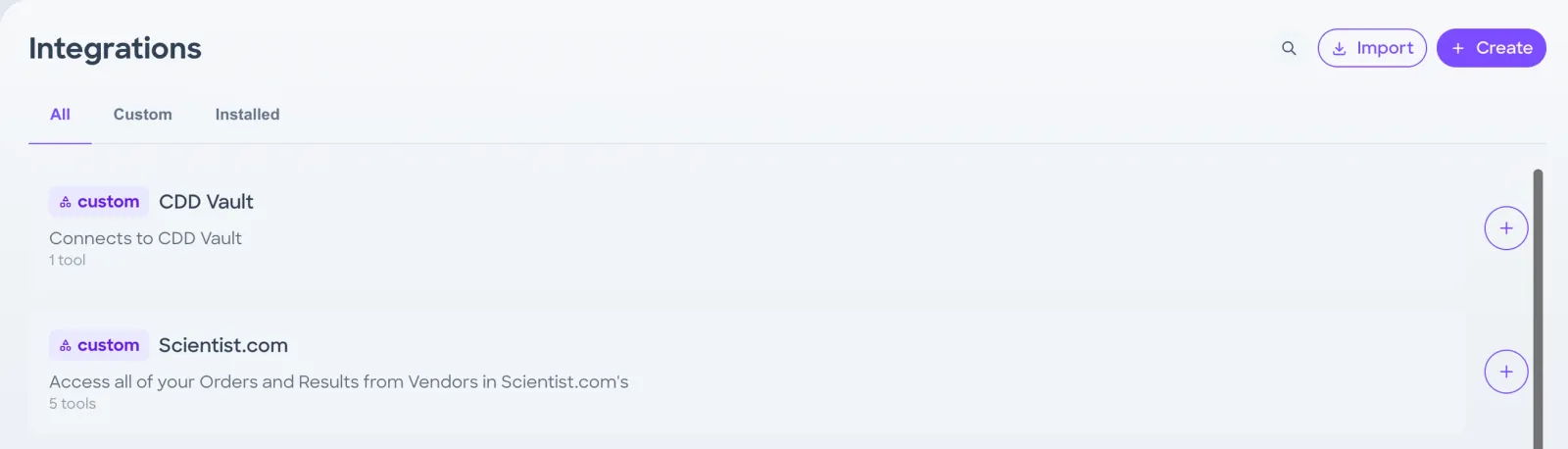
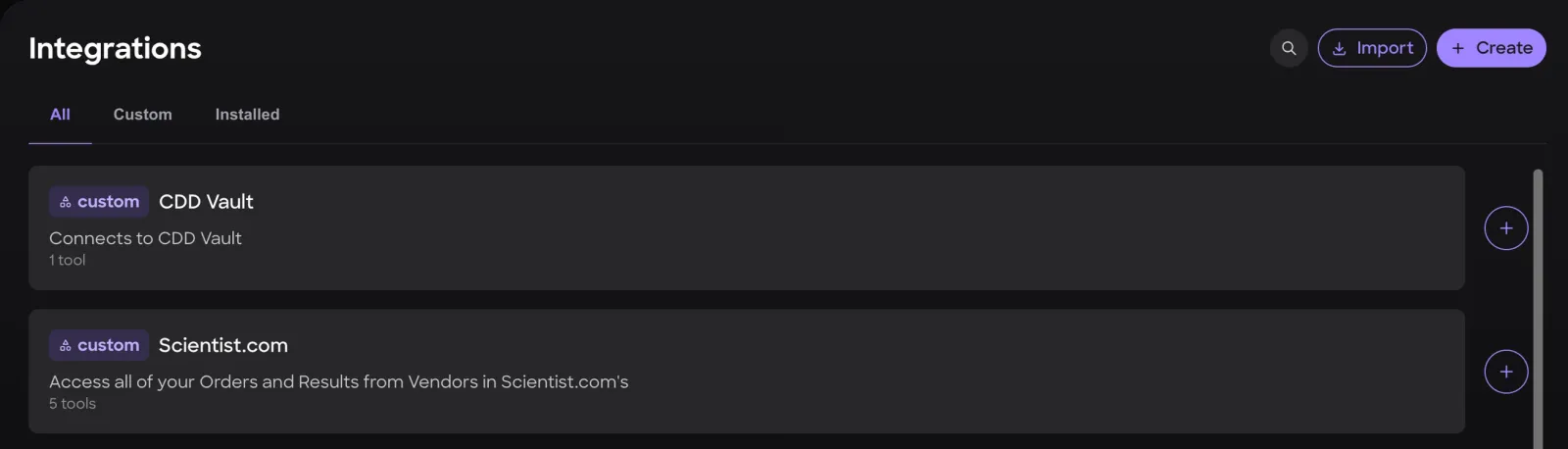
- SearchSearches the integrations.
- ImportImports an integration.
- CreateCreates an integration.
- Tabs: every integration, custom ones, or the ones you have installed.
- InstallAt the end of a row. Installs the integration.
Workflows
A workflow is a sequence of tools saved as steps, which MARA follows to plan more accurately. Run workflow in the message box runs one.
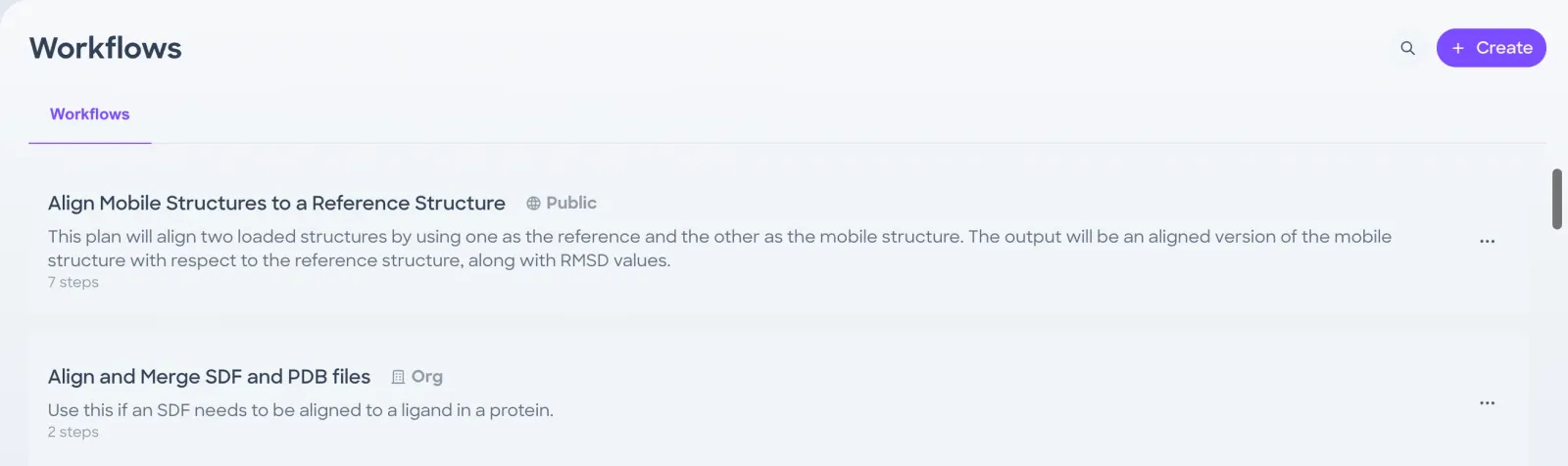
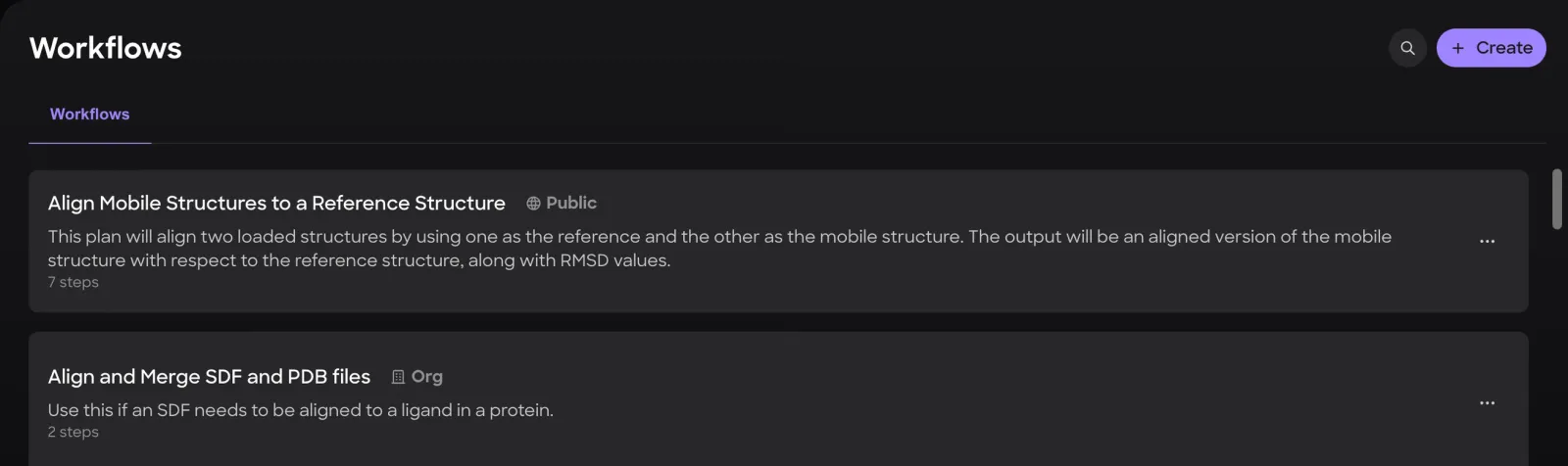
- SearchSearches the workflows.
- CreateOpens the Create Workflow form.
- PublicTag: available to users outside your organization.
- OrgTag: available within your organization. A workflow saved just for you shows User instead.
- More (...)The same settings as a tool's menu, without Premium.
- Choose Create and give the workflow a Name and a Description.
- In an organization, choose my org or myself under Install for.
- Add the steps with Add step. Auto generalize workflow has MARA make the steps general.
- Choose Create.
Knowledge
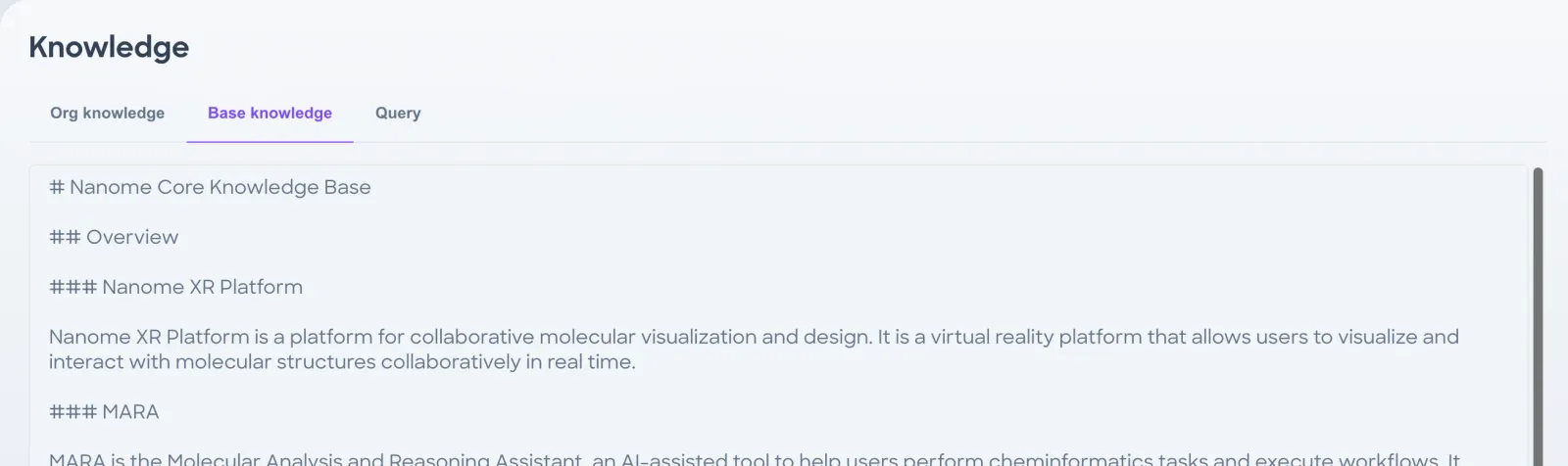
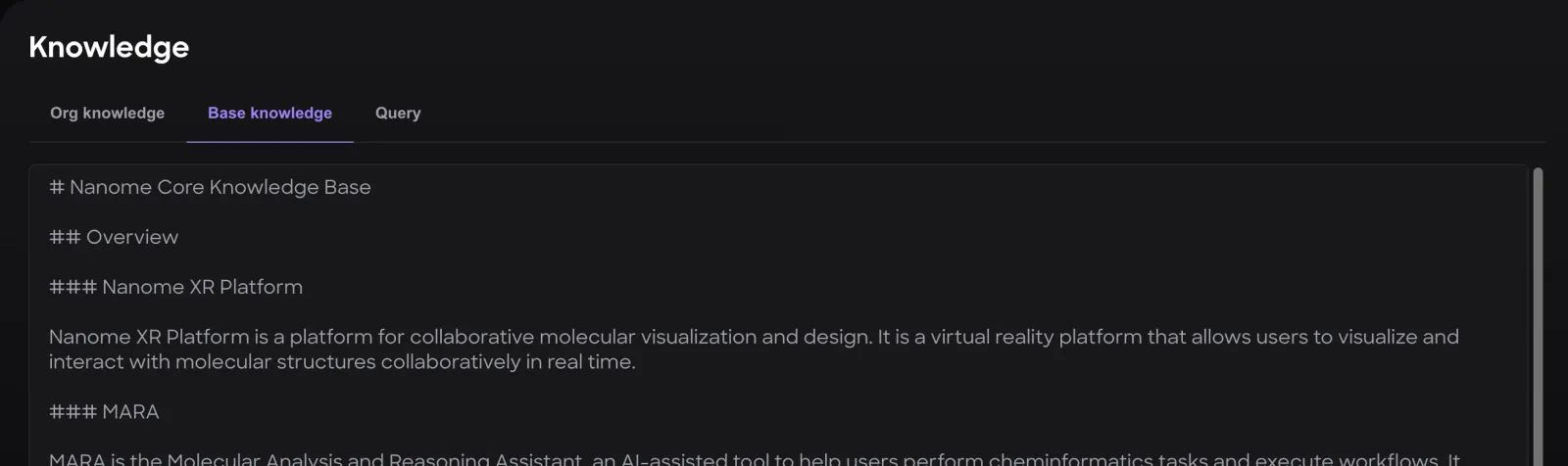
- Your organization's notes for MARA, written in Markdown. Edit changes them. Headers that group related notes work best.
- Nanome's own knowledge base, an example of the format.
- Searches the knowledge. Include Base adds the base knowledge to the search.