

Tools Menu
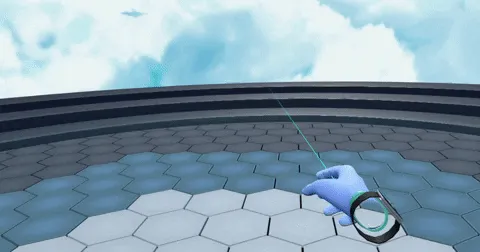
The right top button (B on Oculus controllers, the touchpad on Vive) opens the tools menu while you hold it. Pointing at a tool and releasing the button switches to that tool. If you don't pick one, you get the Hand Tool.
Hand Tool
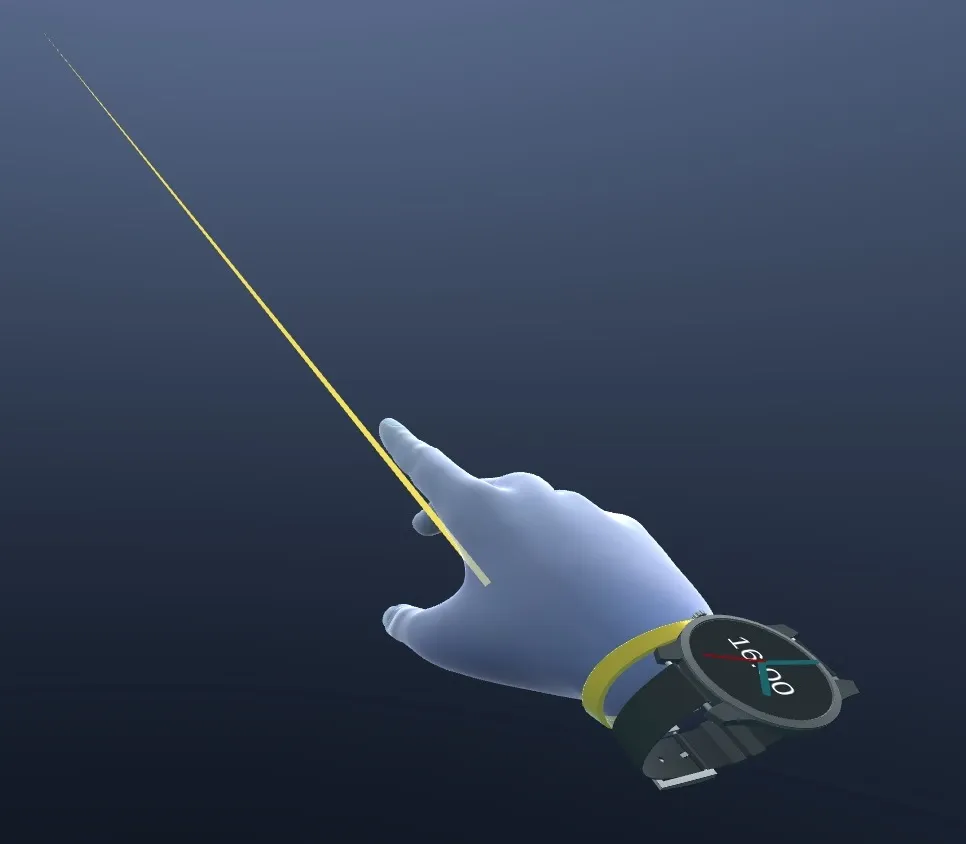
Holding down the joystick at any time shows a laser pointer that other users in the room can see. You can use this laser to point at a point of interest for your colleagues.
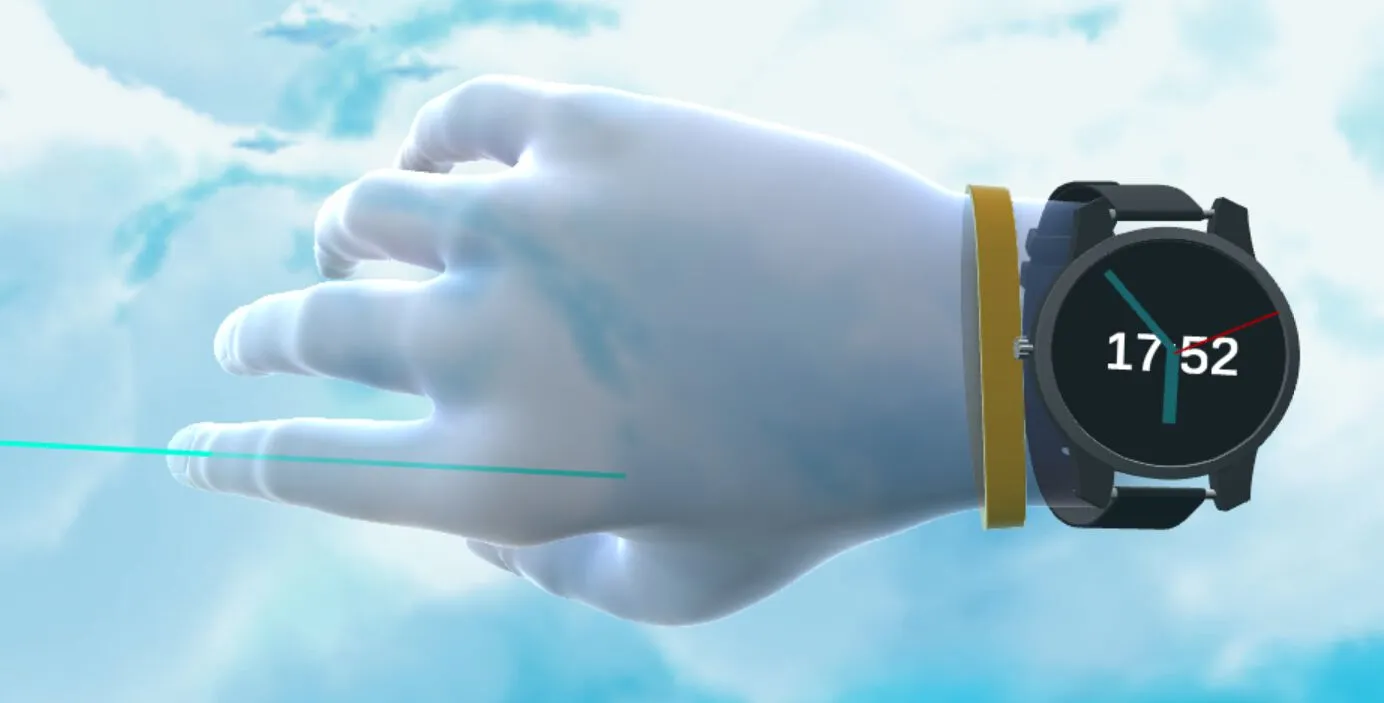
The Hand Tool is the default state of the hand and allows for basic interaction including grabbing and clicking.
Measurement Tool
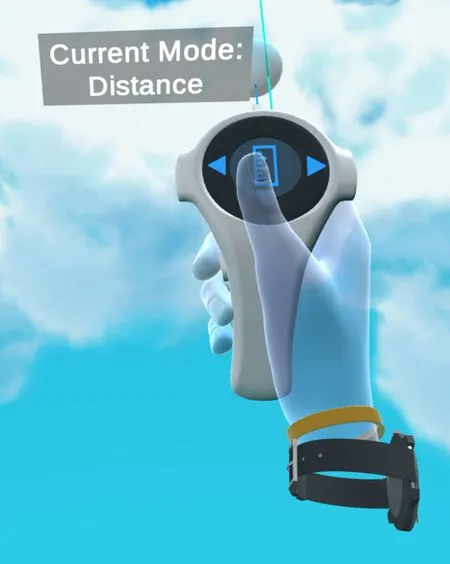
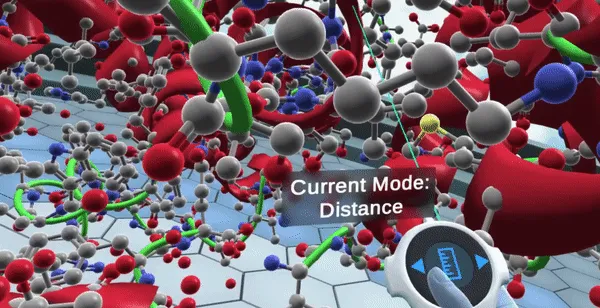
Measurement Tool places measurement points and measures distances and angles between atoms and points of interest.
Selection Tool
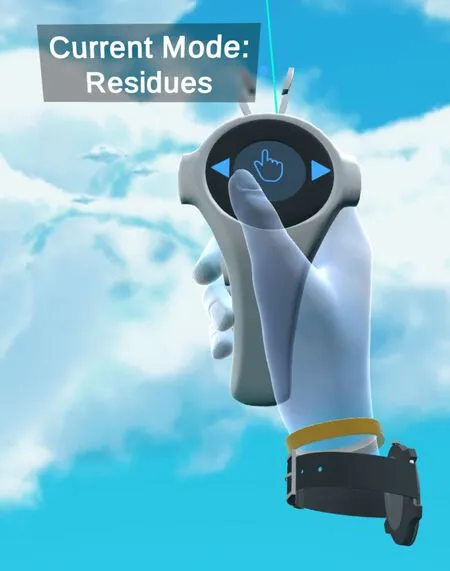
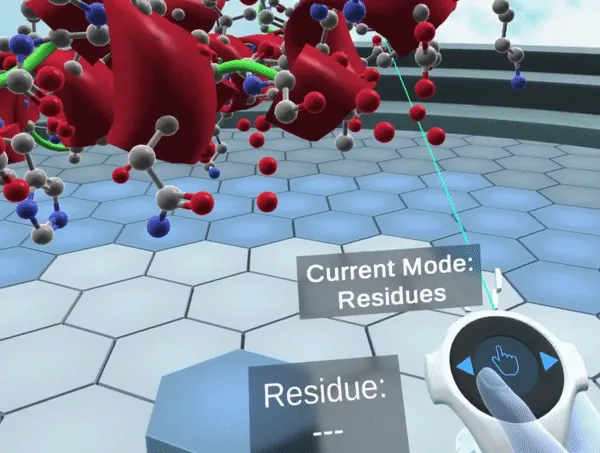
Selection Tool selects structures directly in the workspace.
Torsion Tool
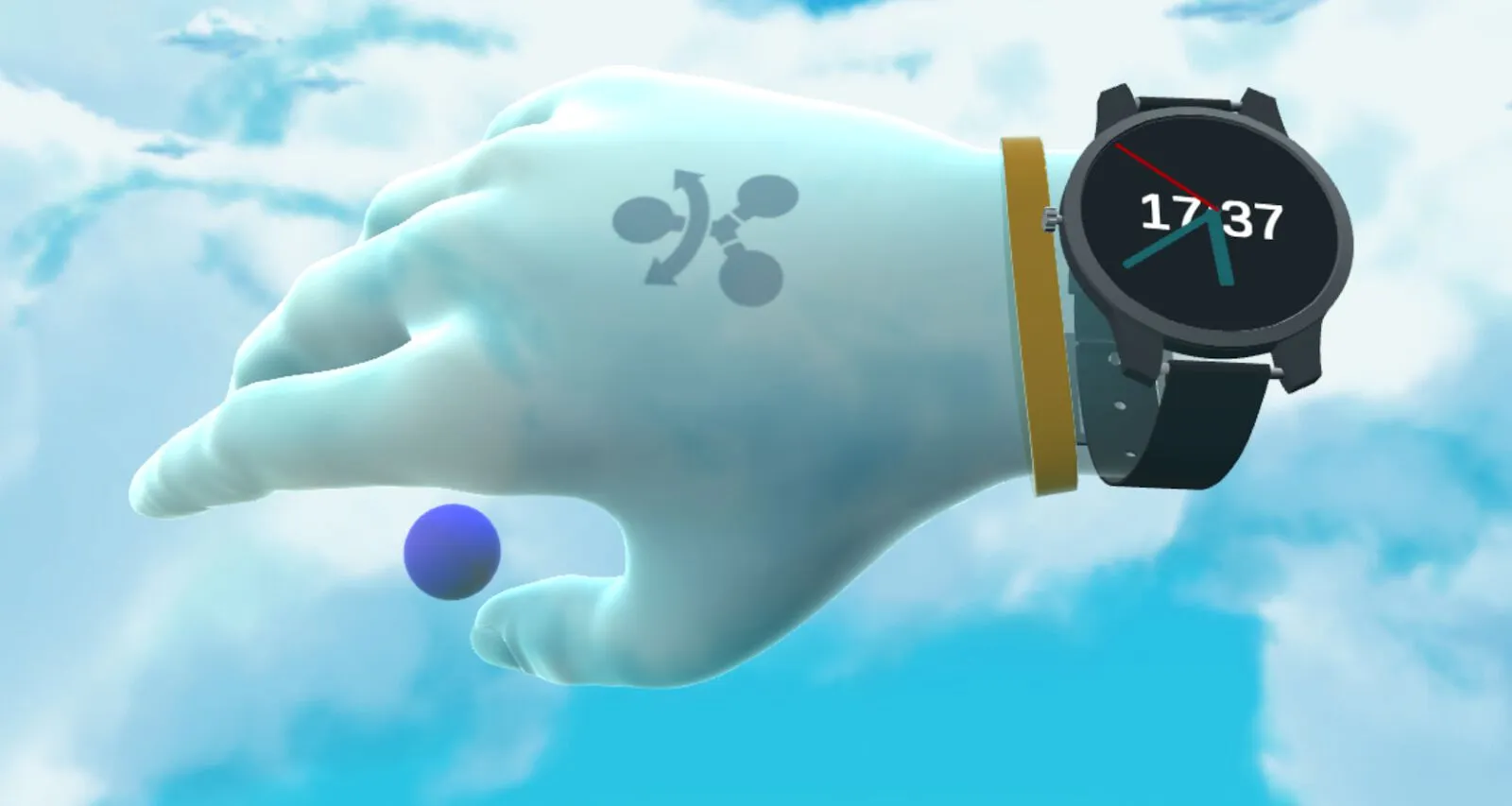
Torsion Tool twists rotatable bonds and changes the dihedral angles between atoms.
MedChem Tools
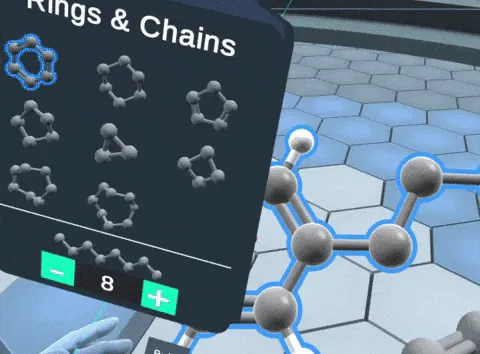
MedChem Tools let you add and remove atoms with your hands.
Prep
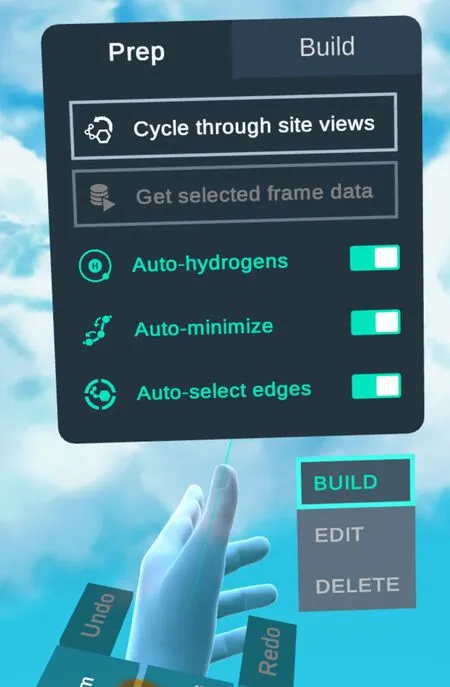
Offers options to quickly access binding sites and set up the auxiliary features such as auto-minimization.
- Switches to the Build tab.
- Quick access to binding sites.
- Grayed out here.
- Turns auto-hydrogens on or off.
- While on, small molecules or edits to the protein are minimized automatically.
- Turns auto-select edges on or off.
- The tool's modes. Build is on here.
Build
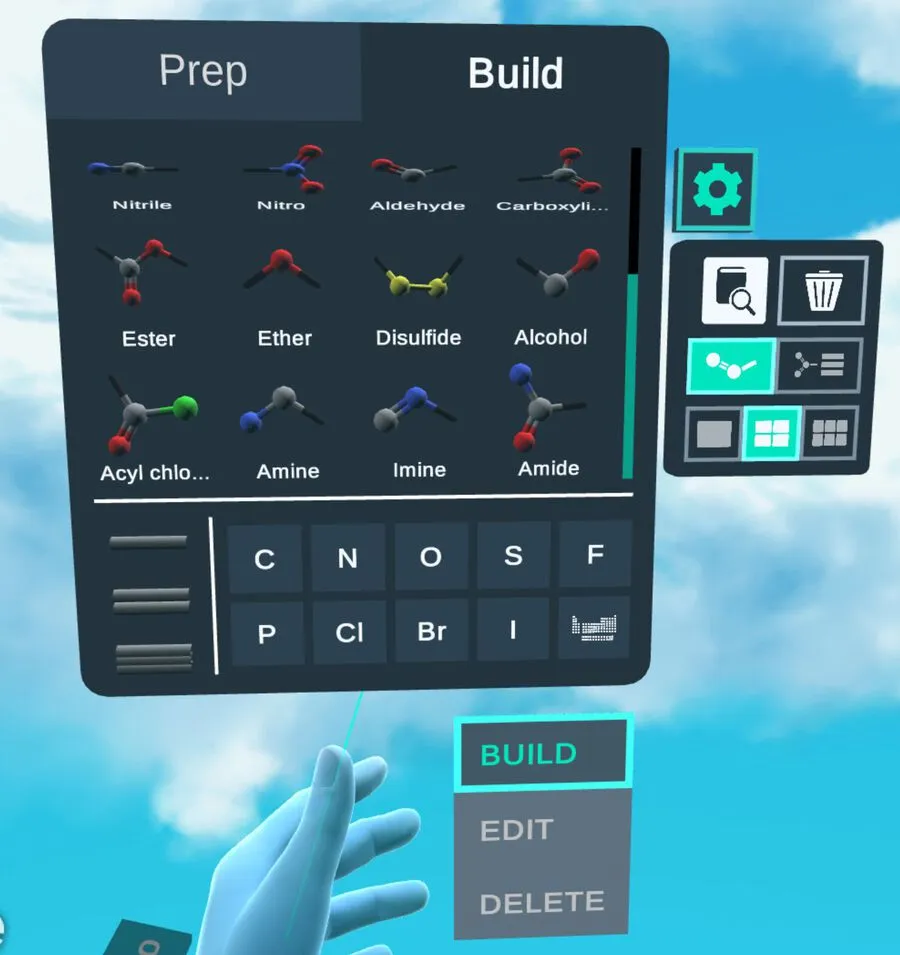
The Build tab picks a substructure for the MedChem tool to build on top of existing atoms.
- The build menu. Pick one to build with.
- Single, double and triple bonds.
- Elements to build with.
- More elements to build with.
- Periodic TableOpens the periodic table for any other element.
- The tool's modes. Build is on here.
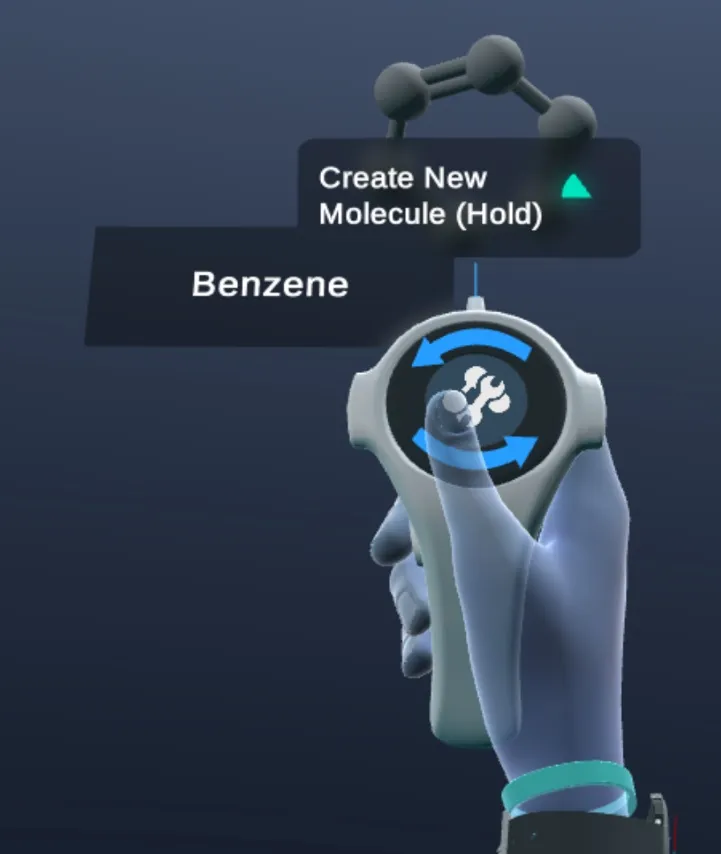
Hold the trigger at an empty space to place a new structure.
- Shown at an empty space. Hold the trigger to place the structure.
- The name of the structure you're placing.
Periodic Table
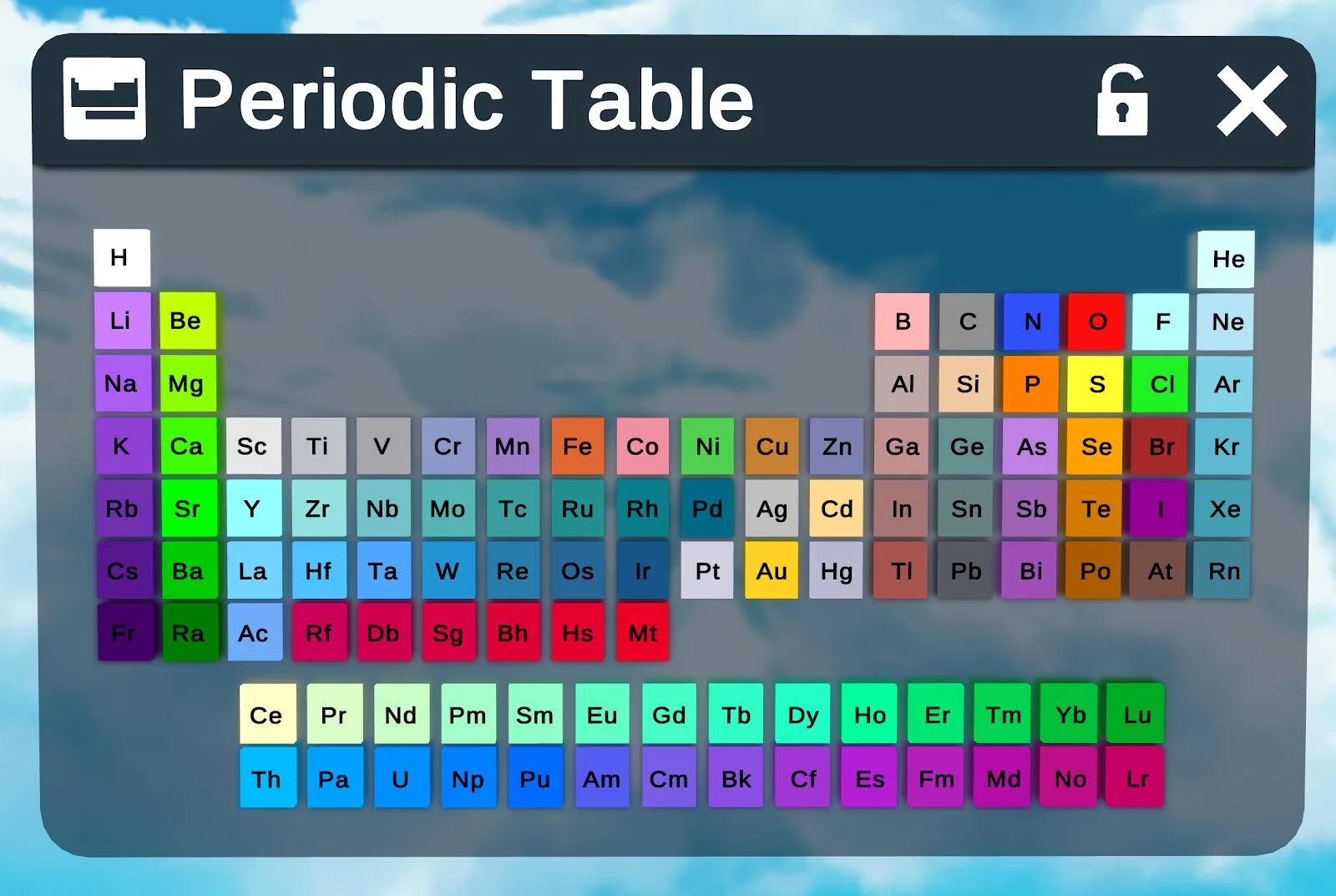
The periodic table offers every element for build mode.
- Each tile is one element.
- CloseCloses the periodic table.
Whiteboard Tool
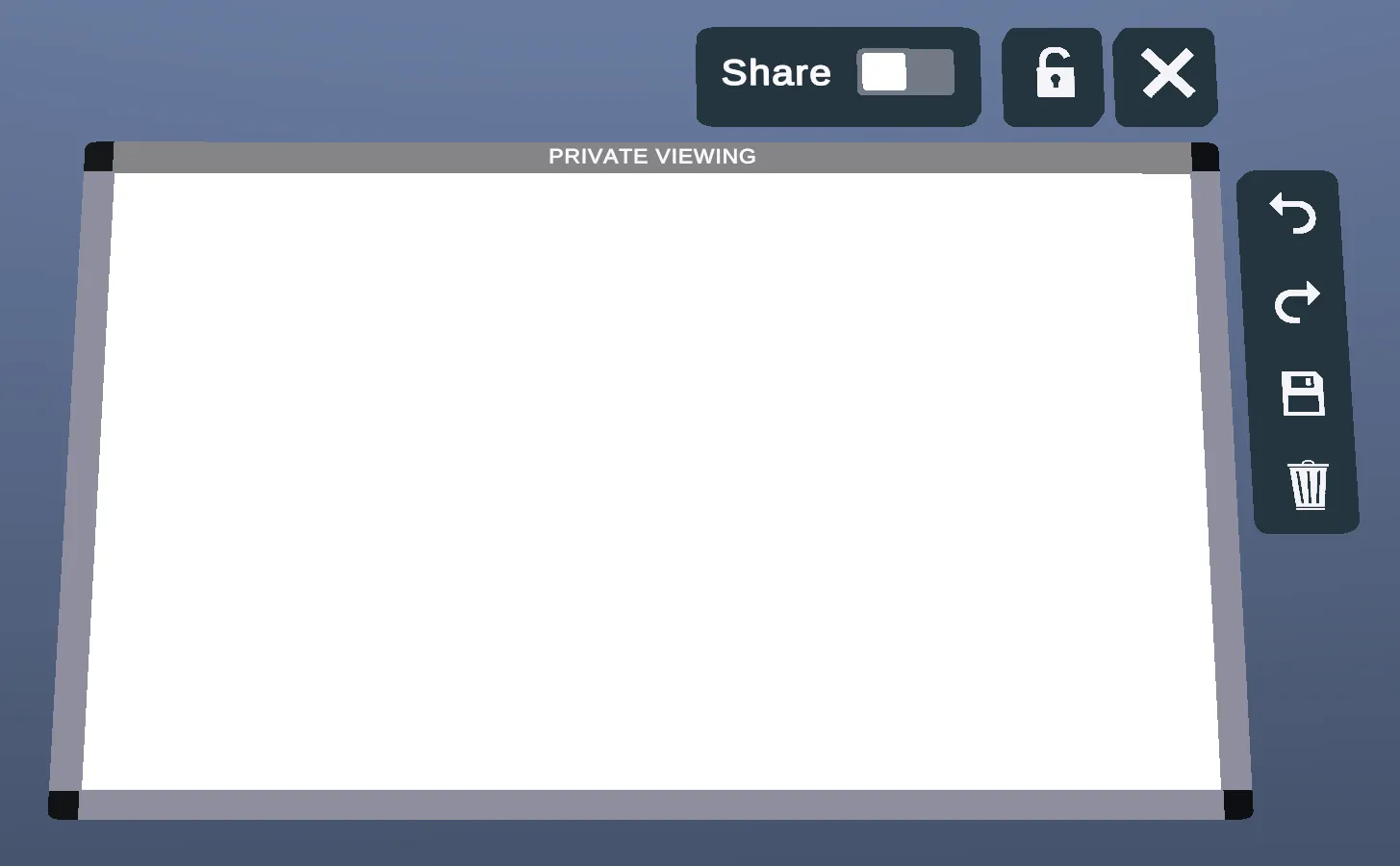
The Whiteboard tool puts a marker in your hand and brings up a whiteboard that you can draw/write on. Toggle the right joystick sideways (left/right) to switch between your marker and eraser. On the right of the whiteboard are Undo, Redo, Save, which saves your drawing as a PNG file, and a trash button.
- Shares the whiteboard with other users in your workspace.
- UndoUndoes the last change.
- RedoRedoes what Undo took back.
- SaveSaves your drawing as a PNG file.
- TrashClears the drawing.
In the left-hand menu, you can change the marker color and hide the whiteboard.
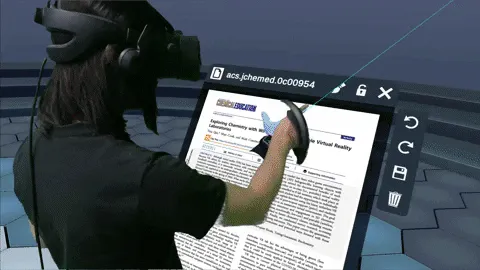
Additionally, you can use the marker to draw on PDFs or images that are loaded into the workspace.