

2D UI
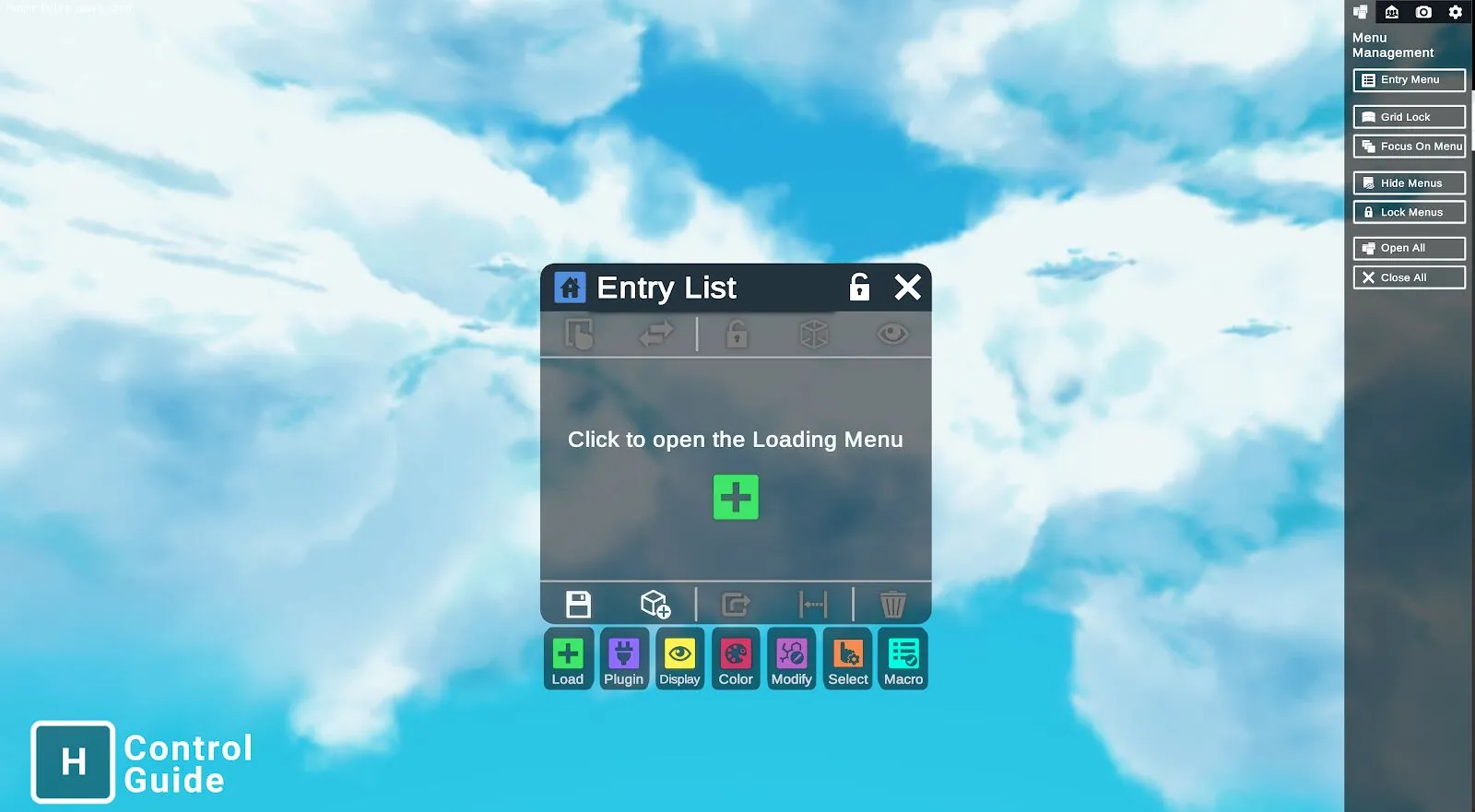
Nanome is accessible from a keyboard and mouse setup on a 2D monitor as well.
Room Tab
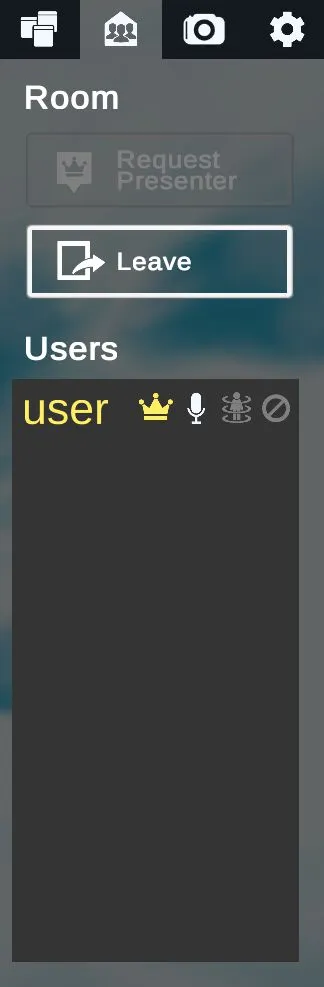
The Room tab lists the users in the room, and can request presenter privilege.
- Request PresenterAsks for presenter privilege.
- LeaveLeaves the room.
- UsersEveryone in the room.
Menu Management Tab
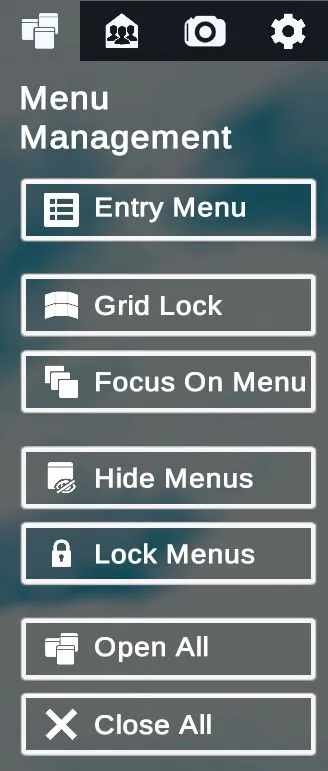
The Menu Management tab opens, closes and arranges menus.
- Entry MenuOpens the Entry Menu.
- Grid LockTurns Grid Lock on or off.
- Focus On MenuBrings a menu into focus.
- Hide MenusHides the menus.
- Lock MenusLocks the menus.
- Open AllOpens all the menus.
- Close AllCloses all the menus.
View Navigation Tab
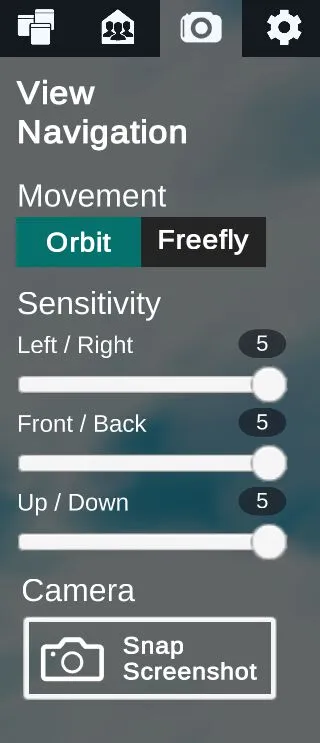
The View Navigation tab sets how the view moves.
- Orbit or Freefly.
- Left / Right, Front / Back and Up / Down.
- Snap ScreenshotTakes a screenshot.
Setting Tab
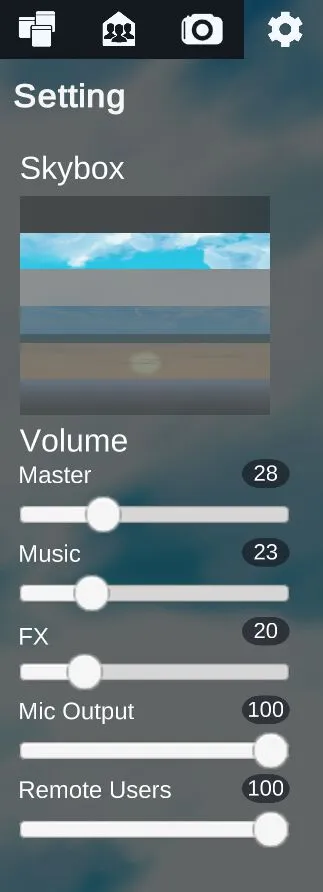
The Setting tab changes settings such as volume and the environment background.
- The environment background.
- MasterSets the master volume.
- MusicSets the music volume.
- FXSets the sound effects volume.
- Mic OutputSets the mic output volume.
- Remote UsersSets the volume of remote users.
Controls Tab
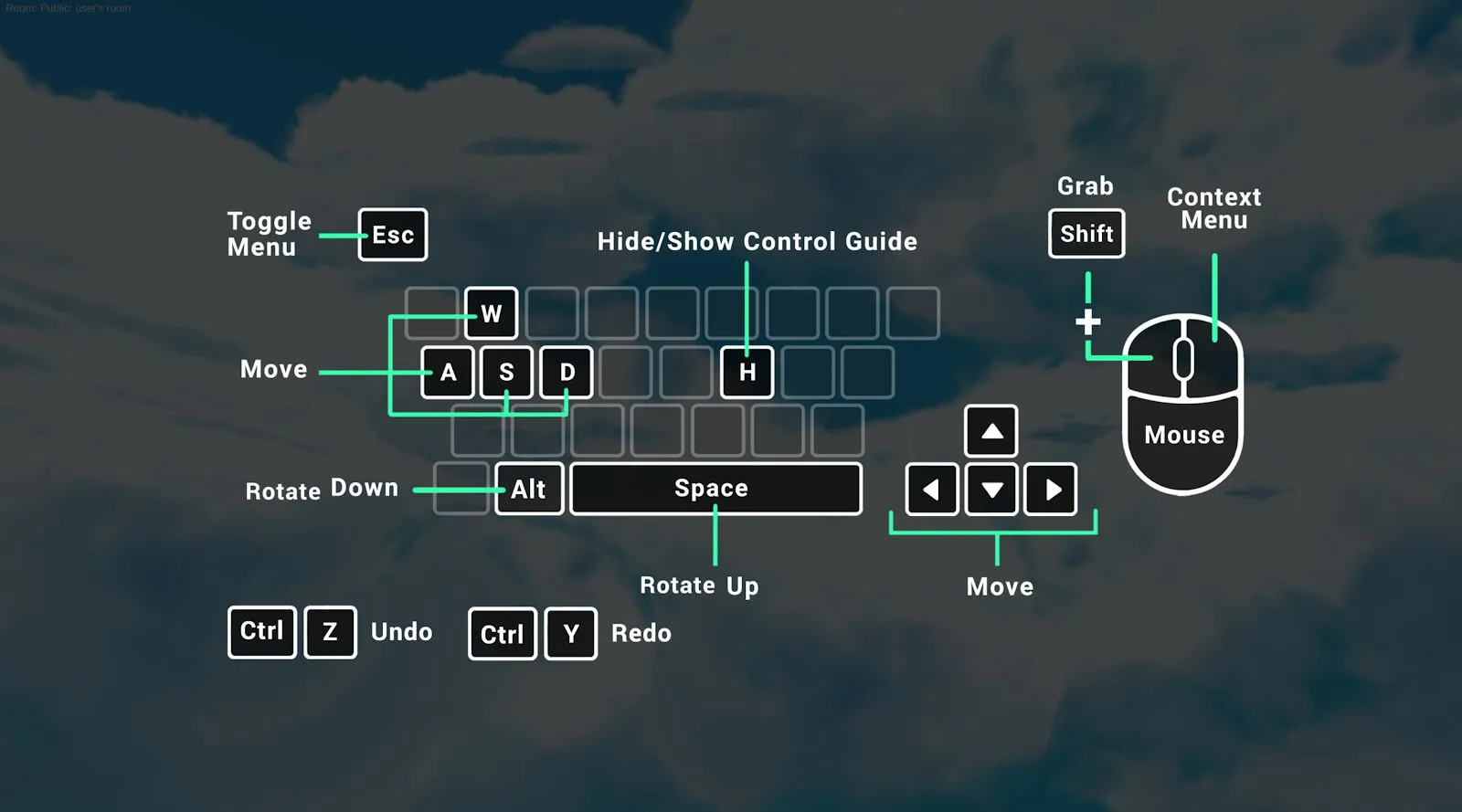
The control scheme can be accessed at any time by pressing the [H] key on the keyboard.
- Toggle Menu
- Move
- Hide/Show Control Guide
- Grab
- Context Menu
- Rotate Down
- Rotate Up
- Move
- Undo
- Redo
Nanome 2D Controller Bindings
Nanome also supports the use of a controller in 2D mode. See the 2D controller bindings.